What Julley Support is, where to find it, how to raise a support ticket, how to choose the correct category and module, how to track submitted tickets, and how to view updates from the Julley Support Team.
1. What Is Julley Support?
Julley Support is the in-application support area for raising issues or questions related to Julley SethuOS. Tickets raised here reach the Julley Support team directly and are responded to or resolved as required.Why use it?
The complete support request stays in one place, and the same dashboard keeps you informed about the current status of the ticket.
2. Where to Find Julley Support
Open your profile menu at the top-right of SethuOS and select Julley Support.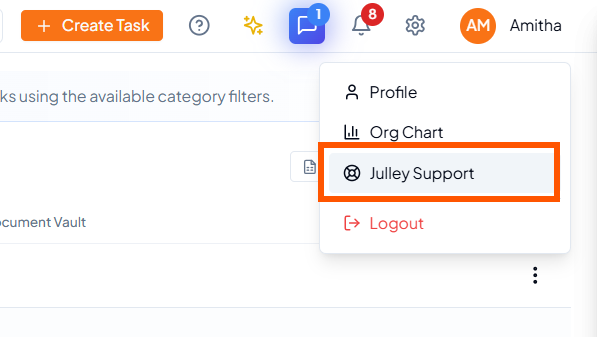 Open the profile menu and select Julley Support.
3. Raise a New Support Ticket
From the Julley Support dashboard, click New ticket to open the support-ticket form.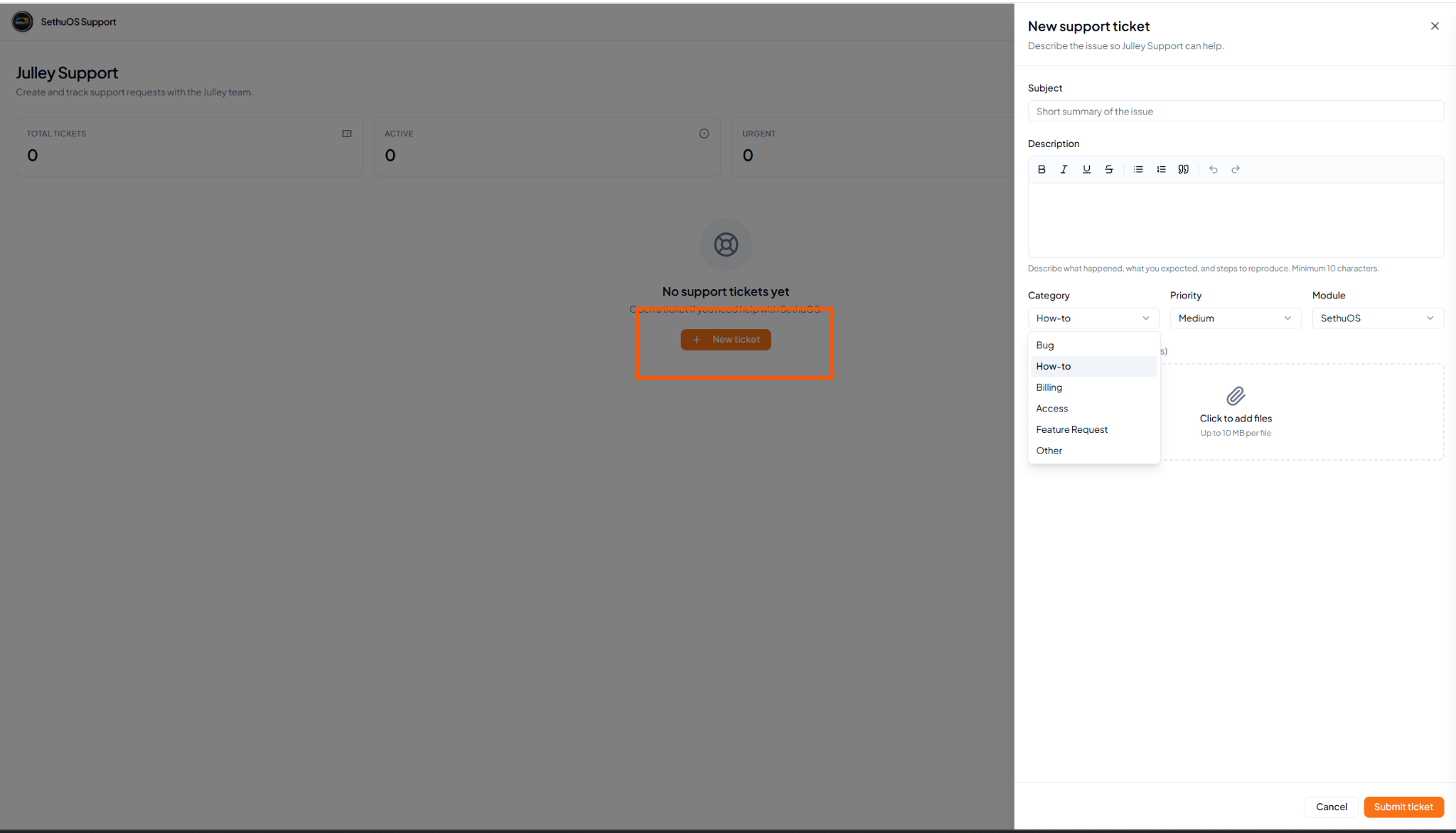 New ticket opens the support-ticket form.
1
Enter the subject
Add a short, one-line summary of the issue.
2
Describe the issue
Explain what happened and provide enough detail for the Julley
Support team to understand the request.
3
Choose category, priority and module
Classify the request so it can be routed and understood correctly.
4
Add supporting files
Attach screenshots or documents that help explain the issue, where
required.
5
Submit the ticket
Review the information and click Submit ticket.
4. Support Ticket Field Reference
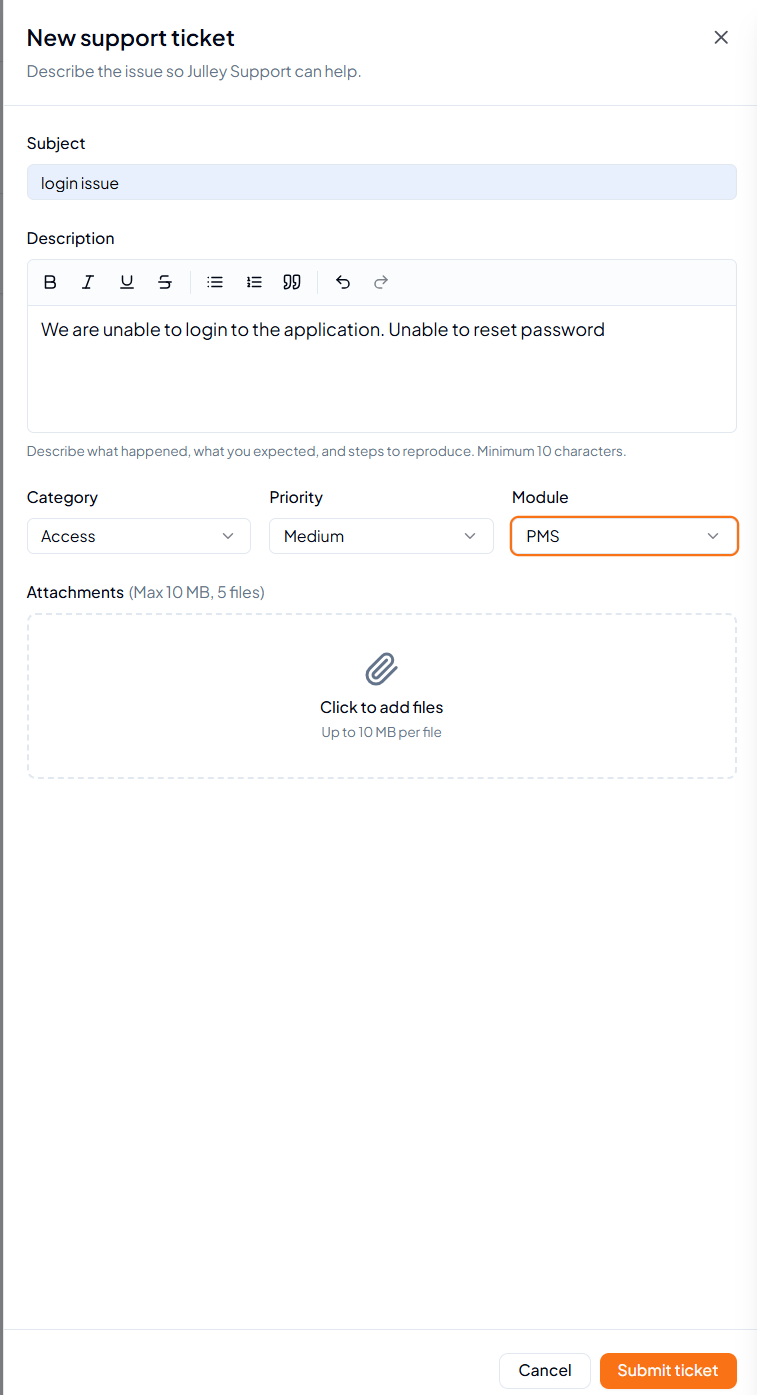 Example of a completed support-ticket form.
5. Types of Issues You Can Raise
6. How to Track the Status of a Ticket
Return to the Julley Support dashboard after submitting a ticket. The dashboard shows your raised tickets and their latest status.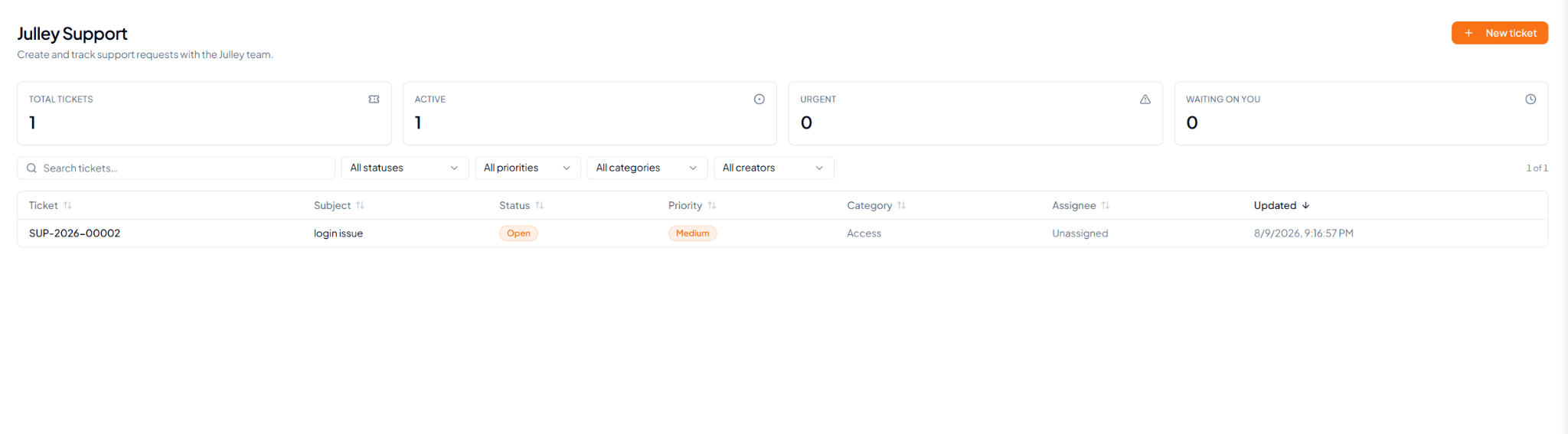 Julley Support dashboard showing ticket status and tracking
information.
Julley Support dashboard showing ticket status and tracking
information.
Use the search box and available filters to narrow tickets by
status, priority, category, or creator.
7. What Happens After You Raise a Ticket?
After a ticket is submitted, it reaches the Julley Support Team for review. The team checks the issue and posts an update against the same ticket with a solution, fix, workaround, or next step, as applicable.7.1 Receive a Notification
When the Julley Support Team posts an update, the user receives a SethuOS notification such as “New reply on your ticket”. Select the notification to open the relevant support ticket.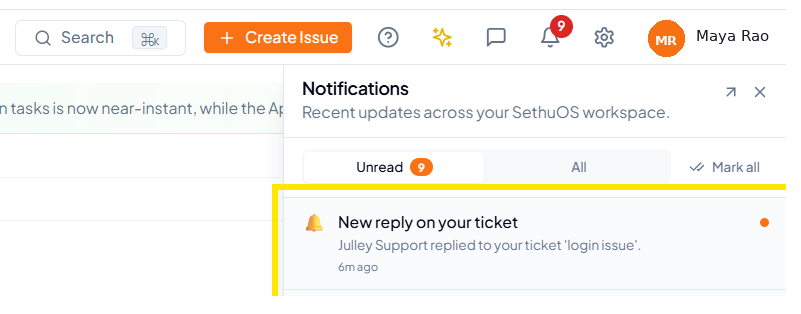 Notification received when the Julley Support Team posts an update.
7.2 View the Support Team Update
Selecting the notification takes the user to the Julley Support ticket page. The latest response from the Support Team is displayed against the same ticket, together with the original request and the current ticket status.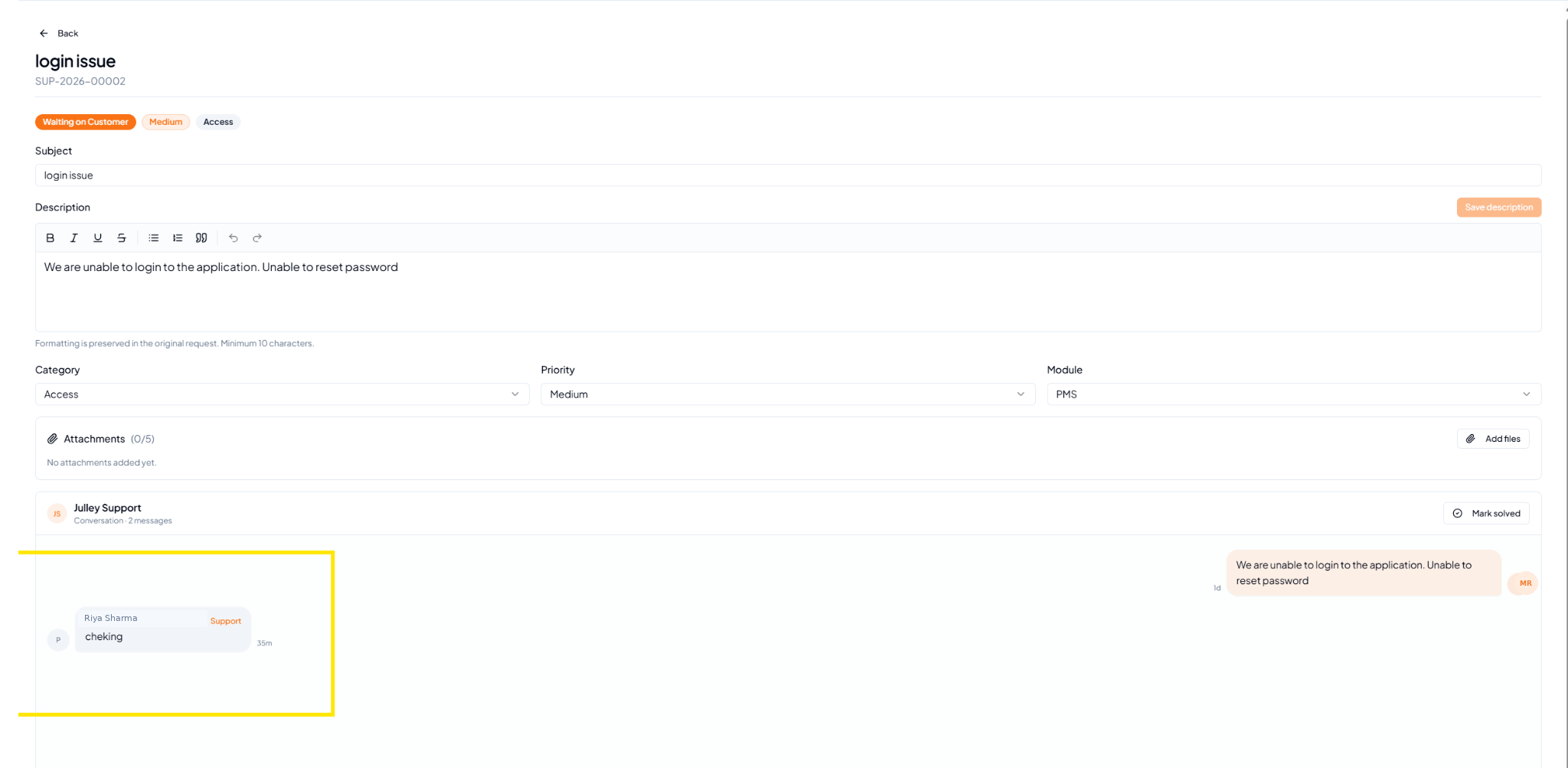 Latest Julley Support update displayed against the submitted ticket.
7.3 Support Update Flow
8. Before You Submit a Ticket
- The subject clearly summarizes the issue.
- The description explains what happened and gives enough context.
- The correct category, priority and module are selected.
- Relevant screenshots or documents are attached where useful.
- The ticket details have been reviewed before submission.