
Where approval requests are received, how an Approval Line is selected, how a task is sent for approval, and how an approver approves or rejects the request.
1. Where to Find Approval Requests
Approval requests are available from My Tasks → Approvals. The number shown beside Approvals indicates requests waiting for action. My Tasks → Approvals.
2. When Is an Approval Request Created?
1
Approval Line is defined
While creating the task, choose None, Reporter Approval or Direct
Approver.
2
Task work is completed
The task owner completes the required work and adds the comments or
attachments needed for review.
3
Task is sent for approval
The task owner changes the status to Approval Required. The request
is then sent to the configured approval line.
3. Select the Approval Line While Creating a Task
Use the Approval Line field in the Create New Task form to define whether the task needs approval before closure.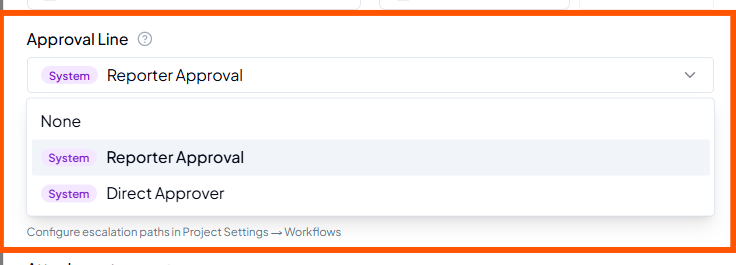 Approval Line options in the Create New Task form.
System behaviour
As described in the current workflow, if the configured approver and the Reporter are the same person, the task is auto-approved.
4. Send a Completed Task for Approval
Before requesting approval, add all required work details, comments and supporting attachments. Then change the task status to Approval Required.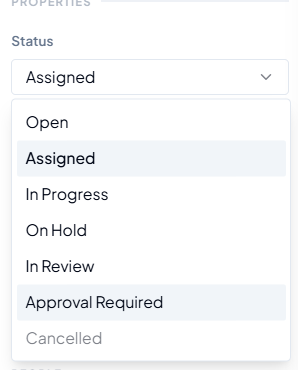 Status → Approval Required.
1
Complete the work
Finish the task and ensure the expected output is ready.
2
Add review evidence
Add the comments, notes and attachments needed for review.
3
Choose Approval Required
Open Status and select Approval Required.
4
Approval is triggered
The request is sent to the approver defined in the Approval Line.
5. View Pending Approvals
Open My Tasks → Approvals → Pending to view approval requests awaiting your action.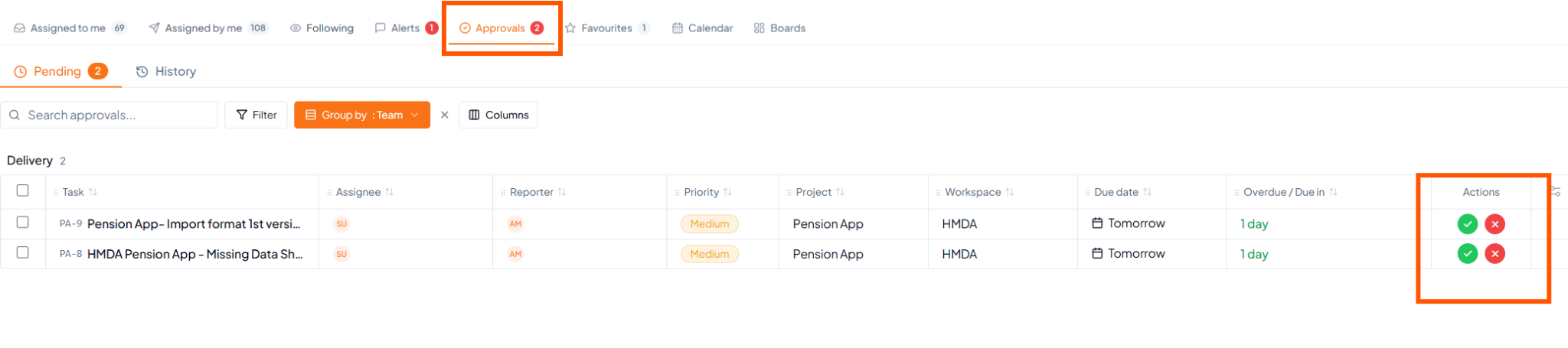 Pending approval requests and Approve/Reject actions.
6. Approve a Request
1
Review the task
Review the task details, comments and attachments provided for
approval.
2
Approve
Click the green ✓ action for the required request.
3
Task closes
Once approval is given, the approved task is closed.
7. Reject a Request
If further action is required before the task can be closed, select the red ✕ action. Enter a reason for rejection; comments can be added when additional explanation is useful.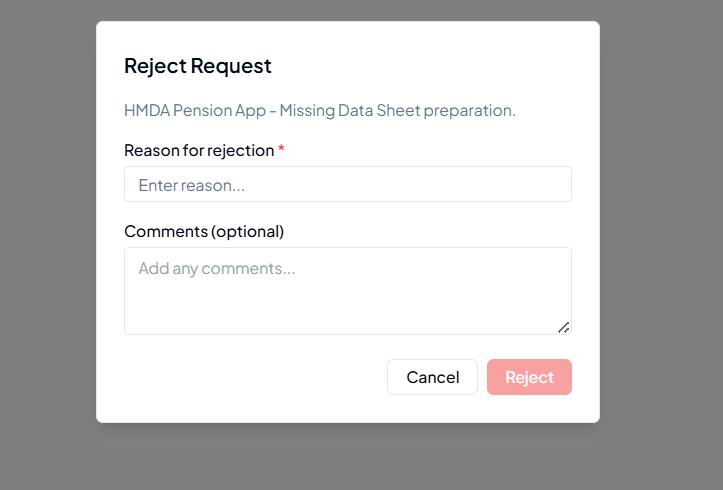 Rejection requires a reason; comments are optional.
1
Reject
Click the red ✕ action for the approval request.
2
Enter the reason
Provide the reason for rejection so the task owner understands what
must be corrected.
3
Task owner takes action
The task owner receives the rejection reason, performs the required
changes and updates the task.
4
Resend for approval
After corrections are complete, set the task to Approval Required
again to send a new approval request.
8. Approval Lifecycle
9. Before Sending or Responding to an Approval
- The correct Approval Line was selected for the task.
- All required work is complete before requesting approval.
- Relevant comments and supporting attachments are added.
- The approver has enough information to make a decision.
- If rejected, the rejection reason has been addressed before resubmitting.