
A Favourite is a personal marker you put on a task, project, or workspace you need to revisit often, so you can return to it directly instead of navigating or searching for it each time.
1. What Are Favourites?
Favourites let you mark tasks, projects or workspaces that are important, critical or frequently accessed. Instead of searching or navigating through multiple levels each time, you can keep these items available as quick-access points.Why this is helpful
Use Favourites for work you need to revisit often — for example, a P1 task that must be completed by the end of the week, or a critical project/workspace that you monitor frequently.
2. Where to View Favourite Tasks
Open My Tasks → Favourites to see the tasks you have marked as favourites in one consolidated list. My Tasks → Favourites provides a consolidated view of favourite
tasks.
My Tasks → Favourites provides a consolidated view of favourite
tasks.
3. Add a Task to Favourites
Open the required task. The star icon is available in the top-right action area of the task.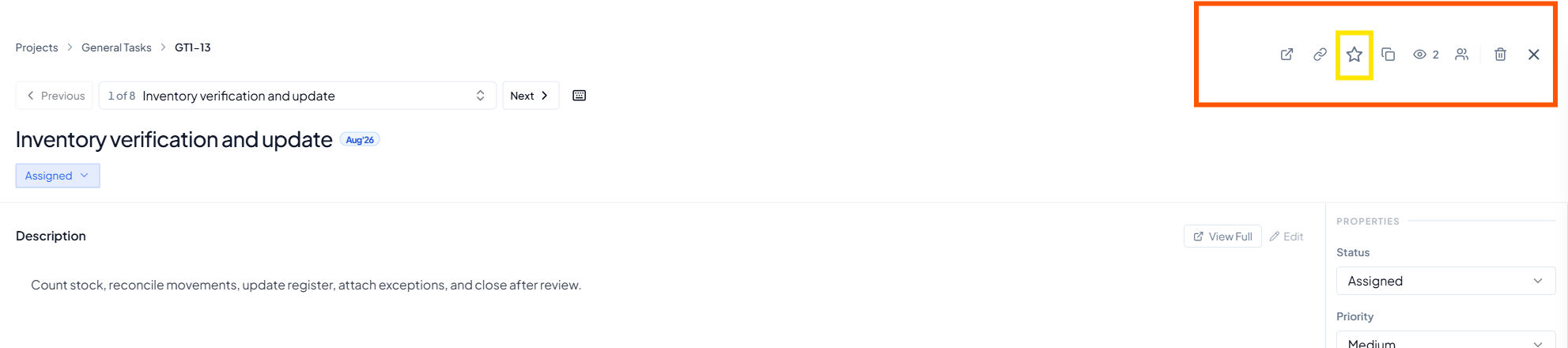 Star icon in the top-right of a task.
Open the task
Click the star icon
Open My Tasks → Favourites
Example use case
A P1 task must be completed by the end of the week. Mark it as a favourite so you can open it quickly throughout the week to review progress and add updates.
4. Add a Project to Favourites
A project can also be marked as a favourite. Use the star beside the project name when you want faster access to a project you visit regularly.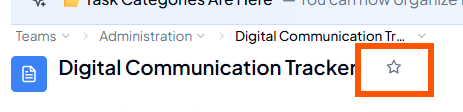 Star icon beside a project name.
Open the project
Click the star
Use it as a quick-access project
5. Add a Workspace to Favourites
Workspaces can also be favourited. Select the star beside the workspace name when a workspace is important or needs frequent monitoring.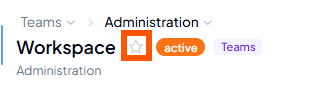 Star icon beside a workspace name.
Example use case
If one workspace or project contains critical work that you review frequently, marking it as a favourite gives you a quick-access point and reduces repeated navigation.