
1. How to Track the Status of a Ticket
Return to the Julley Support dashboard after submitting a ticket. The dashboard shows your raised tickets and their latest status.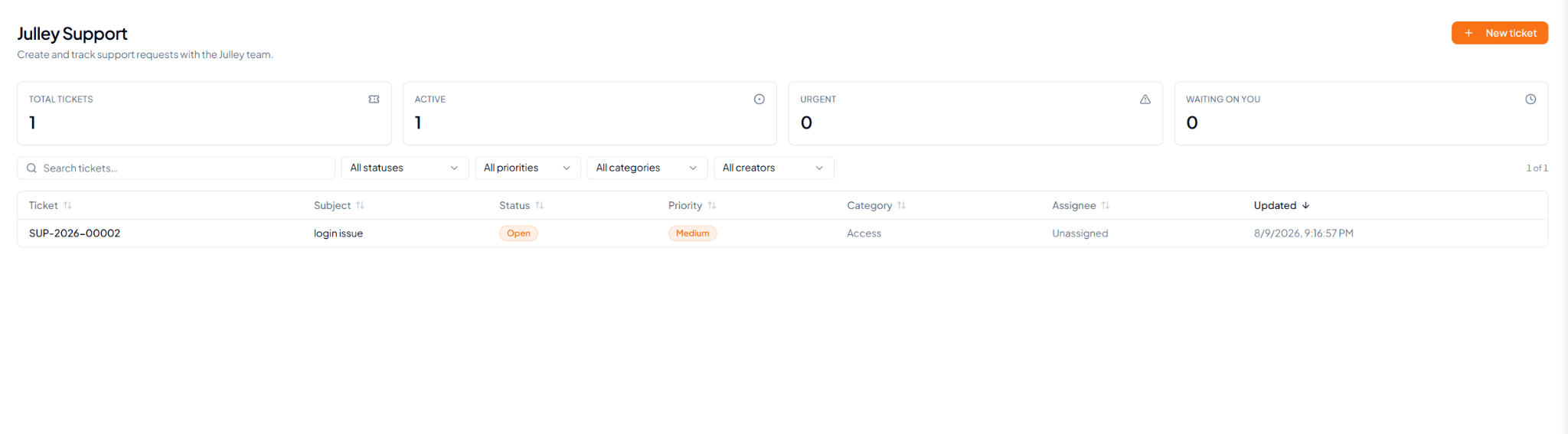 Julley Support dashboard showing ticket status and tracking
information.
Julley Support dashboard showing ticket status and tracking
information.
Use the search box and available filters to narrow tickets by
status, priority, category, or creator.
2. What Happens After You Raise a Ticket?
After a ticket is submitted, it reaches the Julley Support Team for review. The team checks the issue and posts an update against the same ticket with a solution, fix, workaround, or next step, as applicable.2.1 Receive a Notification
When the Julley Support Team posts an update, the user receives a SethuOS notification such as “New reply on your ticket”. Select the notification to open the relevant support ticket.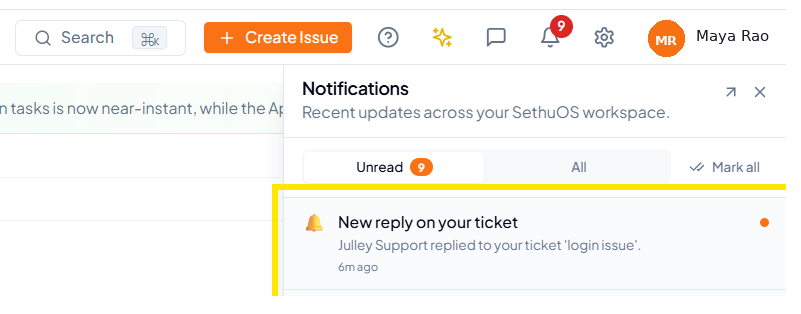 Notification received when the Julley Support Team posts an update.
2.2 View the Support Team Update
Selecting the notification takes the user to the Julley Support ticket page. The latest response from the Support Team is displayed against the same ticket, together with the original request and the current ticket status.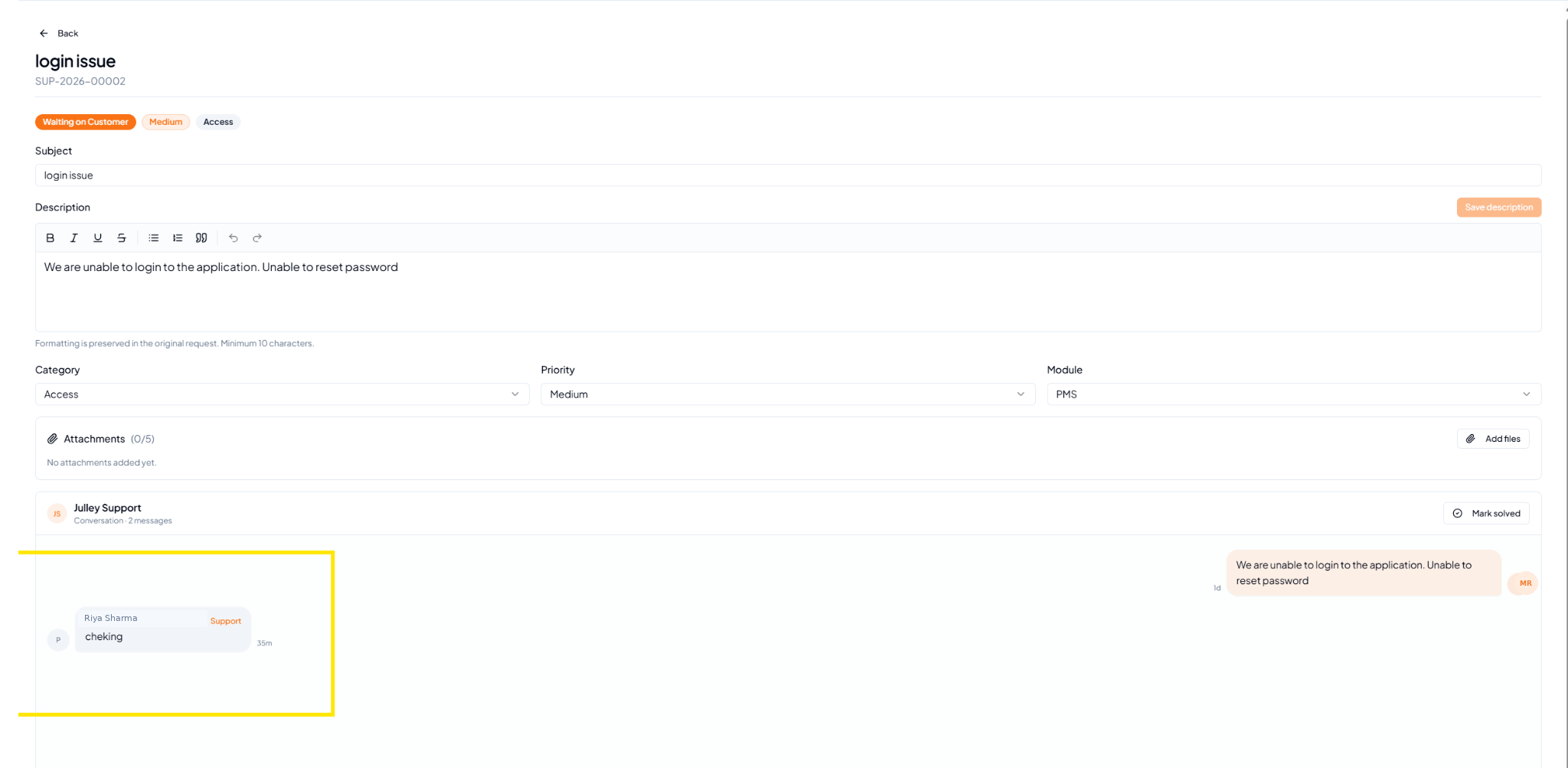 Latest Julley Support update displayed against the submitted ticket.
2.3 Support Update Flow
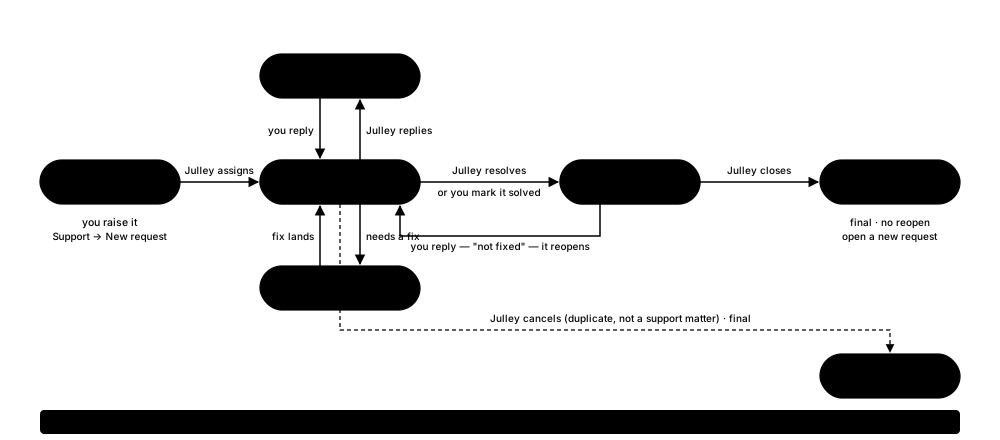 Ticket updates flow one way — replying reopens the ticket, but there’s no live back-and-forth chat.
3. Before You Submit a Ticket
- The subject clearly summarizes the issue.
- The description explains what happened and gives enough context.
- The correct category, priority and module are selected.
- Relevant screenshots or documents are attached where useful.
- The ticket details have been reviewed before submission.