
How to use the My Tasks page to review tasks assigned to you, tasks assigned by you, followed tasks and activity alerts; and how to search, filter, group and configure columns.
1. What Is the My Tasks Page?
My Tasks is the consolidated list view for task-related work across projects. It helps you review ownership, follow-up items and task activity from one page. My Tasks consolidated list view and navigation tabs.
2. Choose What You Want to View
3. Search and Filter Tasks
Use the search box to find a task by text. Use Filter to narrow the list using task details such as status, priority, task type, requirement type, reporter, follower, activity, recurrence or comments.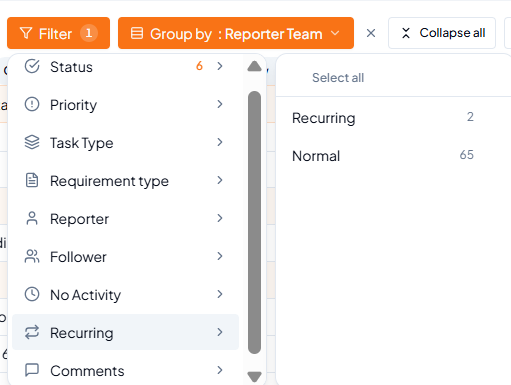 Filter menu with available task criteria.
4. Apply and Review Filters
1
Open the required tab
Select Assigned to me, Assigned by me, Following or Alerts based on
what you need to review.
2
Click Filter
Choose the relevant filter category and select the required value.
3
Review active filter chips
Applied filters and statuses appear above the task list as chips.
4
Clear filters when finished
Remove individual chips or use Clear all to return to a broader
view.
Remember
More than one filter can be active at the same time. If a task is not visible, first review the active filter chips.
5. Group Tasks for Easier Review
Use Group by to organize all tasks in the selected tab into meaningful sections. Select Reporter Team to review tasks department-wise based on the team of the reporter.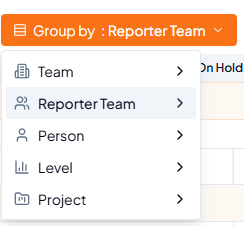 Grouping options available on the My Tasks page.
6. Configure the Columns You Need
Click Columns to choose the information displayed in the task list. Select a checkbox to show a column, clear it to hide the column, and adjust the order by dragging or using the available arrow controls.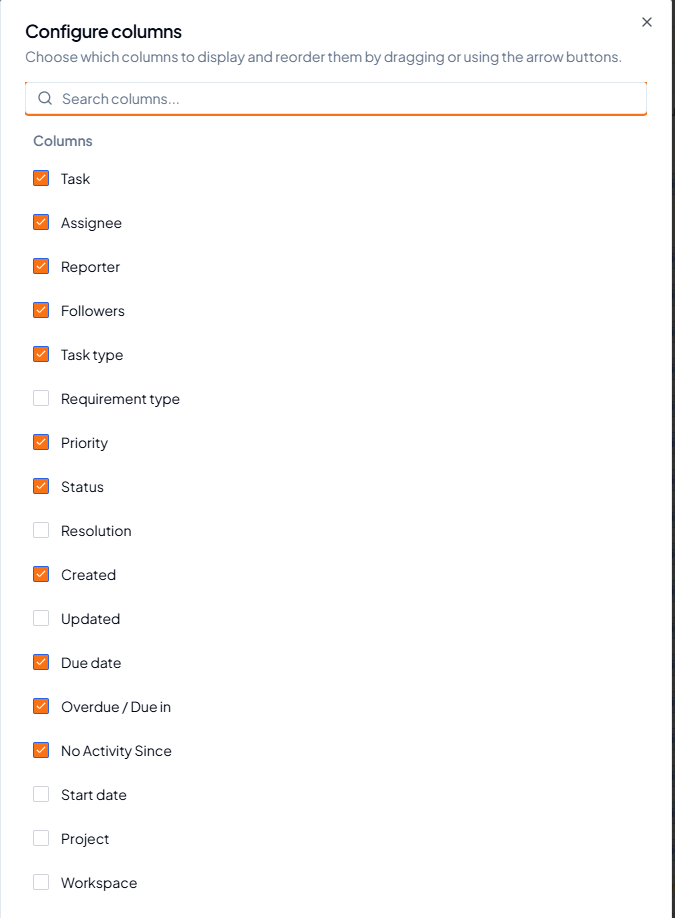 Configure columns by selecting, clearing and reordering fields.
7. Common Column Choices
8. Recommended Daily Workflow
1
Start with Assigned to me
Review the tasks you own and identify urgent or overdue items.
2
Check Alerts
Review tasks with new comments or activity that may need a
response.
3
Review Assigned by me
Follow up on work delegated to other users.
4
Use filters and grouping
Narrow the list and group it by department, person or project as
required.
5
Adjust columns
Keep only the fields needed for the current review.
9. Before You Review the List
- The correct My Tasks tab is selected
- The active filters match the purpose of the review
- The required grouping option is applied
- The columns needed for the review are visible
- Unnecessary filters are cleared after the review