
What a task is, the two ways to create one, how project selection works, what each field means and what to check before creating the task.
Prefer to watch?
Watch the video for this guide (1:56)
1. What is a Task?
A Task is the smallest unit of work assigned to one or more people. Create a task for every piece of work so that:- Work is clearly tracked and does not get missed.
- Responsibility for the work is clear.
- There is a history of the work performed and updates made.
2. Two Ways to Start a Task
The application has one global Create Task button at the top-right. The same button is used from every page. Global Create Task button at the top-right of the application.
 New Task button at the top-right of the application.
3. Create New Task Form
Complete the form shown below. Fields marked with an asterisk (*) are mandatory in the application.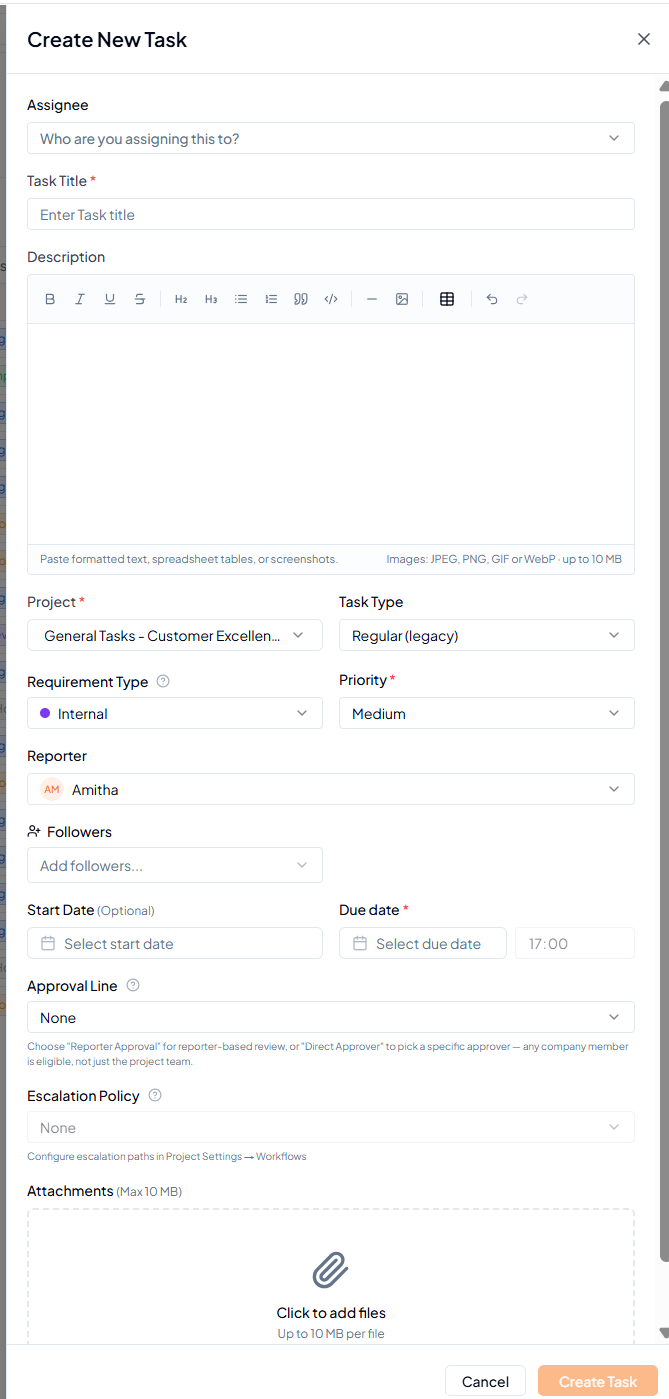 Create New Task form.
4. Field Reference
 Who does what on a task — Reporter, Assignee, Followers, and Approvers.
5. Create the Task
1
Click Create Task
Use the single global button at the top-right.
2
Select or verify the project
For global creation, select the Project manually. Inside a Project,
verify the auto-filled Project.
3
Enter task details
Complete the title, description, assignee, priority, due date and
any project-specific fields.
4
Review and submit
Confirm the information and click Create Task.
6. Write a Clear Task
7. Before You Click Create Task
- The correct project is selected
- The task has a clear owner
- The title explains the required action
- The description provides enough context
- The priority and due date are appropriate
- Required followers, approval and attachments are included