
How to find and open an existing task, edit its title and description, add comments, and review its activity and worklog.
Task Details and Discussion
Watch the video (2:00)
Editing and Updating Task Details
Watch the video (1:52)
Who can access a task
Once a task is created, the Assignee or Reporter can access it from My Tasks or from the relevant Project space.
1. Where to Find and Open a Task
Open the task from My Tasks or the relevant Project space to view and update its details.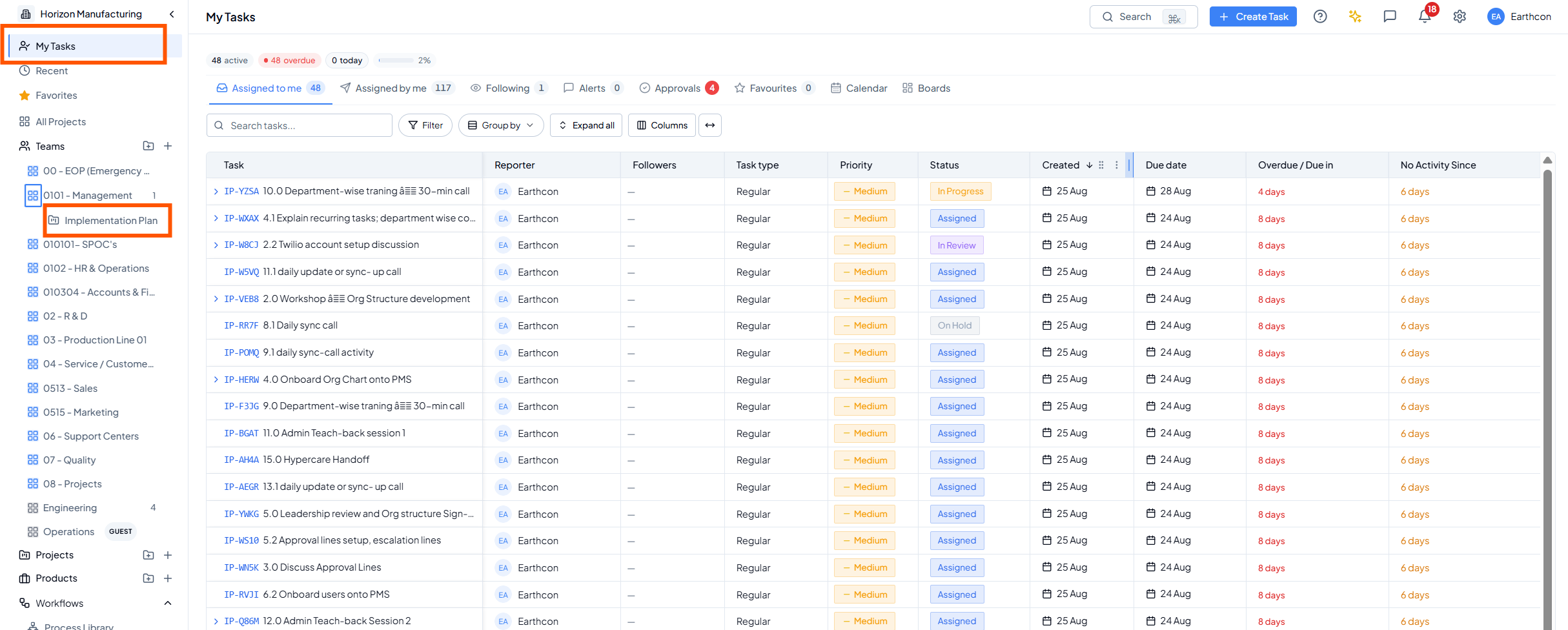 Open a task from My Tasks or the relevant Project space.
2. Task Title and Task Description
Task information can be updated after creation. Edit the task whenever ownership, dates, description or other details change.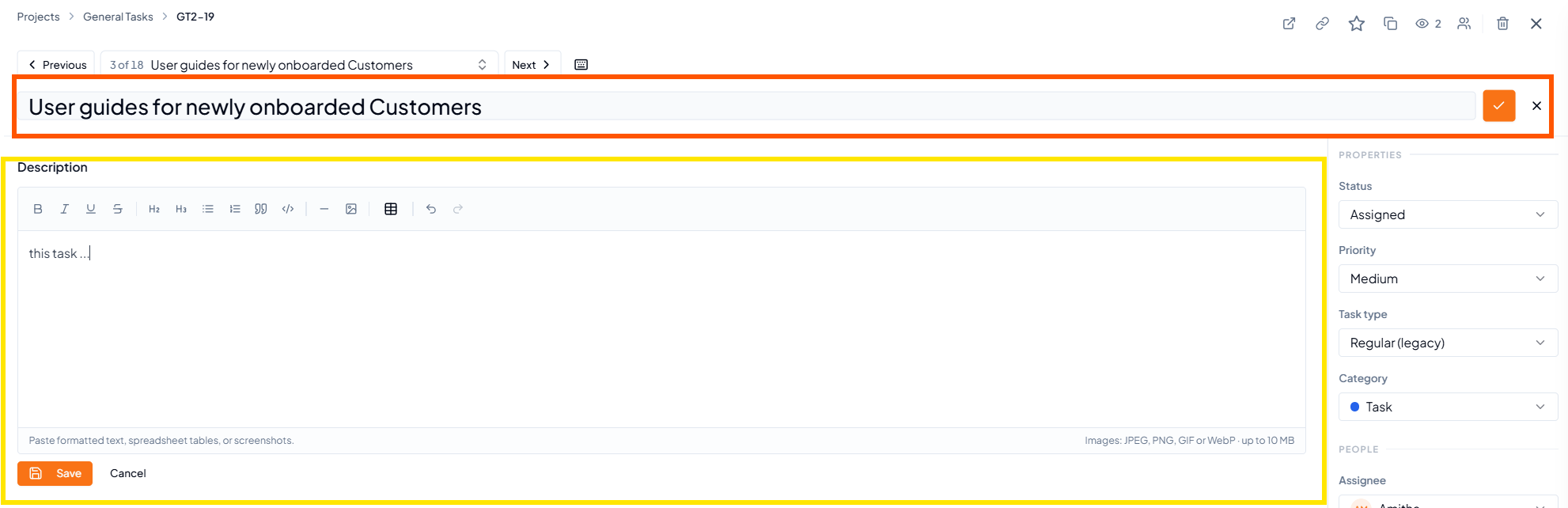 Editing the task title and description; task properties remain
available on the right.
Editing the task title and description; task properties remain
available on the right.
Watch: Editing and Updating Task Details
in the Video Gallery — updating a task’s fields, status, assignees and
other details after it’s created.
3. Adding Comments
Use Comments for updates, questions, clarifications and decisions related to the task. Enter the message and click Post.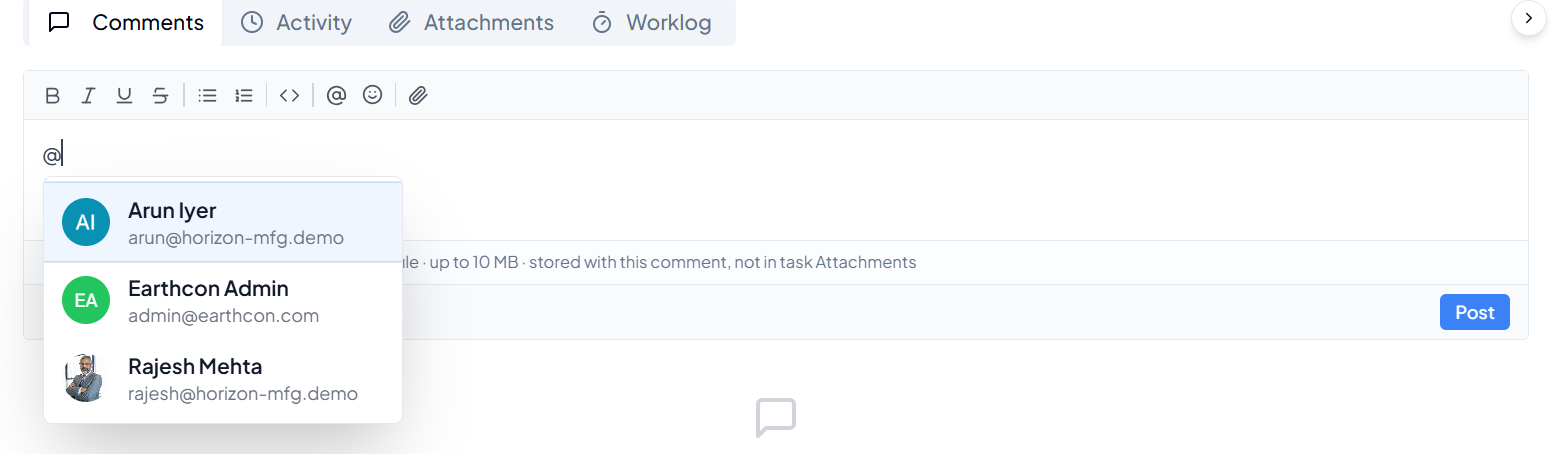 Use @ in a comment to select and mention a specific person.
1
Write the update
Add the progress update, question or information in the Comments
box.
2
Mention a person when required
Type @ and select the relevant person to specifically bring the
comment to their attention.
3
Post the comment
Click Post to add the comment to the task discussion.
4. Activity and Worklog
Why Activity is useful
Activity gives you a chronological view of what happened on the task, making it easier to understand its sequence of updates and actions.