
1. What Is a Dependency
A dependency links the current task to another existing task when the two pieces of work must follow a specific sequence. It helps the system and users understand what must happen first and prevents dependent work from moving ahead or being closed before the required linked-task state is reached.- Link related tasks instead of tracking the sequence manually.
- Show when a task is waiting on another task and should be treated as blocked.
- Control whether the current task can start or finish based on the state of the linked task.
- Keep the dependency visible inside the task so it can be reviewed, edited, or removed later.
Simple example
Task B - Leadership review depends on Task A - Onboard Org Chart onto Operator. Task A is the task that comes first. The dependency rule decides when Task B is allowed to start or finish.
2. Key Terms
3. How a Dependency Controls Task States
Dependencies are evaluated using the states of the two linked tasks. The selected dependency type determines whether the current task is waiting for the linked task to start or to finish.Understanding “start” and “finish”
Status names may vary by project. In this guide, started means the linked task has moved into an active state such as In Progress. Finished means the linked task has reached a completed/closed state.
4. Add a Dependency
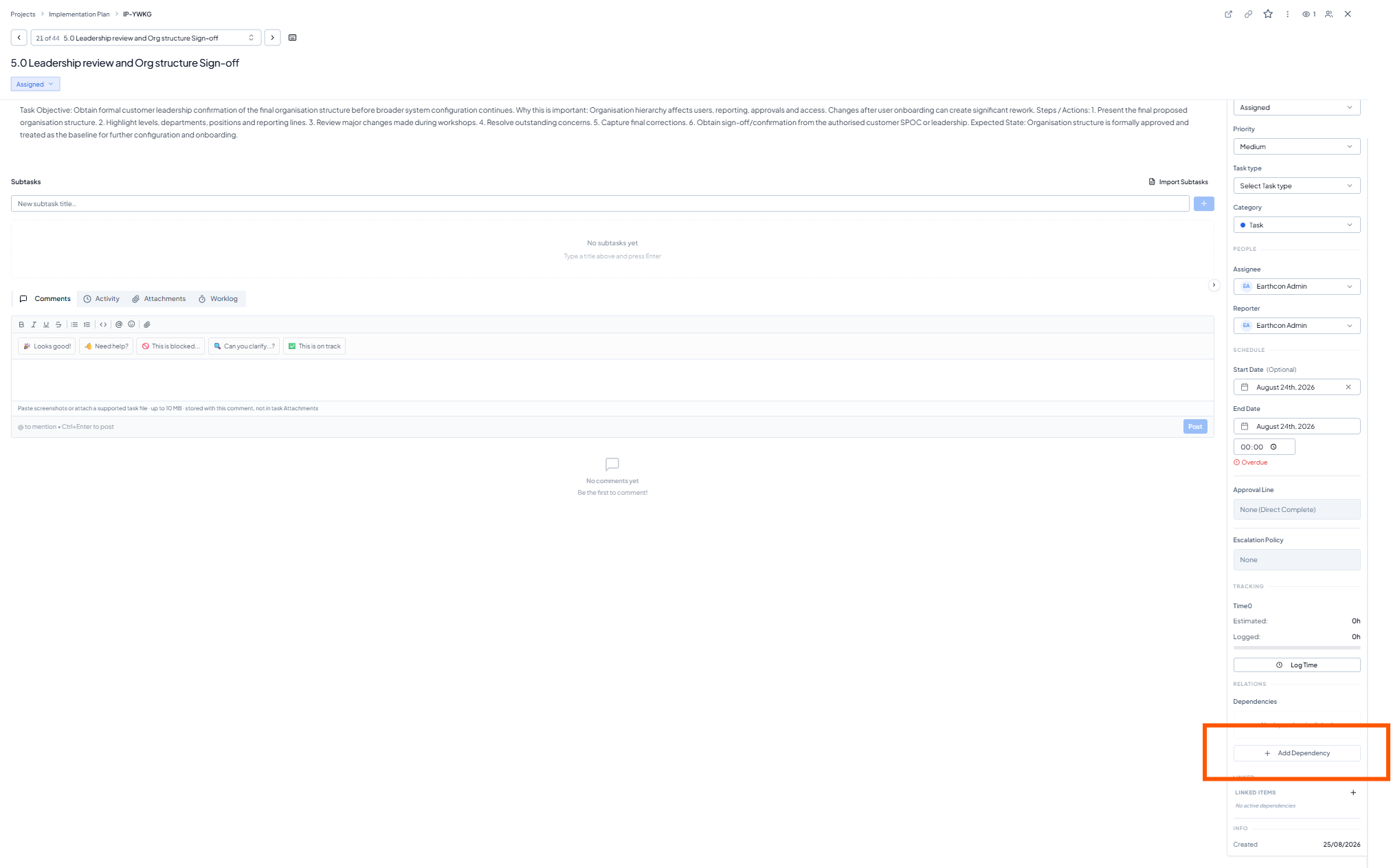 Open the task and select Add Dependency from the Relations section.
Open the current task
Go to Relations
Click Add Dependency
Choose the linked task and rule
5. Choose the Task That Comes First (Predecessor)
The field is named Predecessor in the application. For everyday use, read this as: the task that should happen first or the task this current task depends on.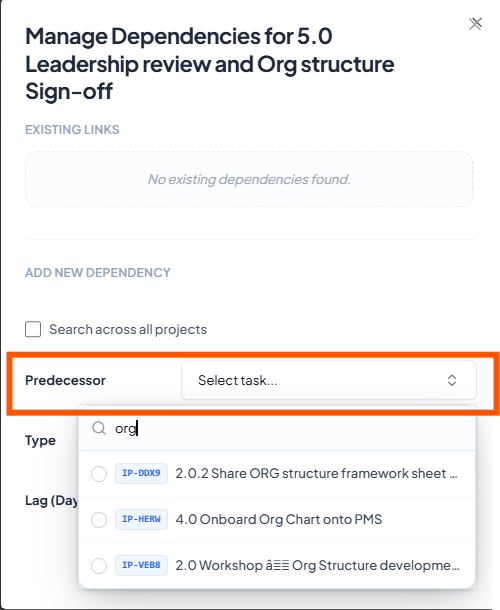 Search and select the existing task that should come first.
Predecessor - user-friendly meaning
Do not think of this as a technical project-management term. Simply select the existing task whose start or completion should control the current task.
6. Select the Dependency Type
After selecting the linked task, choose Type. The type defines what state the linked task must reach before the current task is allowed to start or finish.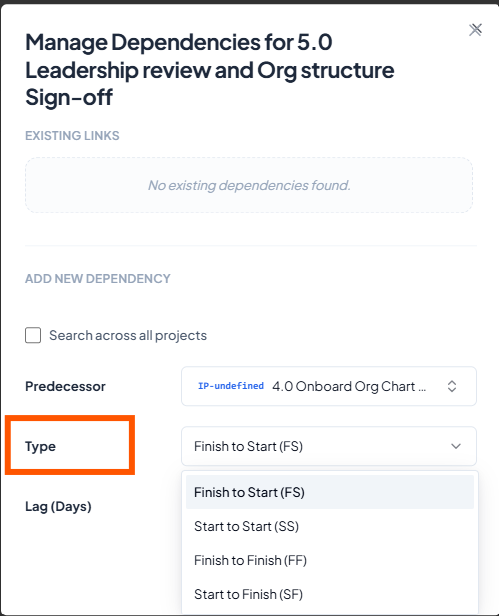 Choose Finish to Start, Start to Start, Finish to Finish, or Start to
Finish.
Choose Finish to Start, Start to Start, Finish to Finish, or Start to
Finish.
7. Dependency Types Explained
Use the table below to decide which rule matches the real work sequence. The “current task” is the task you are viewing; the “linked task” is the selected predecessor.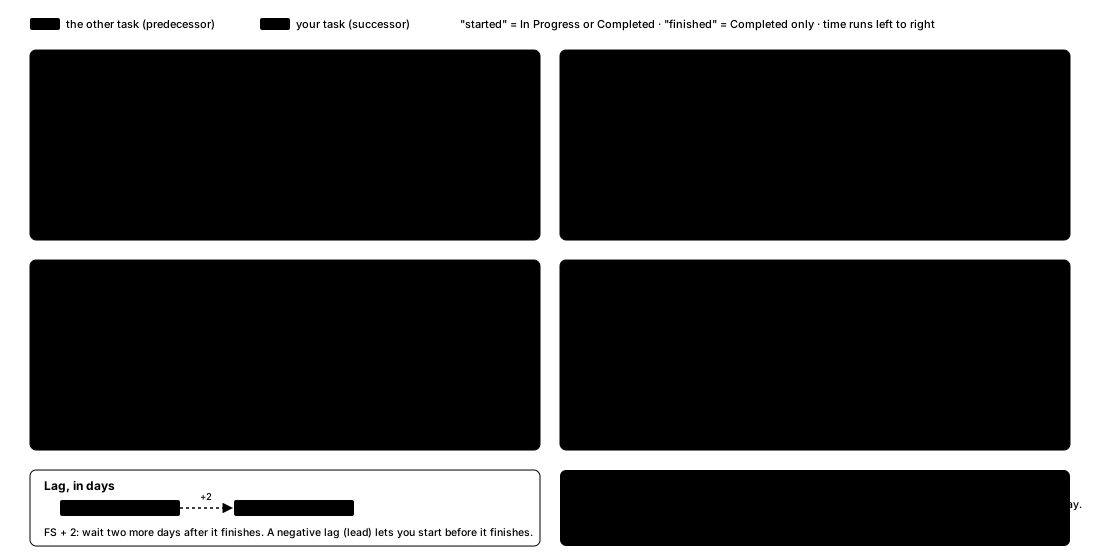 The four dependency types — Finish-to-Start, Start-to-Start, Finish-to-Finish, Start-to-Finish — and how lag shifts them.
8. Lag (Days)
Lag is an optional waiting period added to the dependency rule. Enter 0 when no extra waiting time is required.9. What Happens After a Dependency Is Added
After saving, the dependency becomes visible in the task and the system can show the task as blocked when the dependency condition is not yet satisfied.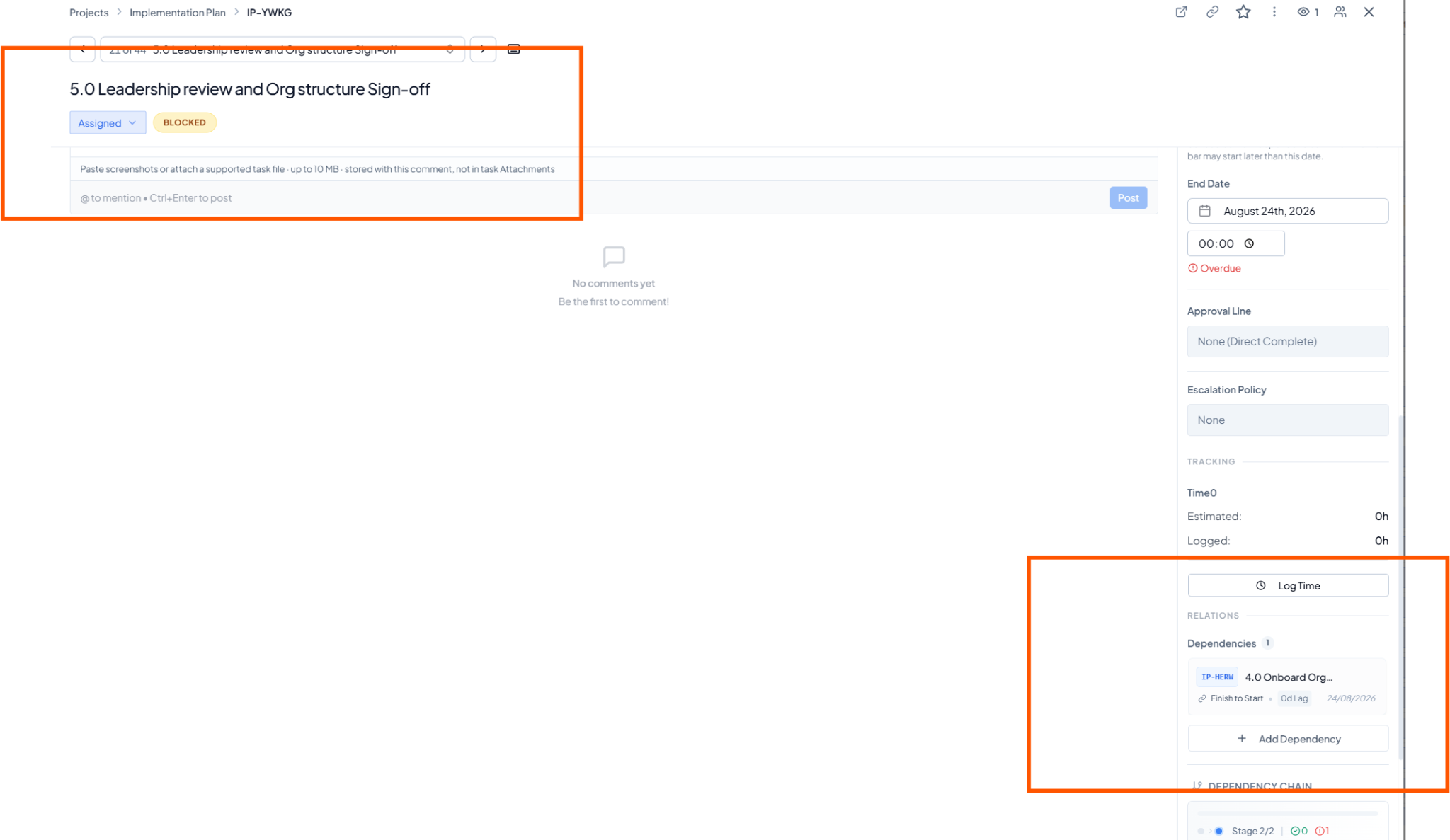 The current task shows BLOCKED while the linked dependency is visible
under Relations.
Under Relations > Dependencies, the dependency card shows the
linked task, dependency type, lag and related date. This gives users a
quick explanation for why the current task may be waiting.
The current task shows BLOCKED while the linked dependency is visible
under Relations.
Under Relations > Dependencies, the dependency card shows the
linked task, dependency type, lag and related date. This gives users a
quick explanation for why the current task may be waiting.
What BLOCKED means
Blocked does not mean the task has failed. It means the dependency rule is not yet satisfied. Review the linked task and its state before trying to move the current task forward.
10. View, Edit or Remove an Existing Dependency
Open Manage Dependencies again to review the Existing Links section. From here you can edit the dependency, change the linked task, change Type or Lag, update the dependency, or remove a link that is no longer required.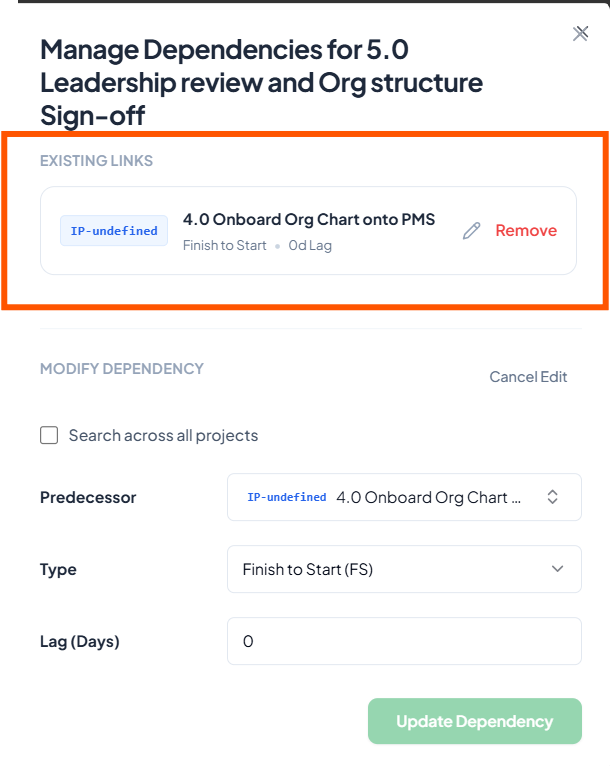 Existing Links can be reviewed, edited, updated, or removed.
11. Dependency Types at a Glance
12. Before You Add a Dependency
- The current task is the correct task to be controlled by the dependency.
- The selected predecessor is truly the task that should happen first.
- The dependency type matches whether the current task should wait to start or wait to finish.
- Lag is 0 unless a real waiting period is required.
- Search across all projects is used only when the linked task is outside the current project.
- The dependency is reviewed after saving to confirm the correct task, type and lag are displayed.