
Prefer to watch?
Watch the video for this guide (1:26)
1. Attachments
Use Attachments to keep supporting files available with the task so the people working on it can access the same reference material.1.1 Attachment Details
1.2 If an Attachment Is Not Accepted
If a file cannot be attached, check that it is a supported file type and that the file is within the displayed 10 MB limit.2. Adding Subtasks
A subtask is a smaller activity that needs to be completed as part of finishing the parent task. Subtasks can be added one at a time or imported in bulk.2.1 Why Are Subtasks Needed?
- Break a larger task into smaller, manageable activities.
- Clearly identify the individual activities required to complete the parent task.
- Assign different activities to different team members, where required.
- Track the progress of each activity separately.
- Make sure important steps are not missed before the parent task is completed.
- Keep related work connected to the main task instead of creating separate, unrelated tasks.
2.2 Create a Subtask
 Add one subtask using the + button or use Import Subtasks for bulk
creation.
Add one subtask using the + button or use Import Subtasks for bulk
creation.
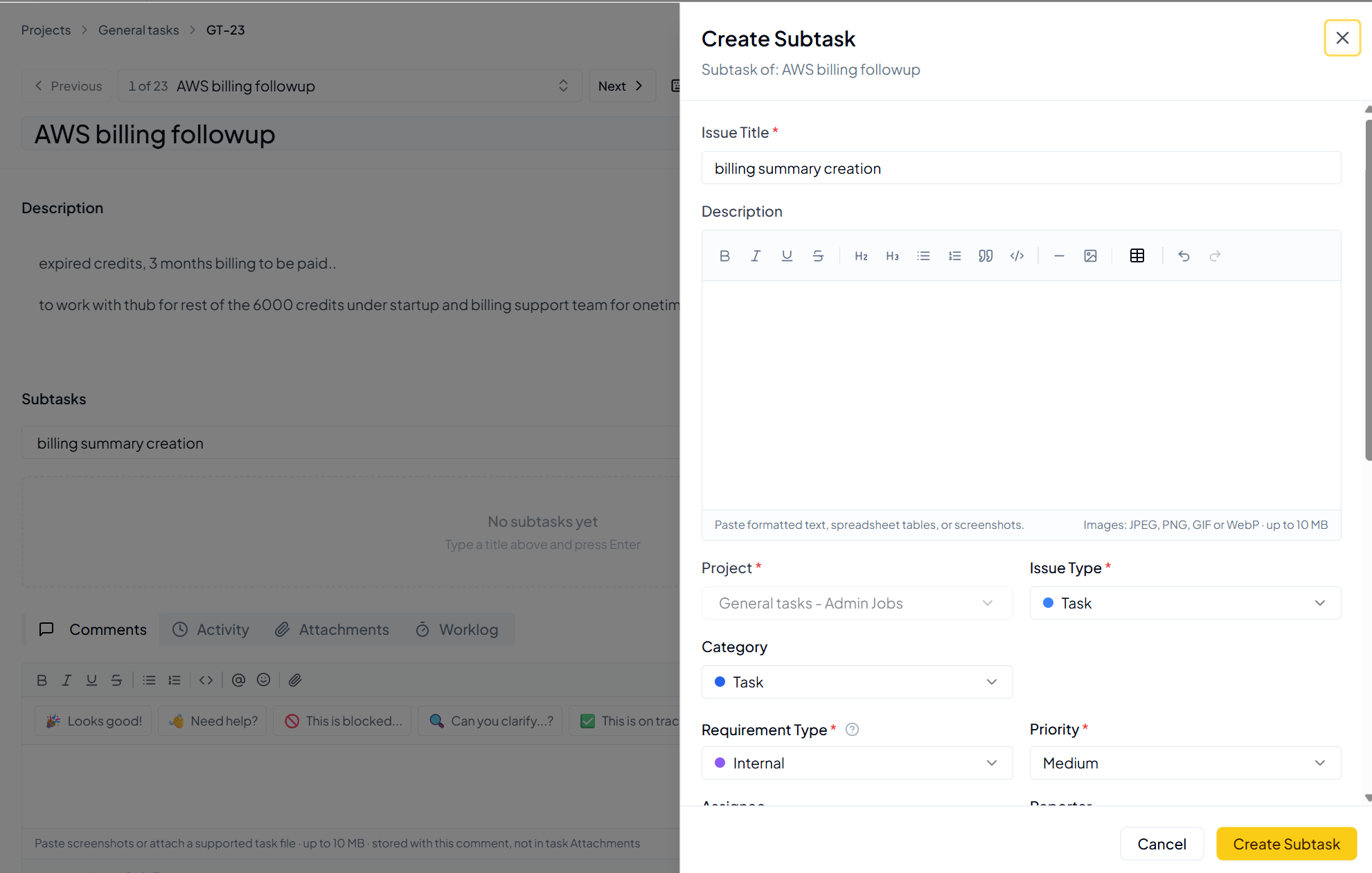 Create Subtask form. Add the required details and click Create
Subtask.
Create Subtask form. Add the required details and click Create
Subtask.
1
Enter a title
Add a short title for the subtask and click +.
2
Complete subtask details
Add the description, assignee, reporter, dates, priority,
attachments and other required fields.
3
Create the subtask
Review the information and click Create Subtask.
2.3 Subtask Completion Rule
The Subtask Completion Rule determines whether a Parent Task can be completed when one or more of its subtasks are still incomplete. There are two available completion rules:
Use Strict – Block Completion when every subtask must be finished
before the overall task is considered complete.
Use Warning – Show Confirmation when subtasks are used for tracking,
but the Parent Task may still be closed when required.
The applicable rule is configured at the project level under Project
Info → Subtask Completion Rule.
Why this is helpful
The completion rule helps the project decide how strictly subtasks must be completed before the Parent Task is closed.