
1. Task Configuration — Statuses, Priorities, Categories & Requirement Types
Task Configuration establishes global task parameters, lifecycle statuses, priority matrices, operational categories, requirement types, field access rules, and behavioral policies. Access via Admin -> Configuration -> Task.2. Task Statuses Lifecycle & Adding Statuses
The Statuses tab manages lifecycle stages for task progression (Open, Assigned, In Progress, On Hold, In Review, Approval Required, Completed, Cancelled). Clicking + Add Status opens the ‘Create Status’ modal window.1
Navigate to Task Config
Click Admin -> Configuration -> Task in the left sidebar
menu.
2
Click + Add Status
Click the blue + Add Status button on the top right of the
Statuses section.
3
Configure Status Parameters
Select status color, enter Status Name, Code, and select Category
(To Do, In Progress, Done).
4
Save Status
Click Create Status button to publish the lifecycle stage.
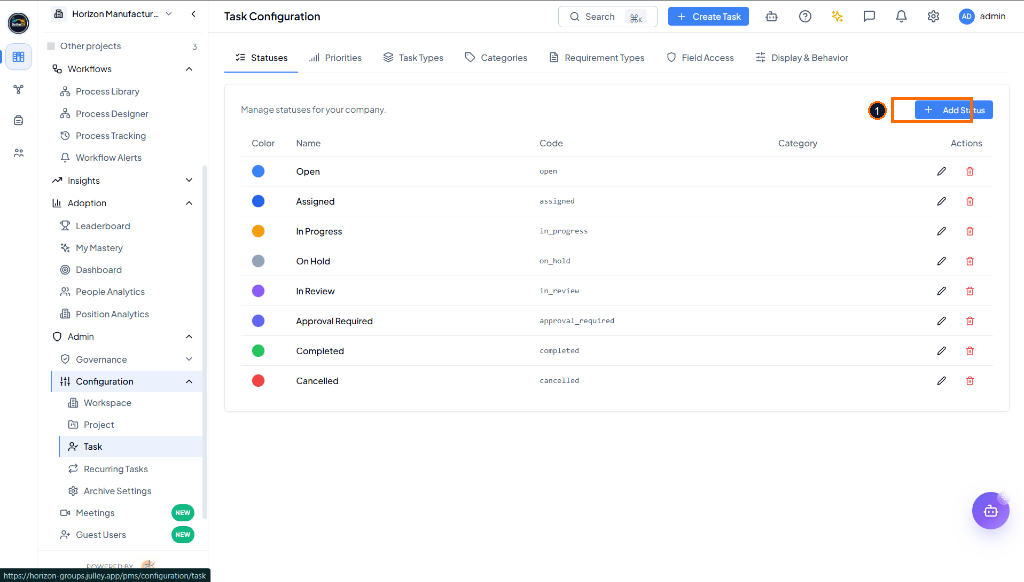 Task Statuses management grid highlighting (1) + Add Status action
button (Light Mode).
Task Statuses management grid highlighting (1) + Add Status action
button (Light Mode).
3. Task Priorities & Creating Priorities
The Priorities tab manages urgency levels used for SLA tracking and task sorting. Clicking + Add Priority opens the ‘Create Priority’ modal window to define custom priority levels (e.g. Critical, High, Medium, Low).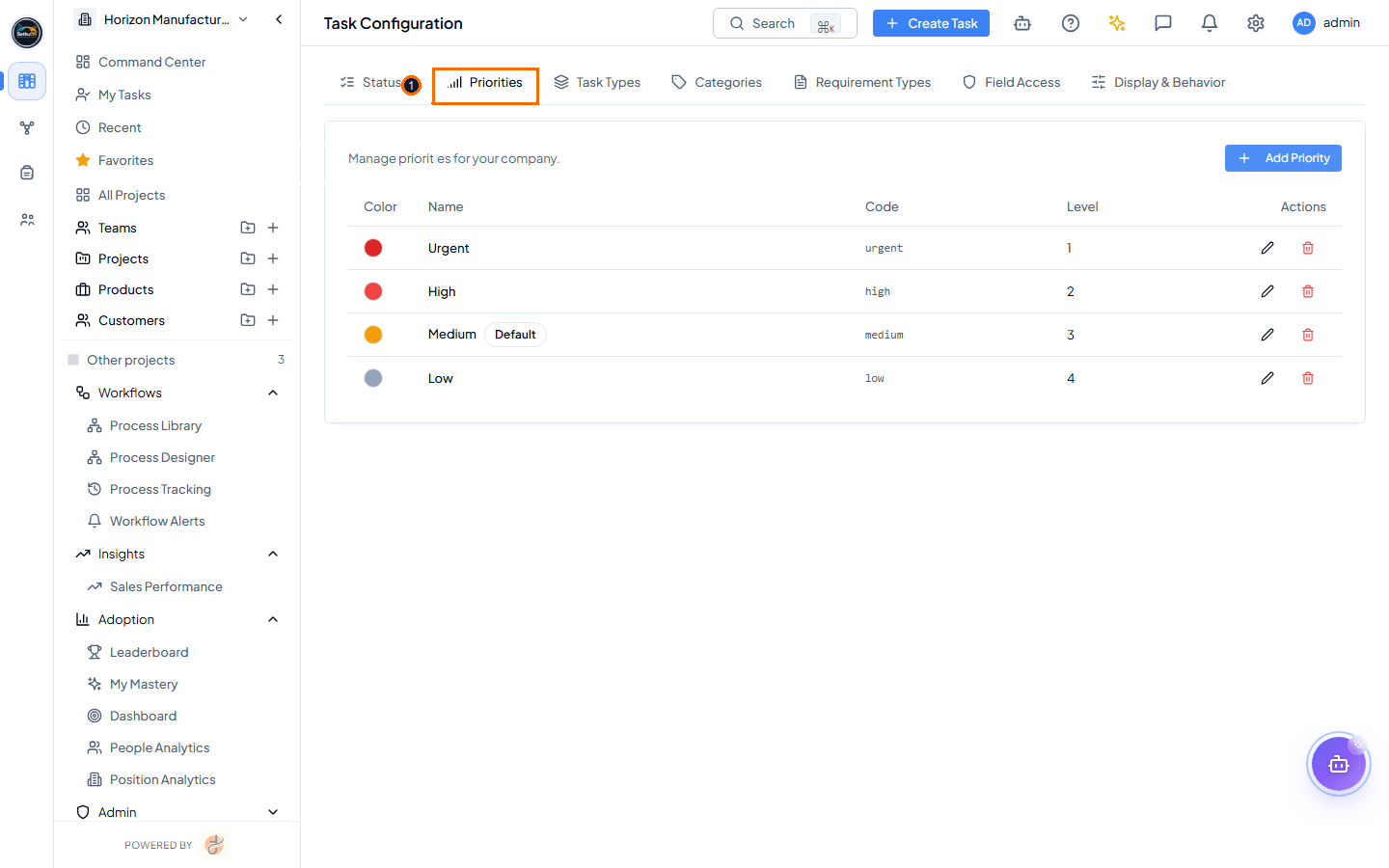 Opened ‘Create Priority’ modal window highlighting (1) Priority Name
input field (Light Mode).
Opened ‘Create Priority’ modal window highlighting (1) Priority Name
input field (Light Mode).
4. Task Categories & Requirement Types Tabs
The Categories tab organizes tasks into operational streams (Operational, Strategic, Maintenance, Client Services), while Requirement Types classifies functional vs technical deliverables.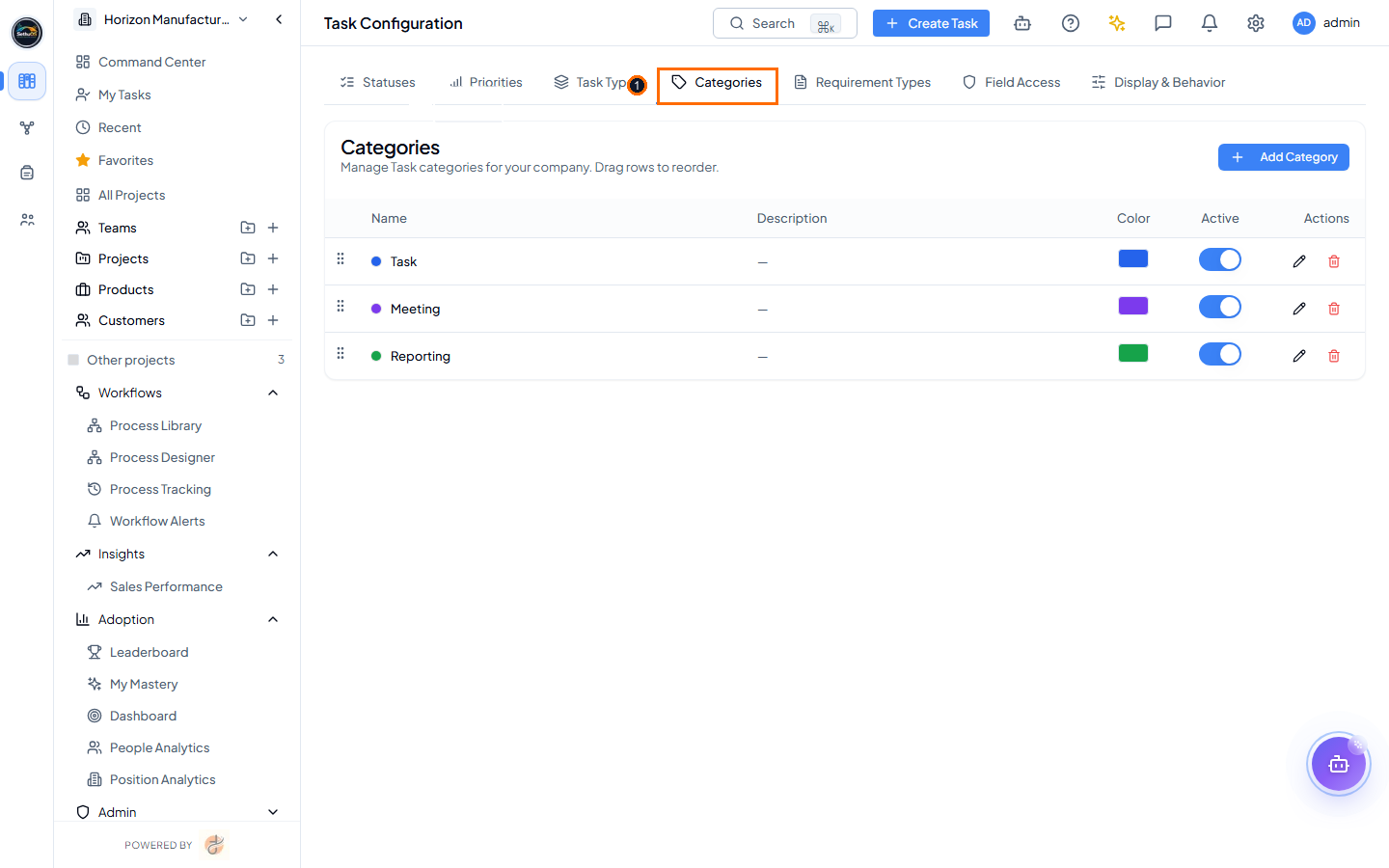 Task Categories management screen highlighting (1) Categories tab
selector (Light Mode).
Task Categories management screen highlighting (1) Categories tab
selector (Light Mode).
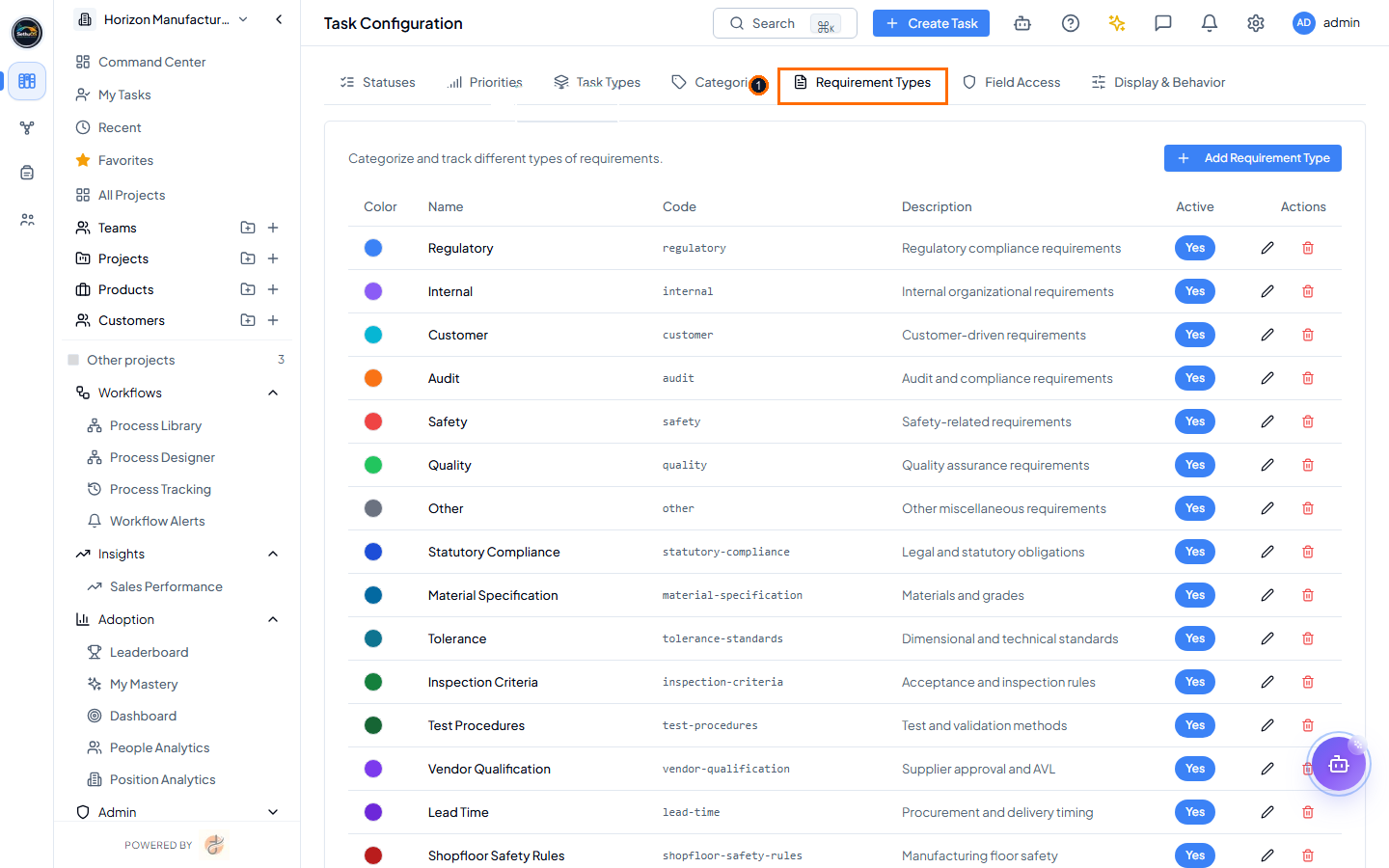 Task Requirement Types management screen highlighting (1) Requirement
Types tab selector (Light Mode).
Task Requirement Types management screen highlighting (1) Requirement
Types tab selector (Light Mode).