
1. Project Configuration — Project Types & Custom Templates
Project Configuration defines project types, default workflow bindings, key prefixes, and reusable project templates. Access this section via Admin -> Configuration -> Project.2. Adding Custom Project Types
Clicking the + Add custom type button on the Project Types tab opens the ‘Add custom Project type’ modal window. This form defines new project categories and unique key prefixes used when generating project task IDs.1
Navigate to Project Config
Click Admin -> Configuration -> Project in the left sidebar
menu.
2
Click + Add Custom Type
Click the + Add custom type button on the top right of the
Project Types section.
3
Specify Code & Name
Input Code (unique key) and Name in the opened modal window.
4
Add Description
Provide optional operational scope and guidelines.
5
Create Project Type
Click the blue Create button to register the project type.
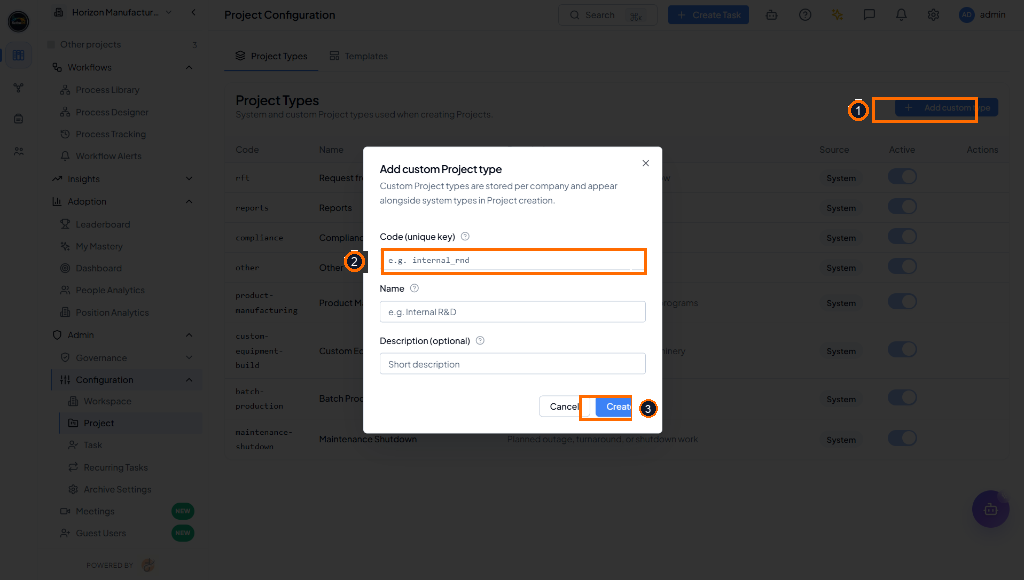 Opened ‘Add custom Project type’ modal window highlighting (1) + Add
custom type button, (2) Code (unique key) input field, and (3) Create
primary button (Light Mode).
Opened ‘Add custom Project type’ modal window highlighting (1) + Add
custom type button, (2) Code (unique key) input field, and (3) Create
primary button (Light Mode).
3. Creating Reusable Custom Templates
Clicking the Templates tab and selecting New Template opens the multi-step ‘Create Custom Template’ wizard drawer. Step 1 (Template Basics) configures template title, description, approval lines, and escalation policies.1
Open Templates Tab
Click Templates tab in Project Configuration.
2
Click New Template
Click the New Template button on the top right.
3
Configure Step 1 (Template Basics)
Input Template Name and Description in the opened wizard drawer.
4
Select Approval Lines
Check required approval workflows (Reporter Approval, Direct
Approver, Finance Sign-off, Operations Review).
5
Proceed to Step 2 (Roles)
Click the blue Next: Roles button to configure role assignments
and task structures.
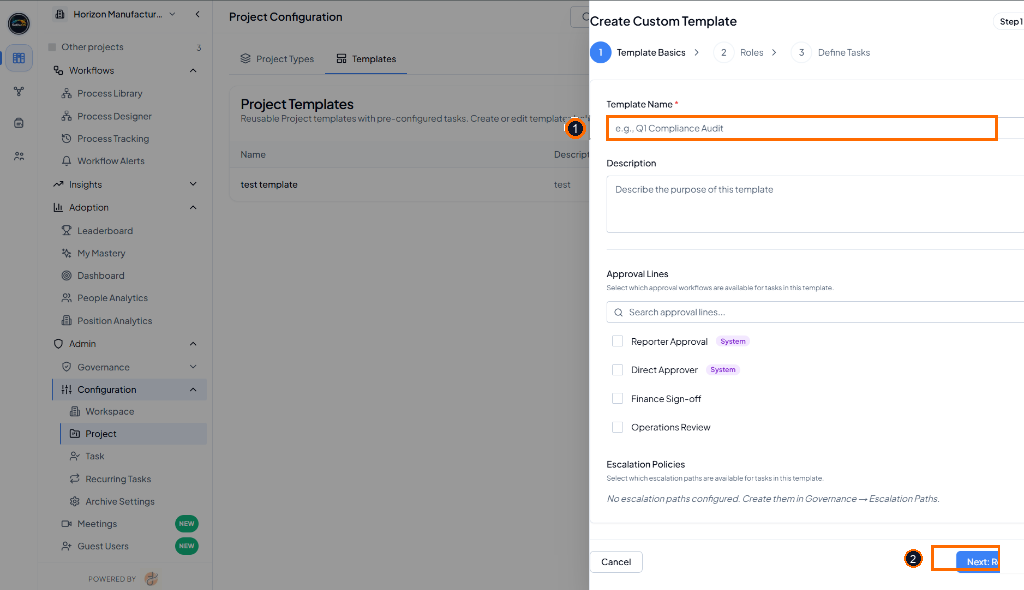 Opened ‘Create Custom Template’ wizard drawer highlighting (1)
Template Name input field and (2) Next: Roles primary action button
(Light Mode).
Opened ‘Create Custom Template’ wizard drawer highlighting (1)
Template Name input field and (2) Next: Roles primary action button
(Light Mode).