
What to confirm before inviting a guest, where to find Guest Users and enter their details, how to send and verify the invitation, how to add an existing guest to a project, and which guides/videos to send as part of the guest onboarding pack.
1. Before You Invite a Guest
Confirm the details below before creating access. This avoids sending an invitation to the wrong email address or workspace.- Guest full name is confirmed.
- Guest email address is correct and will be used for login.
- Required Workspace is decided.
- Required project(s) the guest should collaborate on are identified.
- Required user guides and videos are ready to be shared.
2. Where to Find Guest Users
From the left navigation, go to Guest Users.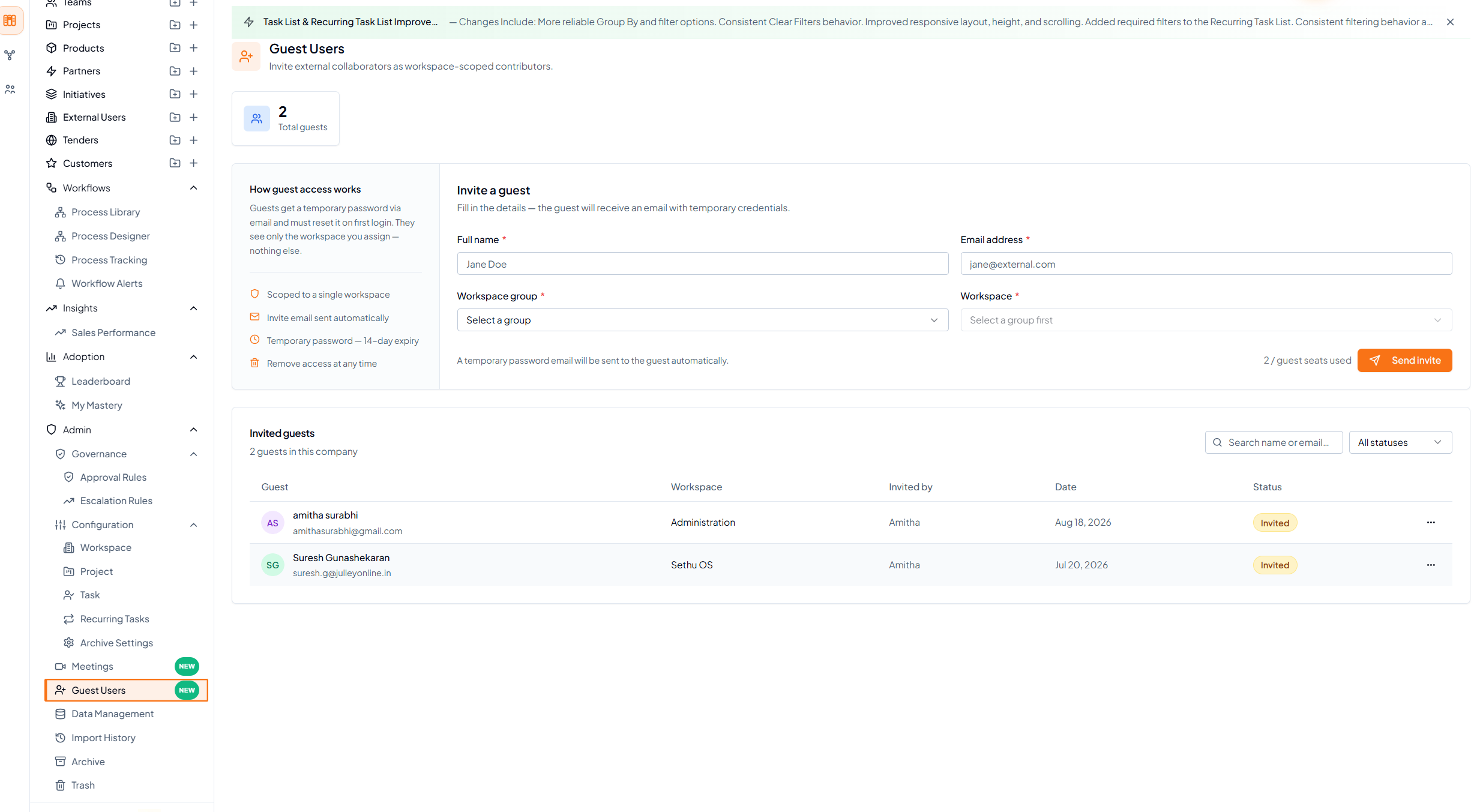 Guest Users under Admin > Configuration.
3. Enter the Guest Details
In the Invite a guest section, complete all mandatory fields: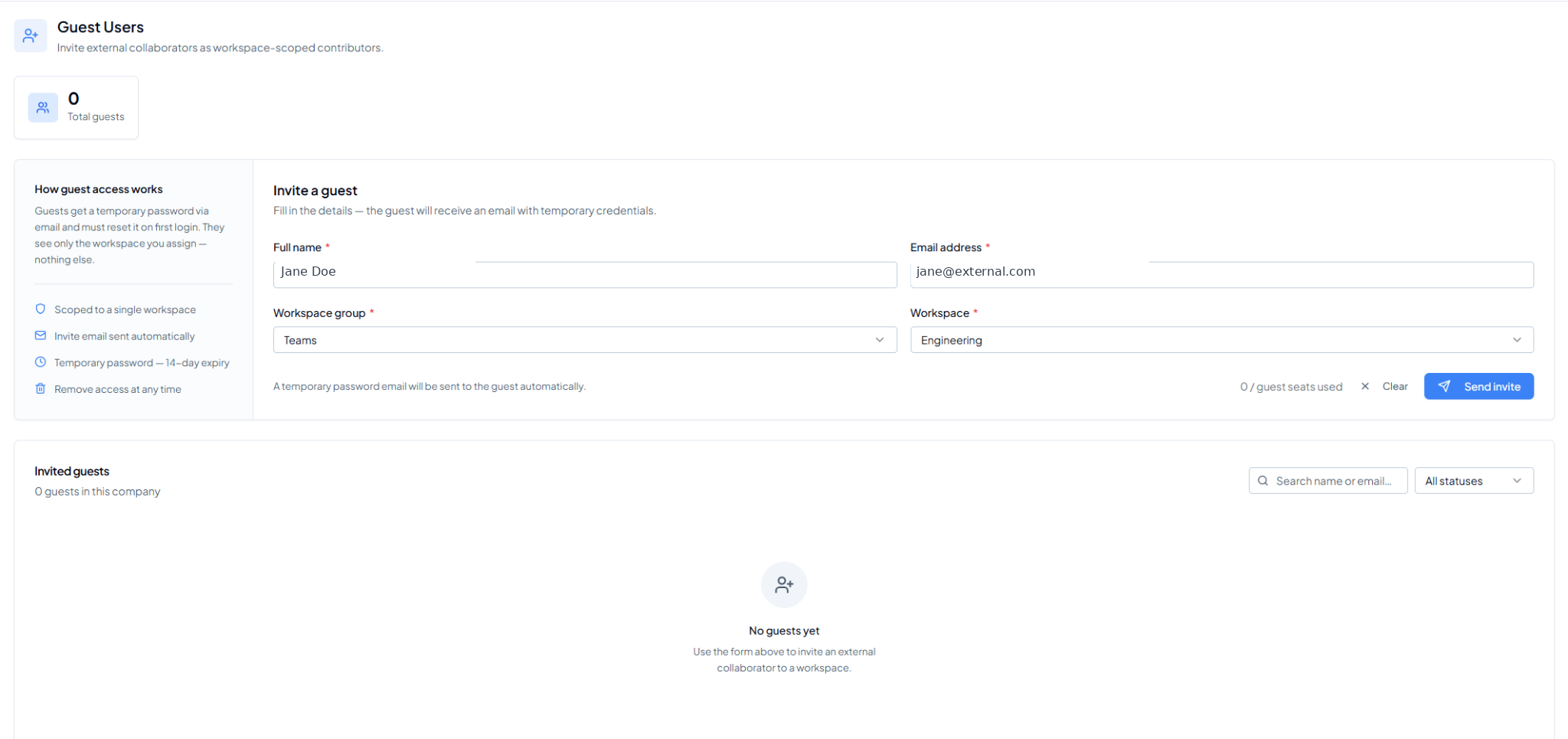 Sample Guest User invitation form.
4. Send the Invitation
Click Send Invite. The guest invitation email contains:- The registered email address
- A temporary password
- A sign-in link/button
- A reminder that the temporary password expires in 14 days and must be changed during the first login
5. Verify the Invitation
After sending the invite, verify that the guest appears under Invited guests. Check the guest name/email, workspace, inviter, date and current status.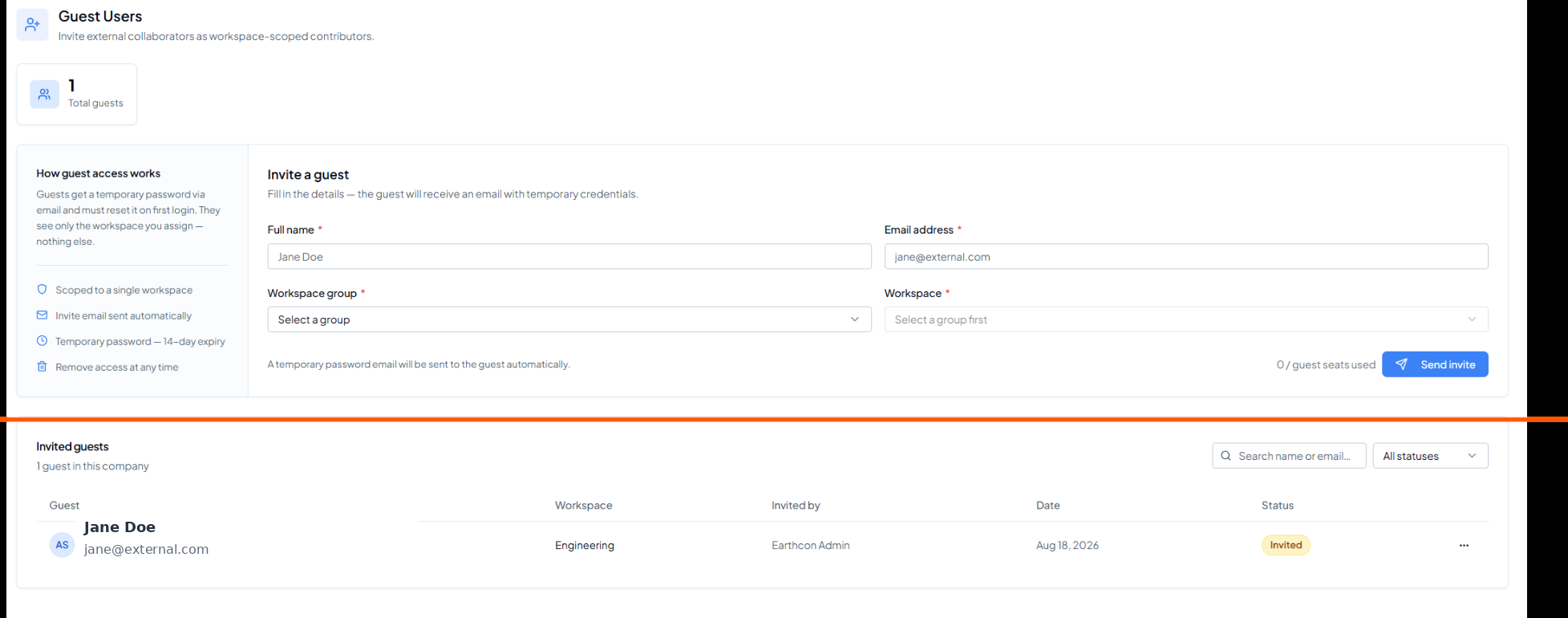 Invited guest record and invitation status.
6. Add the Guest to the Required Project
The Guest User invitation gives workspace access. Complete onboarding by adding the existing guest to the project(s) they need to collaborate on.- Open the relevant project.
- Open the project info tab in your Operator setup.
- Add the existing Guest User to the project.
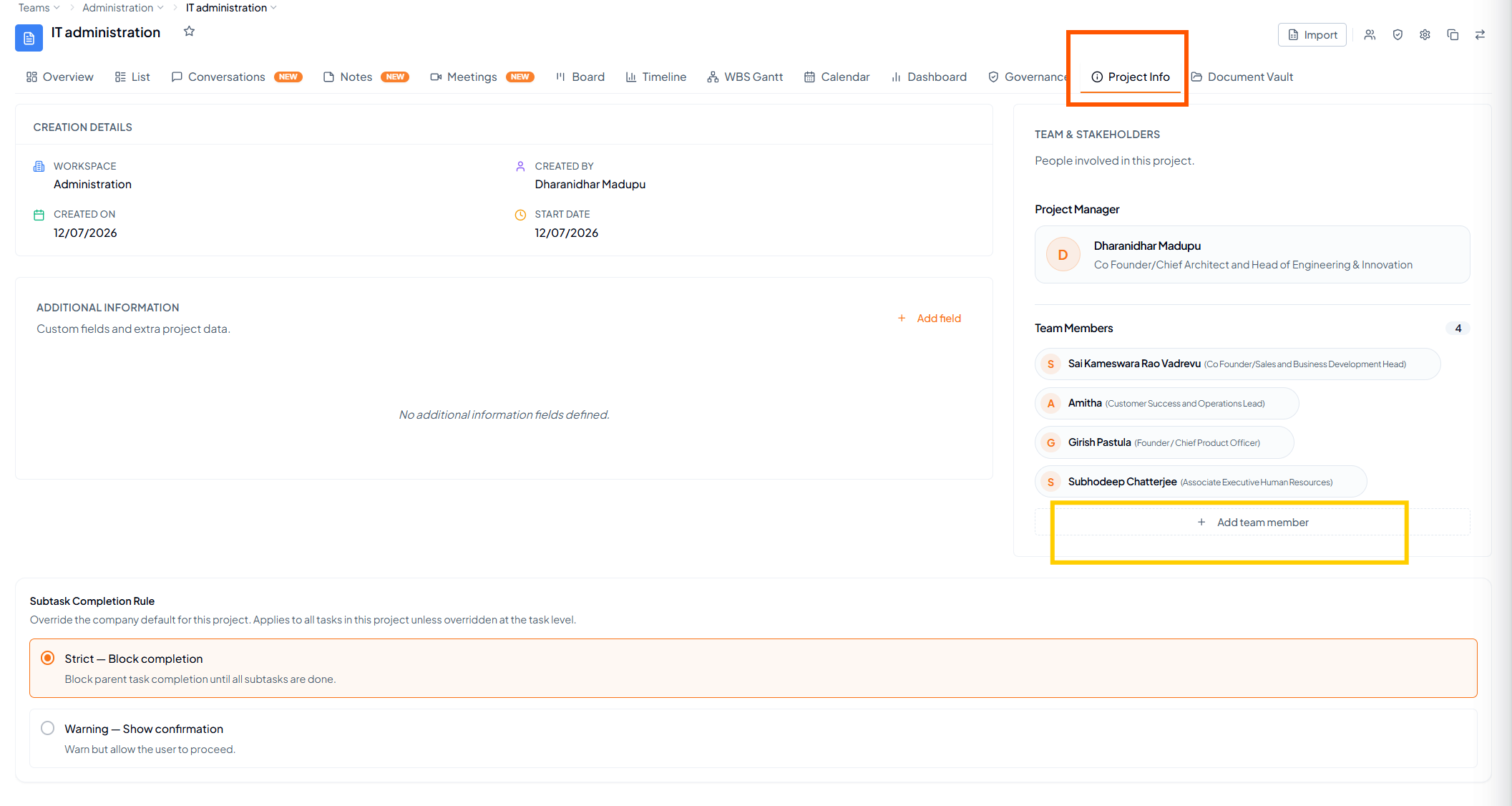 Add Existing Guest to Project.
Additional projects later
Once the guest account exists, the authorised inviter/admin can add the same guest to additional projects later. A new guest invitation is not required each time, provided the project is within the guest’s permitted workspace/access scope.
7. Send the Guest Onboarding Pack
Share only the guides the guest needs for their role. The aim is to help them start working without overwhelming them with every Operator feature.8. Mandatory for Every Guest User
- Guest User - First Login & Getting Started Guide
- User_Guide_Creating_Task
- User_Guide_Working_on_a_Task
- User_Guide_Using_My_Task
9. Recommended Short Videos
- Create a Task
- My Taks