
A Guest User is a SethuOS account created for someone outside your regular team who needs limited access to specific workspaces or projects — this page covers how they receive their invitation and sign in for the first time.
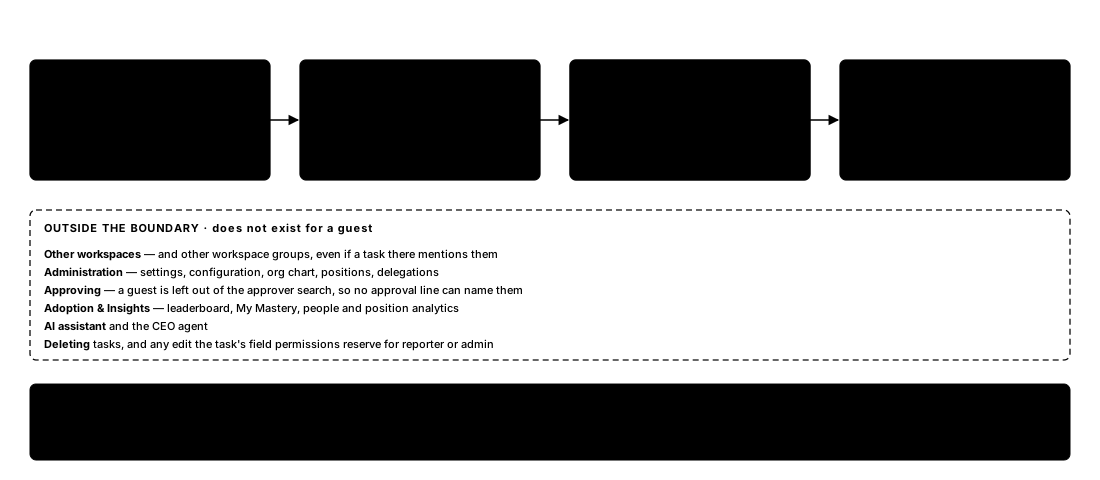 The guest journey — from invitation, to first sign-in, to a scoped workspace.
1. Invitation Email
After your access is created, Julley sends an invitation email to your registered email address. The email contains your login details and a Sign In button.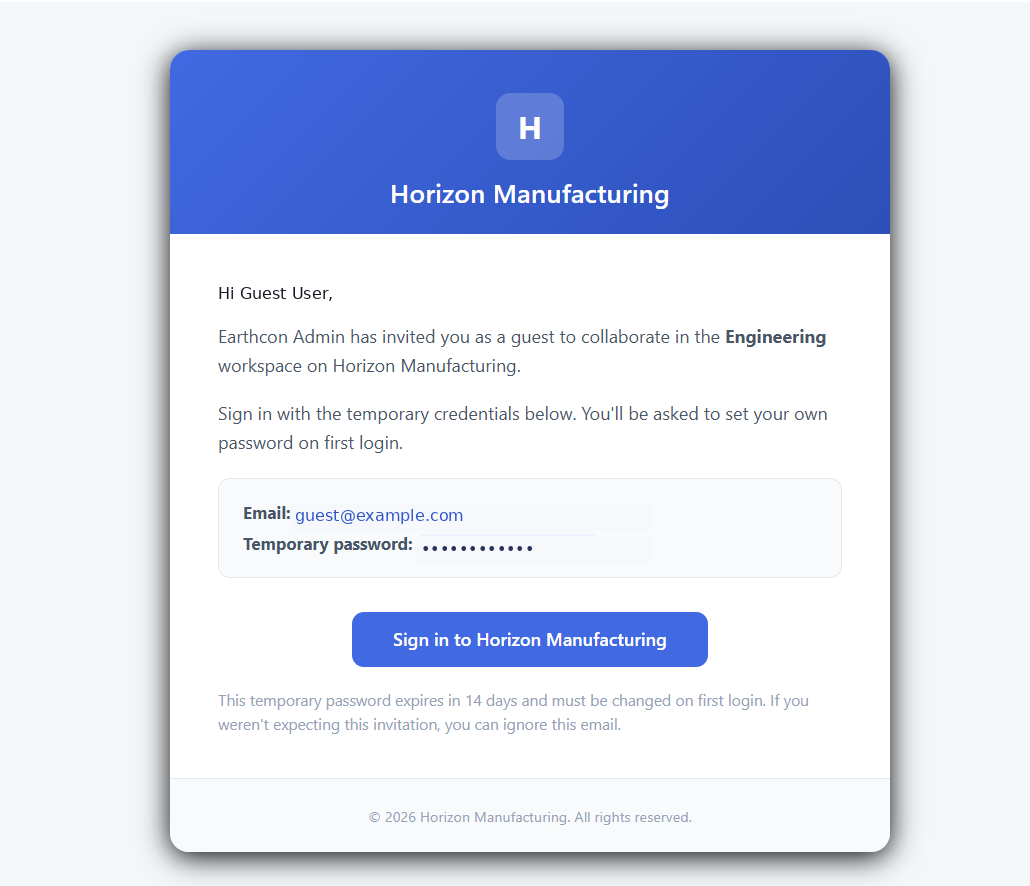 Sample Guest User invitation email. Credentials shown are masked for
security.
Sample Guest User invitation email. Credentials shown are masked for
security.
2. First Login Details
- Use the same email address on which you received the invitation.
- Use the temporary password shown in the invitation email for your first login.
- The temporary password expires in 14 days.
- You must create your own password during the first login.
3. If You Do Not See the Invitation Email
Check your Spam/Junk folder first. If the invitation is still not available, contact the person who invited you and ask them to verify the email address used for your access.4. Sign In
Click the Sign In button in the invitation email. You will be taken to the Julley Operator login page.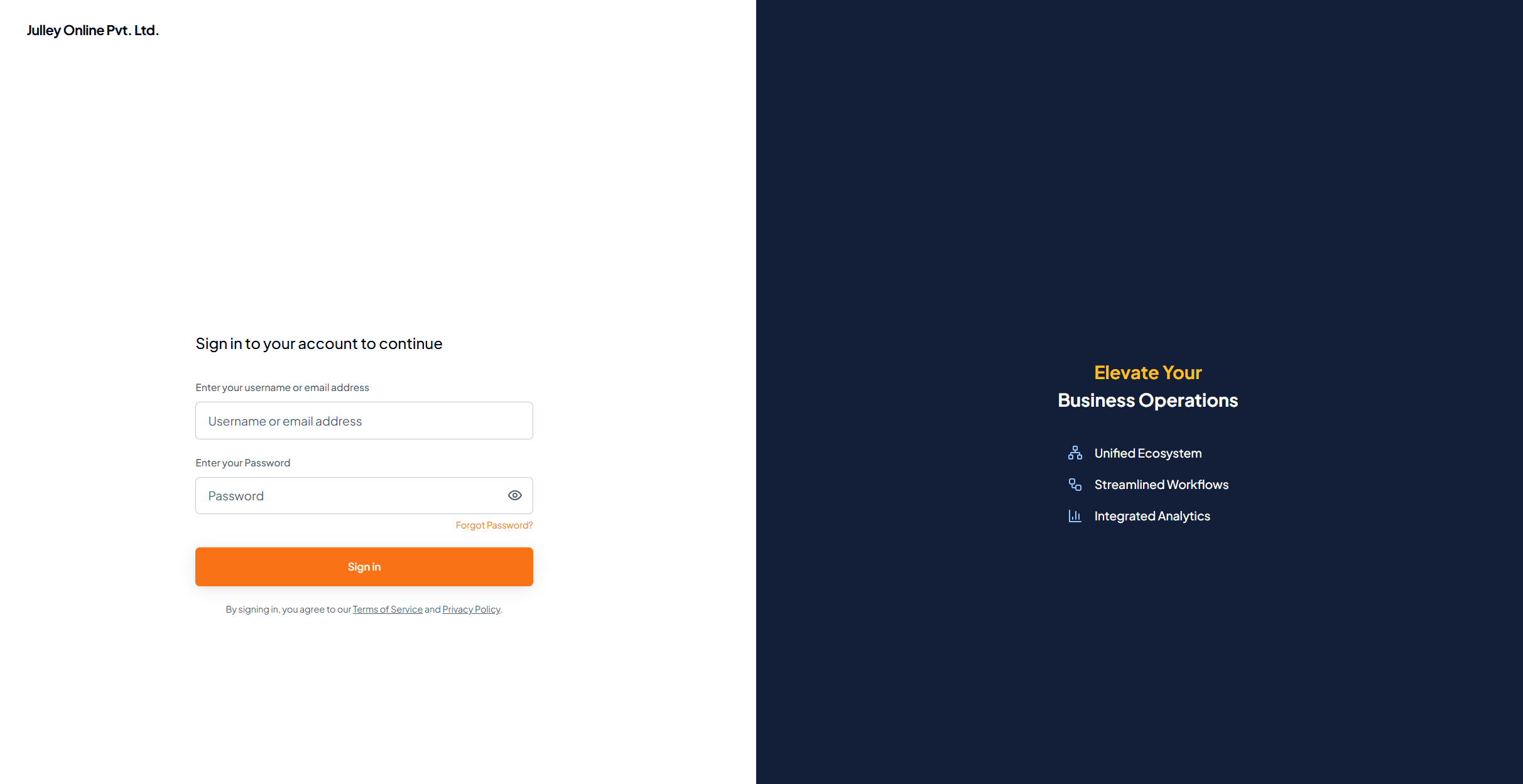 Julley Operator Login Page.
5. Sign In With the Temporary Credentials
On the login page:1
Enter the email address
Use the email address from the invitation email.
2
Enter the temporary password
Enter it exactly as provided in the invitation email.
3
Click Sign In / Login
Continue to complete the sign-in.