
How to view approval requests awaiting your action, and how to approve or reject them.
1. View Pending Approvals
Open My Tasks → Approvals → Pending to view approval requests awaiting your action.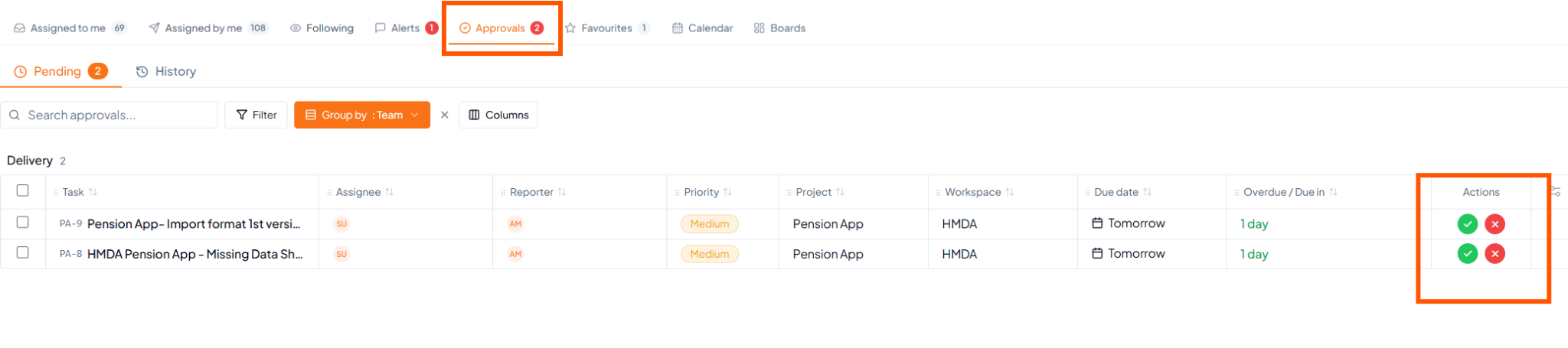 Pending approval requests and Approve/Reject actions.
2. Approve a Request
1
Review the task
Review the task details, comments and attachments provided for
approval.
2
Approve
Click the green ✓ action for the required request.
3
Task closes
Once approval is given, the approved task is closed.
3. Reject a Request
If further action is required before the task can be closed, select the red ✕ action. Enter a reason for rejection; comments can be added when additional explanation is useful.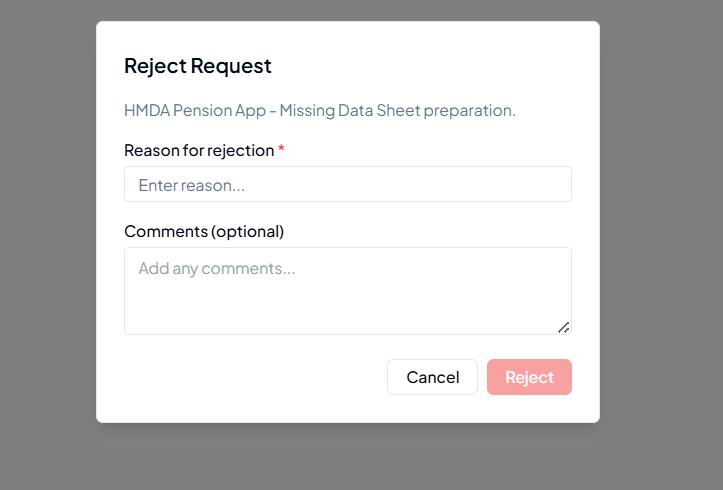 Rejection requires a reason; comments are optional.
1
Reject
Click the red ✕ action for the approval request.
2
Enter the reason
Provide the reason for rejection so the task owner understands what
must be corrected.
3
Task owner takes action
The task owner receives the rejection reason, performs the required
changes and updates the task.
4
Resend for approval
After corrections are complete, set the task to Approval Required
again to send a new approval request.
4. Approval Lifecycle
 How an approval request travels, including delegation swaps, auto-approve, and escalation.
5. Before Sending or Responding to an Approval
- The correct Approval Line was selected for the task.
- All required work is complete before requesting approval.
- Relevant comments and supporting attachments are added.
- The approver has enough information to make a decision.
- If rejected, the rejection reason has been addressed before resubmitting.