
After you sign in and reset your password for the first time, you are taken into your assigned workspace and project — this page covers what you can see there and how to sign in to the same Guest User account from the SethuOS mobile app.
1. Assigned Workspace / Project
After the password reset is completed, you are taken directly into the My issues page and you can only view the workspace/project access assigned to you.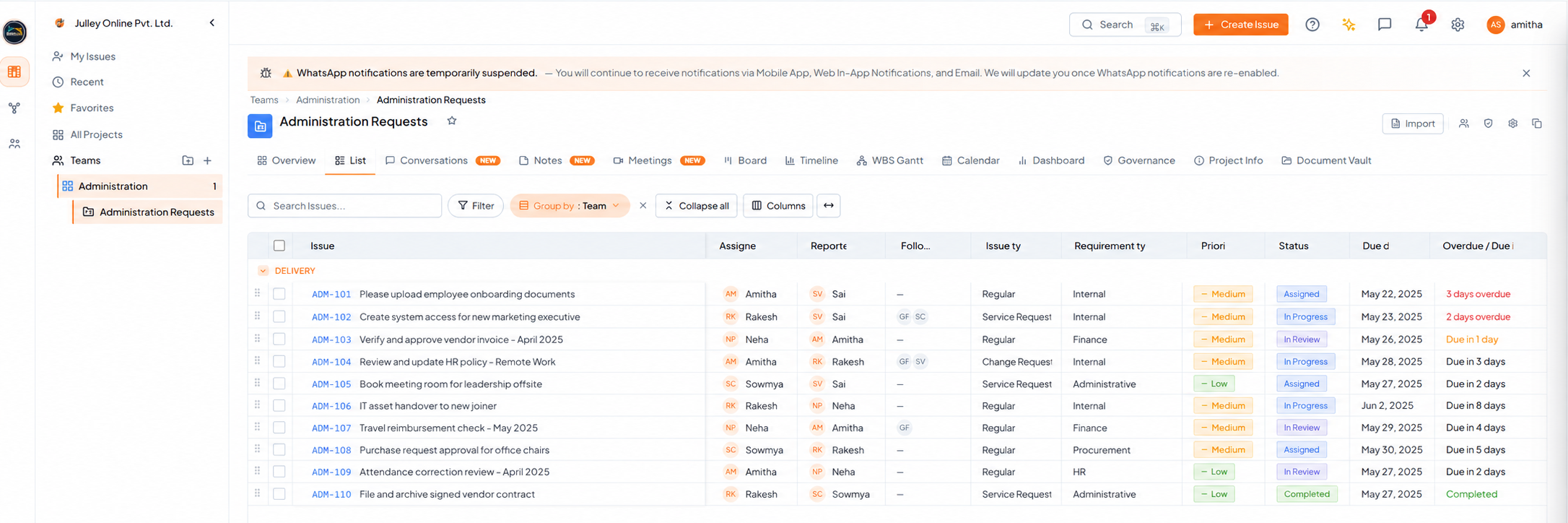 Guest Landing Screen.
2. What You Can See
Your access is limited to the workspace and project(s) shared with you. The exact options you see may vary based on the access given for your collaboration.3. Mobile App Login
Julley SethuOS is also available on the Google Play Store and Apple App Store. After completing your first-login password reset, you can use the same Guest User account to sign in on mobile.4. Sign In on Mobile
1
Download and open the SethuOS app
Install it from the Google Play Store or Apple App Store.
2
Enter the Organization name
Use the organization name shared with you.
3
Enter your registered email address
Use the same email address used for your Guest User access.
4
Enter your current password and tap Sign In
Use your current password to complete sign-in.
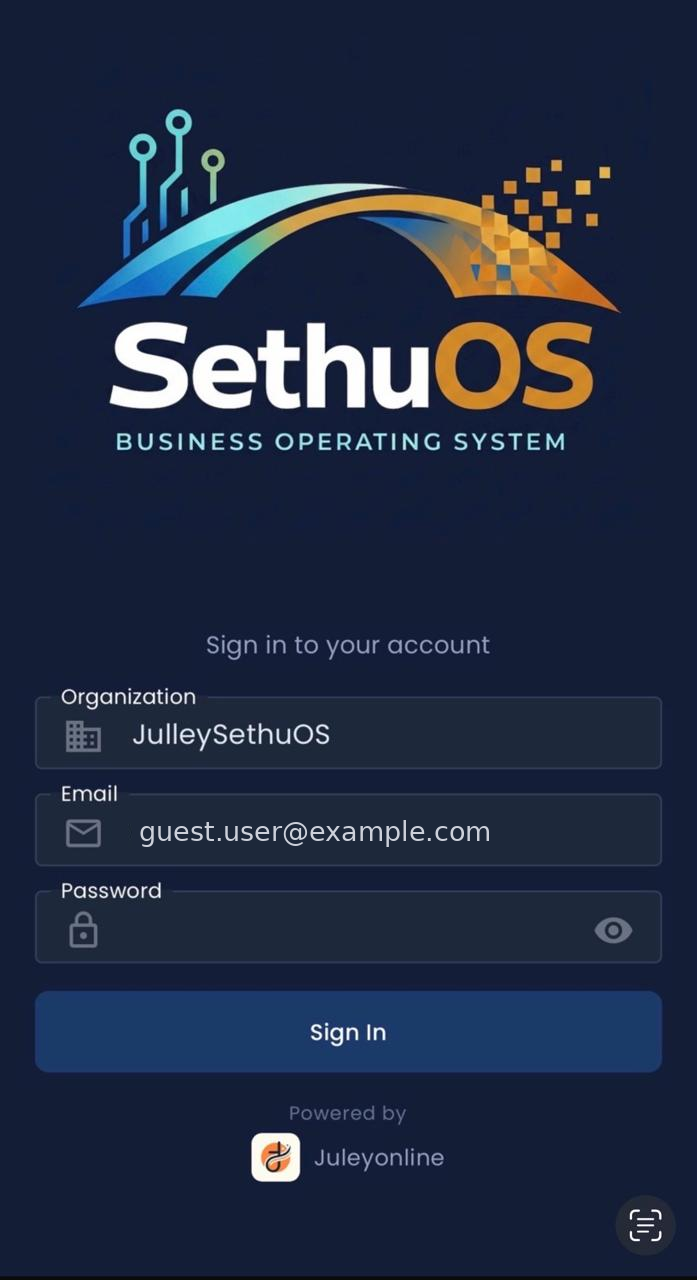 SethuOS mobile login screen. The organisation name is retained and
the sample email is anonymised.
SethuOS mobile login screen. The organisation name is retained and
the sample email is anonymised.
5. What You Can Do on Mobile
Use the mobile app for basic day-to-day activities such as viewing My Tasks, accessing permitted workspaces, projects and teams, opening task details, and reviewing relevant updates.6. Understanding the Basic Terms
7. Quick Tips
Contact your project coordinator / Julley administrator if:- You did not receive the invitation email.
- The temporary password has expired or does not work.
- You cannot complete the password reset.
- The expected workspace or project is not visible.
- You need access to an additional project.
- You have a question about using Julley Operator.