
1. Workspace Configuration — Workspace Groups & Terminology Customization
To access Workspace Configuration, open the Operator workspace, expand the Admin menu in the left sidebar, click Configuration, and select Workspace. The Workspace Settings dashboard contains two primary configuration tabs: Workspace Groups and Terminology.2. Workspace Groups & Creating New Workspace Groups
Workspace Groups define the sidebar categories that organize workspaces (e.g. Teams, Projects, Products, Customers). Clicking the blue + Add Group button expands the ‘New Workspace Group’ inline form to register custom workspace categories.1
Navigate to Workspace Config
Click Admin -> Configuration -> Workspace in the left sidebar
menu.
2
Click + Add Group
Click the + Add Group button on the top right of the Workspace
Groups section.
3
Enter Group Name
Input group title in the Name field (placeholder: e.g. Engineering,
Sales…).
4
Select Group Icon
Choose a visual icon from the icon selector palette (Users, Folder,
Briefcase, Box, Layer, Star, Globe, Lightning, Building, Lock,
Chip, Bar Chart).
5
Create Group
Click the blue Create Group button to register the new workspace
category.
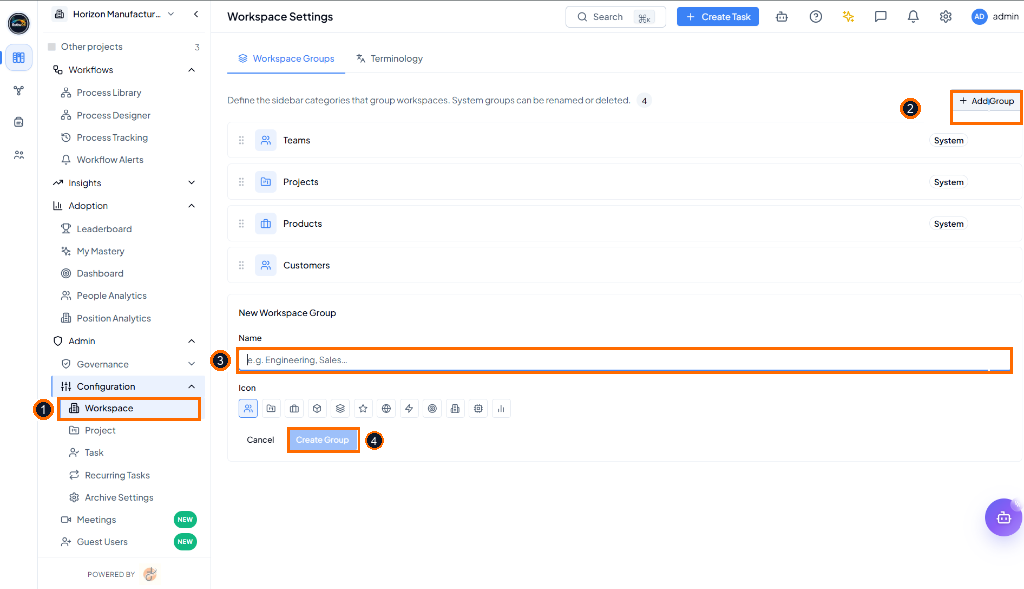 Workspace Settings highlighting (1) Admin > Configuration >
Workspace sidebar link, (2) + Add Group action button, (3) Name input
field in New Workspace Group form, and (4) Create Group primary button
(Light Mode).
Workspace Settings highlighting (1) Admin > Configuration >
Workspace sidebar link, (2) + Add Group action button, (3) Name input
field in New Workspace Group form, and (4) Create Group primary button
(Light Mode).
3. Entity Terminology Customization
Clicking the Terminology tab opens the Entity Names management screen. Administrators can customize singular and plural terms for core platform entities, automatically updating UI labels across all workspace screens.1
Open Terminology Tab
Click Terminology tab next to Workspace Groups in Workspace
Settings.
2
Locate Target Entity
Find entity row (Task, Project, Workspace, Milestone, User,
Document, Workflow, Dashboard).
3
Edit Singular & Plural Terms
Input customized singular term (e.g. Work Item) and plural term
(e.g. Work Items).
4
Save Terminology
Click Save Changes to apply customized terminology enterprise-wide.
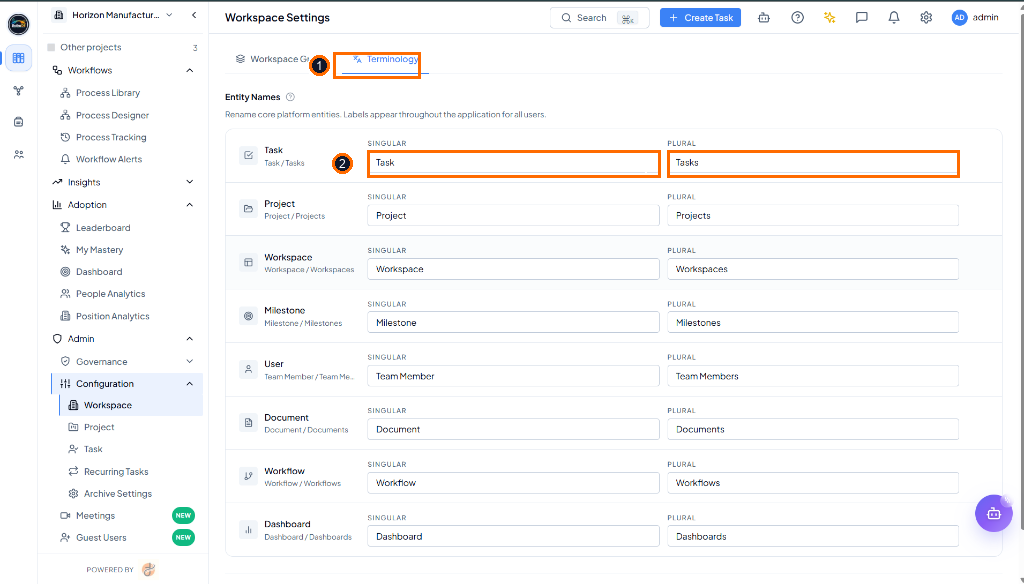 Terminology management screen highlighting (1) Terminology tab
selector and (2) Task Singular/Plural editable input fields (Light
Mode).
Terminology management screen highlighting (1) Terminology tab
selector and (2) Task Singular/Plural editable input fields (Light
Mode).