
The Governance tab controls which approval workflows and escalation paths are available for tasks created within the project. This helps ensure that project tasks follow consistent approval and escalation rules.
1. What Is the Governance Tab?
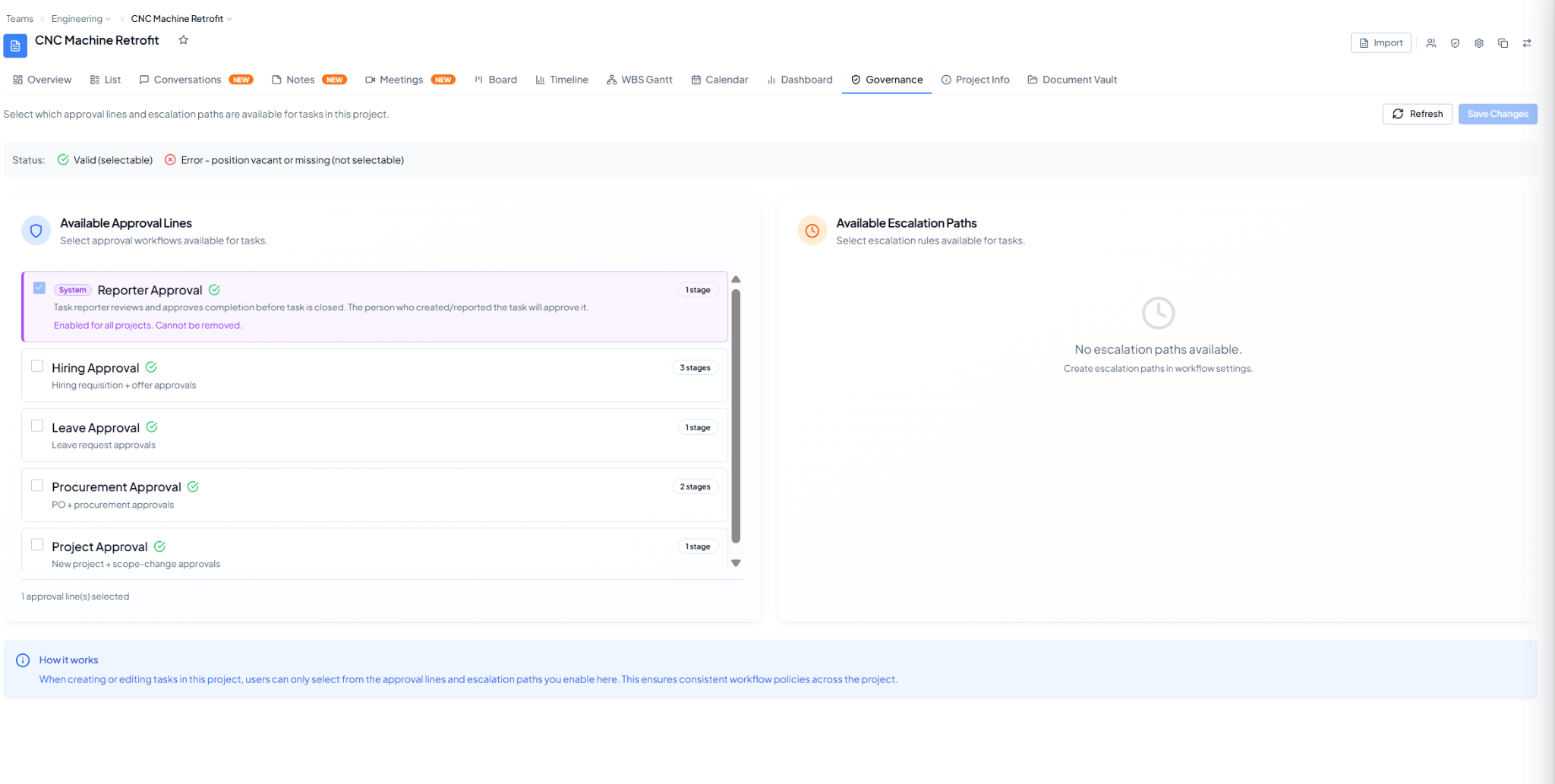 Governance showing available Approval Lines, stage counts, and
Escalation Paths.
Governance showing available Approval Lines, stage counts, and
Escalation Paths.
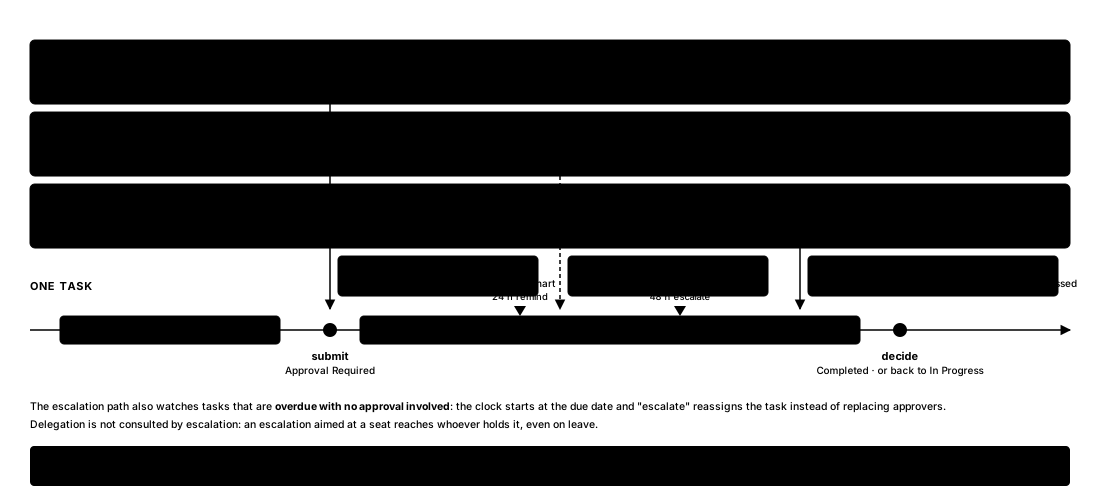 Governance is three overlays working together — Approval Lines, Escalation Paths, and Delegations.
2. Approval Lines
Approval Lines define who must review or approve a task before it can be completed or closed. Available approval lines may have one or more approval stages.- Reporter Approval: the task reporter reviews and approves completion before the task is closed.
- Other configured approval lines may be available based on your organisation’s workflows, for example Hiring, Leave, Procurement, or Project approvals.
A green valid indicator means the approval line can be selected. If a required position is vacant or missing, the line may appear as an error and cannot be selected.
3. Escalation Paths
Escalation Paths define how tasks can be escalated when required. Only escalation paths enabled for the project will be available while creating or editing tasks.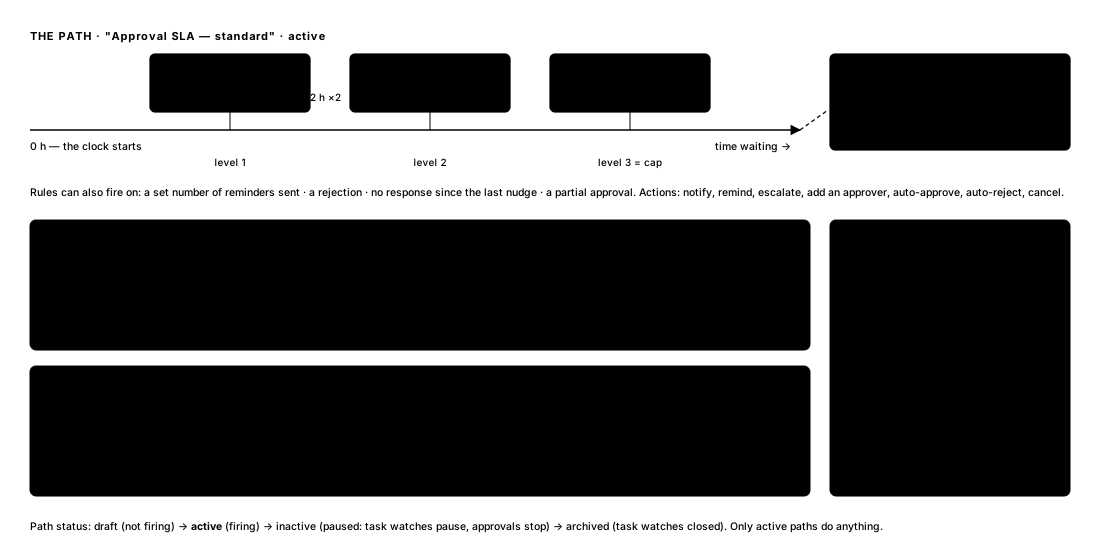 What happens when nobody acts on a task in time.
An escalation path is a ladder of timed rules. Each rung fires after a
wait, does one thing — remind, escalate, or auto-decide — and raises
the level. When the ladder runs out, a final action ends it. The same
path can watch an approval that is waiting or a task that is overdue;
only the clock and the “escalate” verb differ.
Key rules
What happens when nobody acts on a task in time.
An escalation path is a ladder of timed rules. Each rung fires after a
wait, does one thing — remind, escalate, or auto-decide — and raises
the level. When the ladder runs out, a final action ends it. The same
path can watch an approval that is waiting or a task that is overdue;
only the clock and the “escalate” verb differ.
Key rules
- Levels only go up. Rules fire in order; a rule that fires sets the level to at least its own number, and the cap is checked against that level.
- “Escalate” is a hand-over, not a cc. On an approval it replaces who must decide; on a task it changes who is assigned. Use notify or remind when you want the original person kept.
- The final action fires exactly once when the cap is reached, and then the path is finished with that item.
- Only active paths fire. Draft and inactive paths are inert; archiving a path closes any task watches using it.
- A rule can repeat (every N hours, up to a maximum) without advancing the level — useful for reminders before the first real escalation.
- A hierarchy walk that finds no one (top of the chart, all vacant) leaves the current approvers in place and reminds them instead.
- Channels are in-app, email, SMS and WhatsApp per rule; WhatsApp needs the company’s Twilio setup.
- Delegations are applied when approvers are first resolved, not when a path escalates — an escalation target on leave still receives it.