
These actions are available from the project header and help users manage project-level work without leaving the project. The exact action available to a user may still depend on access permissions.
1. Actions at a Glance
 Project header showing Import and project-level quick action icons.
2. Import — Bulk Tasks
Import is used to add multiple tasks to a project in bulk. Use it when a large set of tasks already exists in the supported import format and creating each task manually would take unnecessary time.1
Open Import
Open the required project and select Import from the project
header.
2
Use the supported format
Use the supported bulk-task import process/file format provided by
the application.
3
Upload and review
Upload the task data and review the imported tasks in the project
after the import is completed.
3. Project Info & Team Members
The Project Info & Team Members shortcut gives quick access to the people associated with the project. It is useful when you need to review the project team or add users to the project without navigating through multiple screens.- View the users currently associated with the project.
- Add users to the project where your permissions allow it.
- Review project people information before assigning work or involving additional team members.
4. Project Settings
Project Settings contains project-specific configuration that is separate from day-to-day task work. In the current project view, it contains Role Assignments and Folder.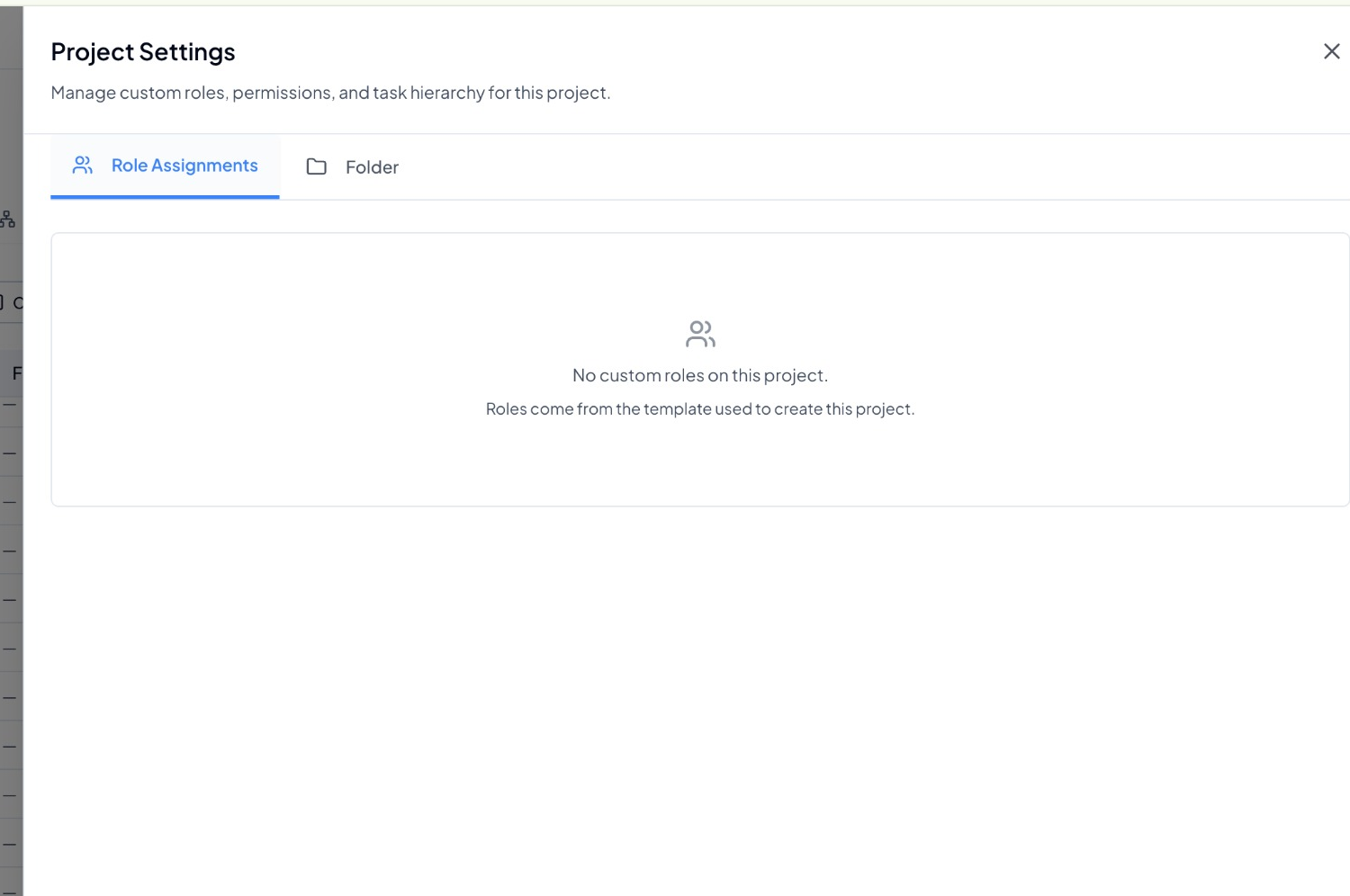 Project Settings showing the Role Assignments and Folder tabs.
Simple rule
Use Folder when you only want to organise the project within its current Workspace. Use Move Workspace when the project itself needs to belong to a different Workspace.
5. Duplicate Project
Duplicate Project starts a new project using the current project as the source. Use it when a similar project or standard project structure needs to be reused instead of creating the next project from scratch. It saves setup time for repeatable projects, keeps the source project unchanged, and provides a faster starting point that can then be reviewed and adjusted for the new project.6. Move Workspace
Move Workspace is used when the current project should belong to another Workspace. This is different from placing a project inside a Folder: a Folder only organises the project within its Workspace, while Move Workspace changes the Workspace in which the project is located. Use it when:- The project was created under the wrong Workspace.
- Responsibility for the project has moved to another team or operational area.
- The project needs to be reorganised under the correct Workspace structure.
Best practice
After duplicating a project, review the new project before work starts so that the project name, people, dates, tasks, and other carried-forward information are appropriate for the new instance.