
1. What Duplication Means
Duplication allows you to create a new project or task by copying an existing one. Instead of rebuilding the same structure every time, you can choose exactly what should be carried into the duplicate.- Reuse task titles, descriptions, dates, priorities, process settings, custom fields and hierarchy where required.
- Choose whether people such as assignees, reporters and followers should be copied.
- Select only the tasks and subtasks that are relevant to the new project or activity.
- Choose whether notifications should be sent after duplication.
2. When to Use Duplication
Use duplication when the work is repeatable but the next instance still needs its own project or task record. It is especially useful for implementation plans, recurring departmental activities, onboarding checklists, audits, reviews, standard delivery processes and other repeatable work.Why this is useful
Duplication saves setup time while still giving you control over what is reused. You can copy the full structure, copy selected items, or create only the structure and then update people, dates and other fields for the new instance.
3. Project Duplication vs. Task Duplication
For duplicating a single task instead of a whole project, see
Duplicating a Task.
4. Start Duplication
Open the project that you want to reuse. From the project header, click the Duplicate icon. The duplication wizard opens with three stages: Configure, Review & Select, and Progress.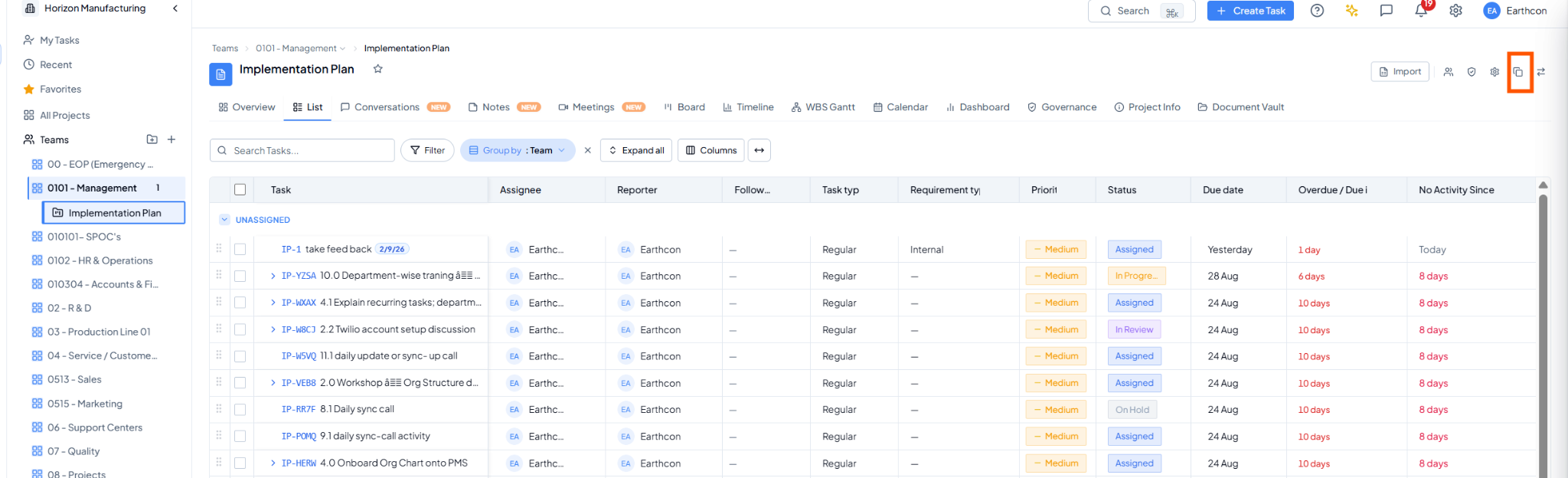 Open the required project and click the Duplicate icon from the
project header.
Open the required project and click the Duplicate icon from the
project header.
5. Configure the Duplicate
In Configure, enter the New Project Name and select the duplication mode that matches how much of the existing project you want to reuse.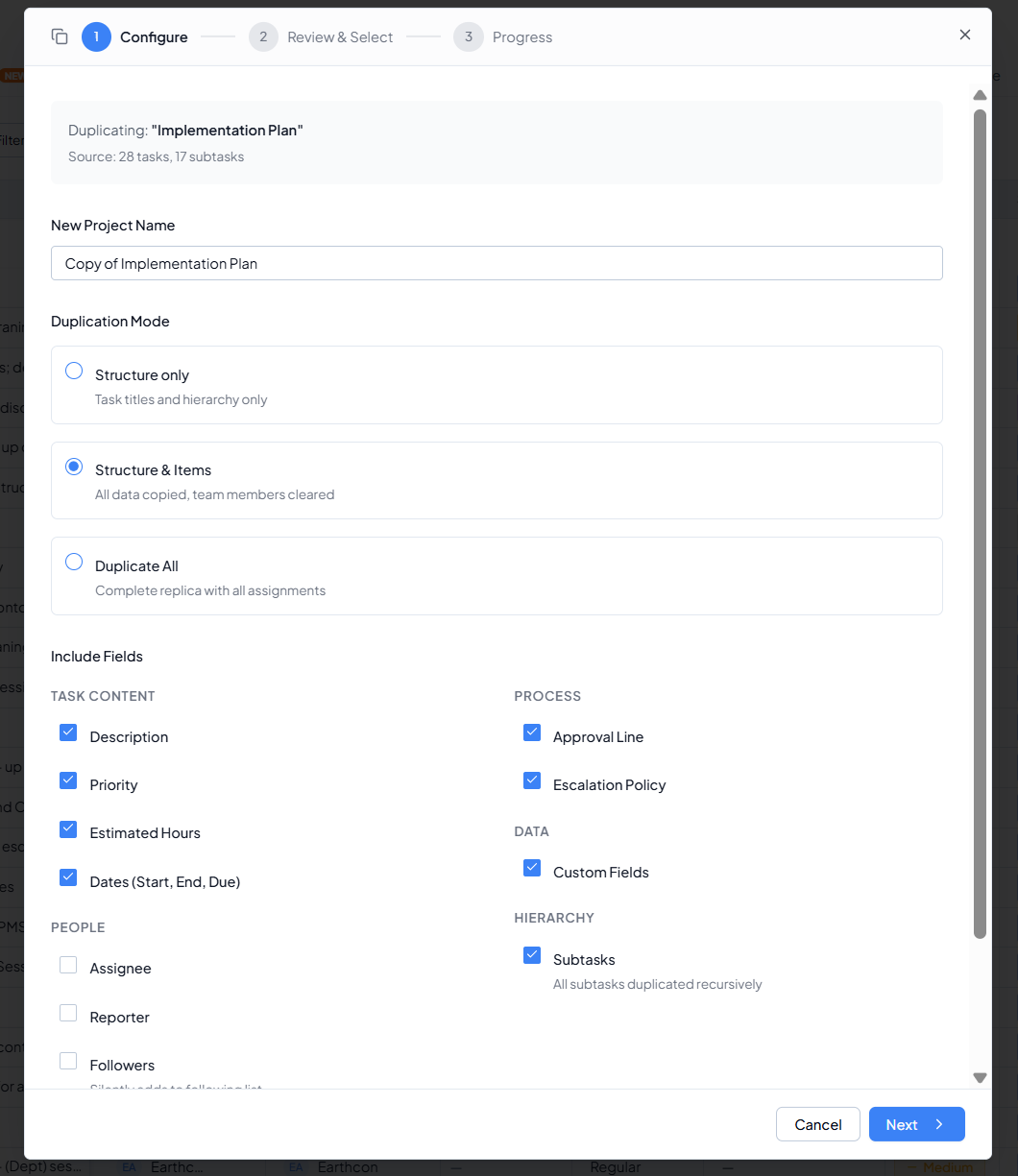 Configure the new project name, duplication mode and fields to
include.
Configure the new project name, duplication mode and fields to
include.
6. Choose What Information Is Copied
The Include Fields section lets you decide which details should move to the duplicated project. Tick only the fields that are useful for the new instance.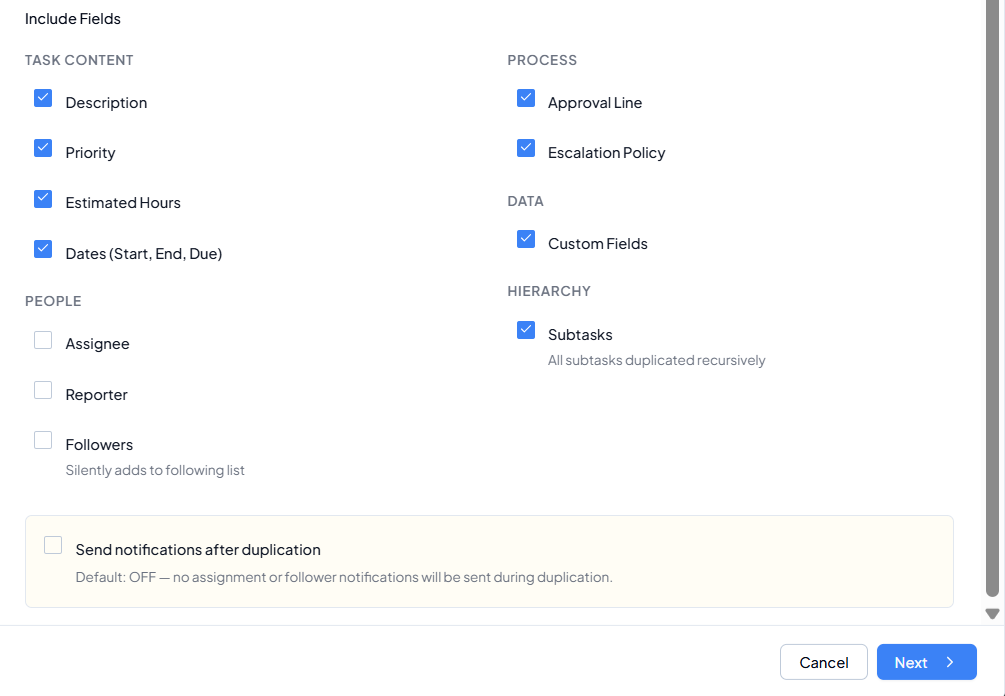 Select the task content, people, process, data and hierarchy fields
to include.
What gets copied and what doesn’t, side by side.
Select the task content, people, process, data and hierarchy fields
to include.
What gets copied and what doesn’t, side by side.
Every mode gives the copy a new project code, status Planning,
progress 0, in the same workspace. Never copied in any mode: notes,
documents, conversations, meetings, comments, activity, recurring
schedules, approval requests.
7. Control Notifications
Use Send notifications after duplication when you want copied assignees or followers to receive notifications about the newly created work. When it is left OFF, no assignment or follower notifications are sent during duplication.8. Review and Select Tasks/Subtasks
Click Next to move to Review & Select. The system shows the available project tasks in their hierarchy. Select only the tasks that should be created in the new project.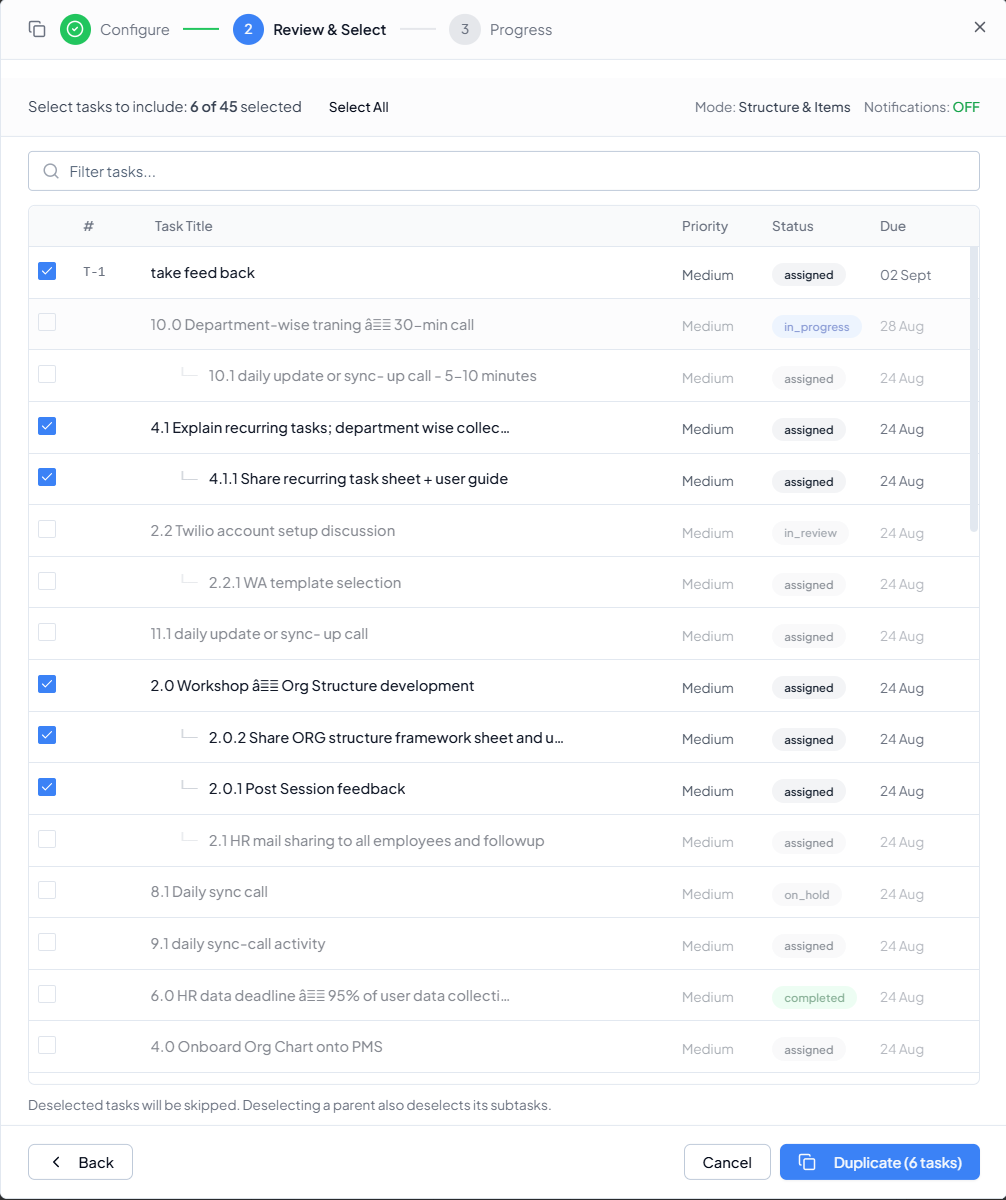 Review the project task hierarchy and choose the tasks/subtasks to
duplicate.
Review the project task hierarchy and choose the tasks/subtasks to
duplicate.
1
Review the count
The top of the screen shows how many tasks are selected out of the
available tasks.
2
Filter if needed
Use Filter tasks to quickly find specific activities in a
large project.
3
Select or deselect tasks
Tick the required parent tasks and subtasks. Use Select All
when the full set is required.
4
Check hierarchy
A parent task and its subtasks are displayed together so you can
keep the intended structure.
5
Confirm the mode
The selected duplication mode and notification status are shown at
the top-right before you proceed.
6
Duplicate
Click Duplicate to create only the selected items.
9. Duplication Completion
When duplication is complete, the summary confirms the new Project Code, the number of tasks created, the number of subtasks created and whether notifications were sent or suppressed.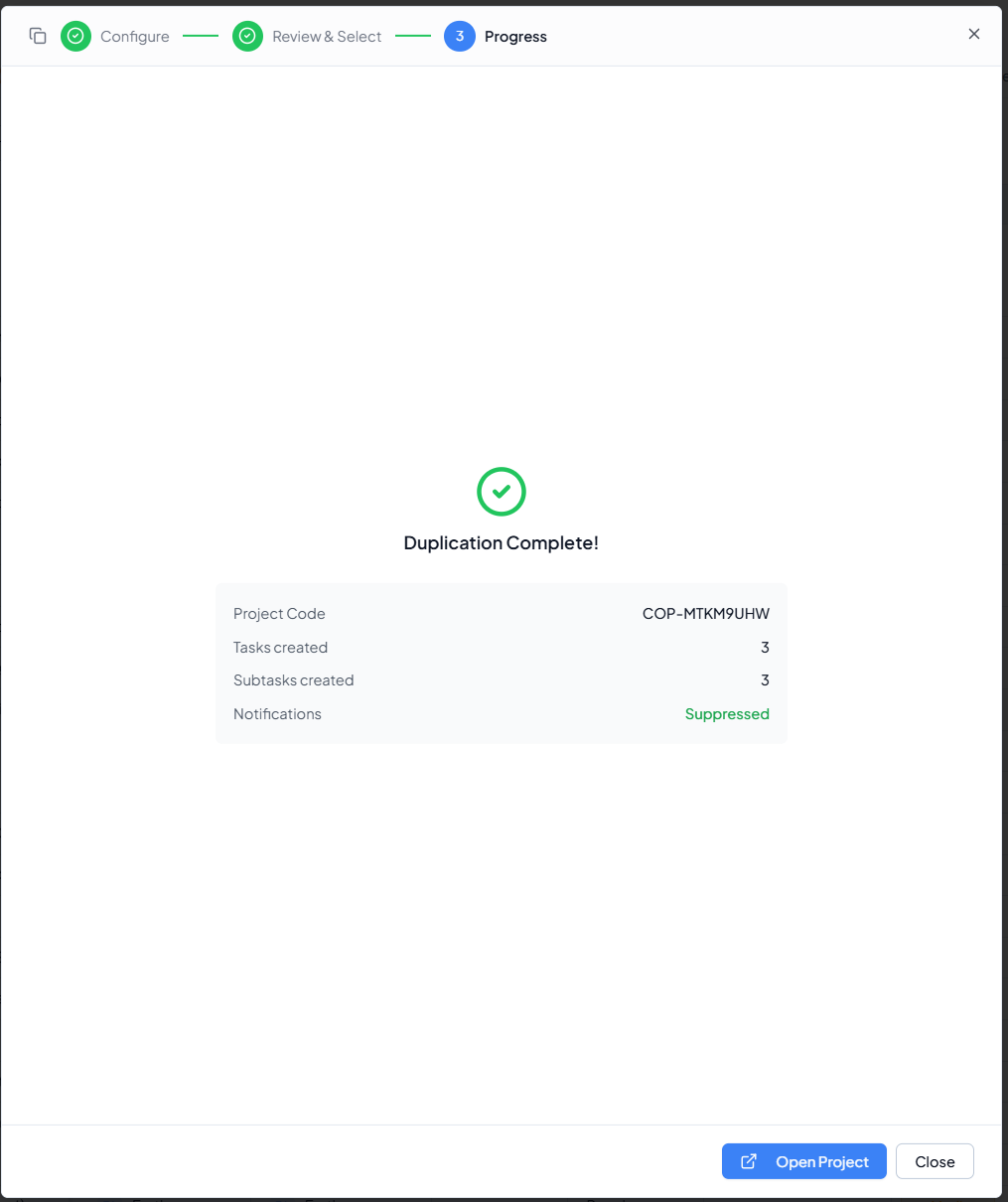 Duplication Complete summary with project code, task count, subtask
count and notification status.
Click Open Project to go directly to the newly created project.
The new project appears separately from the source project and
contains only the items you selected.
Duplication Complete summary with project code, task count, subtask
count and notification status.
Click Open Project to go directly to the newly created project.
The new project appears separately from the source project and
contains only the items you selected.
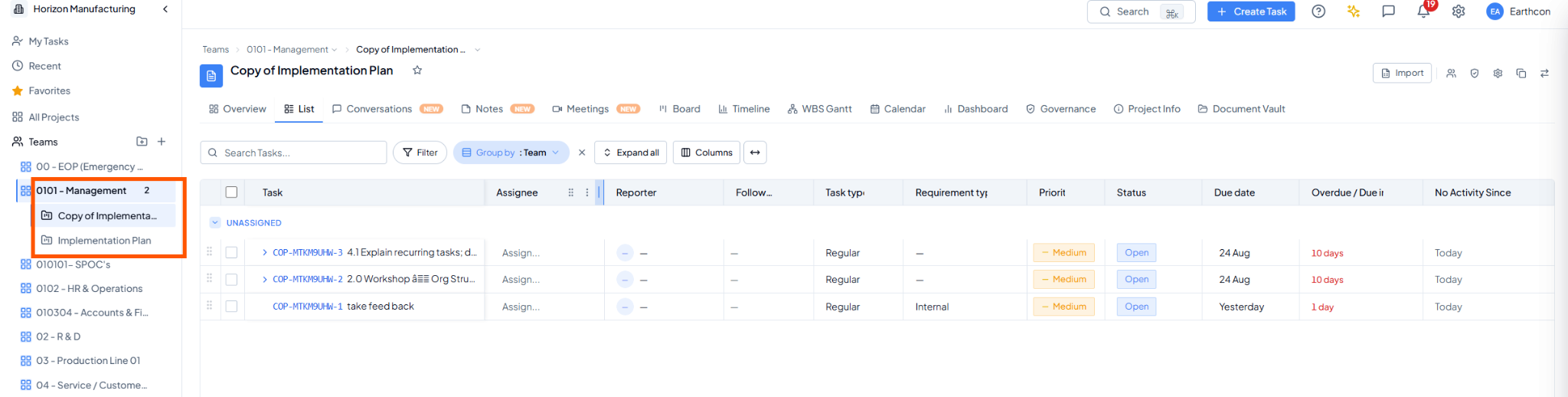 The duplicated project appears as a separate project with the
selected tasks.
The duplicated project appears as a separate project with the
selected tasks.
10. Recommended Duplication Choices
11. Before You Duplicate
- The correct source project or task is open.
- The new project/task title is clear and distinguishable from the source.
- The correct duplication mode is selected.
- Only the required fields are selected.
- Assignee, reporter and follower choices are appropriate for the new instance.
- Dates are reviewed to ensure old deadlines are not reused unintentionally.
- The required parent tasks and subtasks are selected.
- Notification preference is correct before clicking Duplicate.