
1. Where to Find Organization Administration
Organization administration is accessible to System Administrators and HR Administrators. Open the HR workspace and select Organization under Admin in the left sidebar menu to access organizational units, positions, assignments, and delegations.1
Open Admin Menu
Click Admin in the left sidebar menu under the HR workspace.
2
Select Organization
Click Organization to open the main dashboard displaying summary
metrics and configuration tabs.
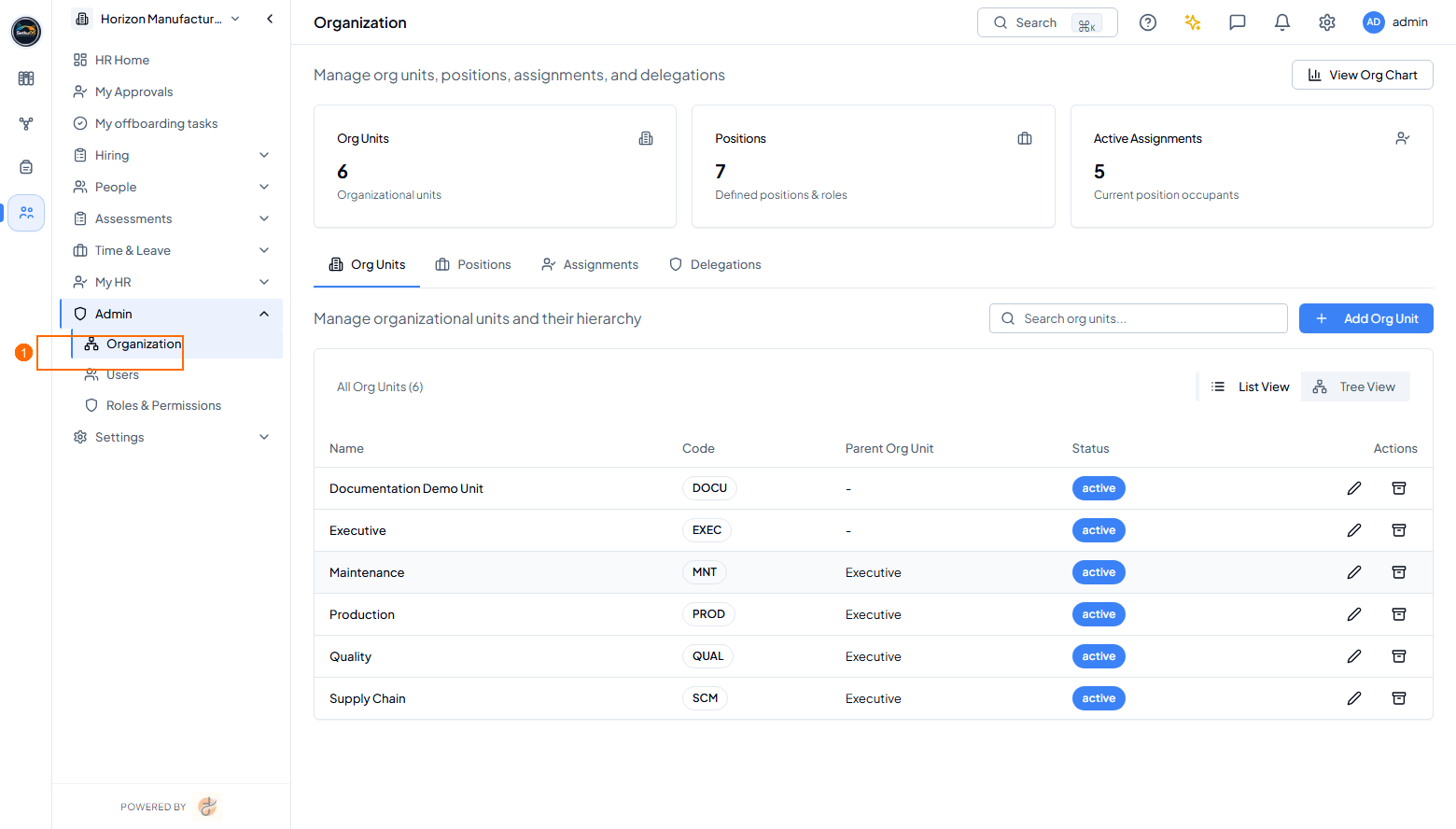 Organization main dashboard highlighting (1) Admin > Organization
sidebar menu entry (Light Mode).
Organization main dashboard highlighting (1) Admin > Organization
sidebar menu entry (Light Mode).
2. Org Units
To update an existing organizational unit’s name, code, description, parent unit, or status, locate the unit row in the Org Units table and click the pencil Edit icon in the Actions column. This opens the ‘Edit Org Unit’ modal window.1
Locate Target Unit
Find the organizational unit row (e.g. Executive) in the Org Units
table.
2
Click Edit Pencil Icon
Click the pencil icon (✏️) in the Actions column next to the unit.
3
Update Unit Fields
Modify Org Unit Name, Org Unit Code, Description, Parent Org Unit,
or Status in the opened modal window.
4
Save Changes
Click the blue Update Org Unit button to apply updates.
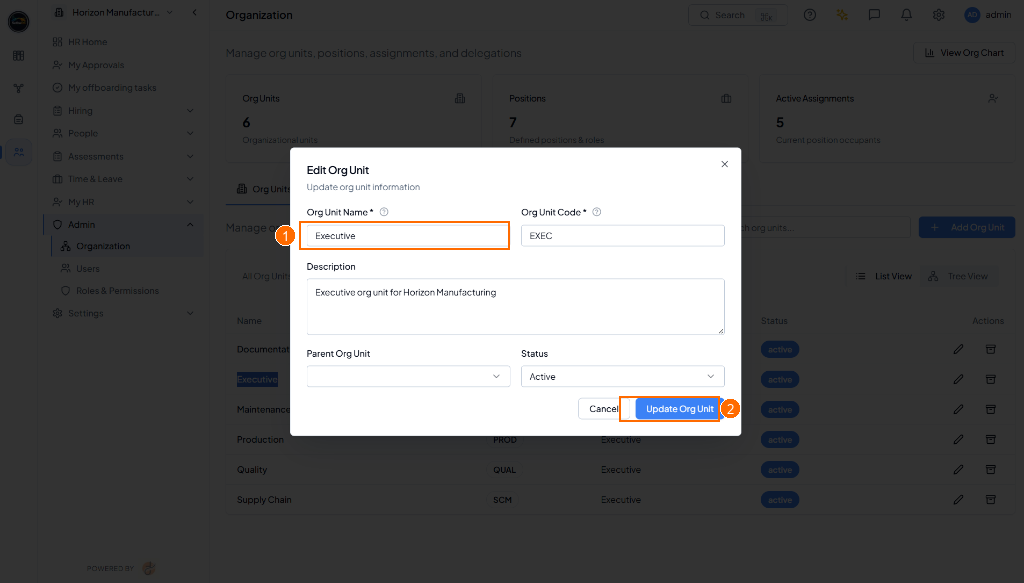 Opened ‘Edit Org Unit’ modal window highlighting (1) Org Unit Name
input field and (2) Update Org Unit primary action button (Light
Mode).
Opened ‘Edit Org Unit’ modal window highlighting (1) Org Unit Name
input field and (2) Update Org Unit primary action button (Light
Mode).
3. Navigating Different Views of Org Units
The Org Units tab supports two view modes: List View (tabular layout) and Tree View (visual hierarchical tree). Clicking ‘Tree View’ renders the multi-level organizational hierarchy with Expand All and Collapse All controls.1
Click Tree View Button
Click Tree View on the top right of the Org Units section to
switch to hierarchical view.
2
Expand Hierarchy Nodes
Click the expand arrow (v) next to parent nodes (e.g. Executive)
to view nested sub-units (Maintenance, Production, Quality, Supply
Chain).
3
Use Bulk Controls
Click Expand All or Collapse All to expand or collapse all tree
nodes simultaneously.
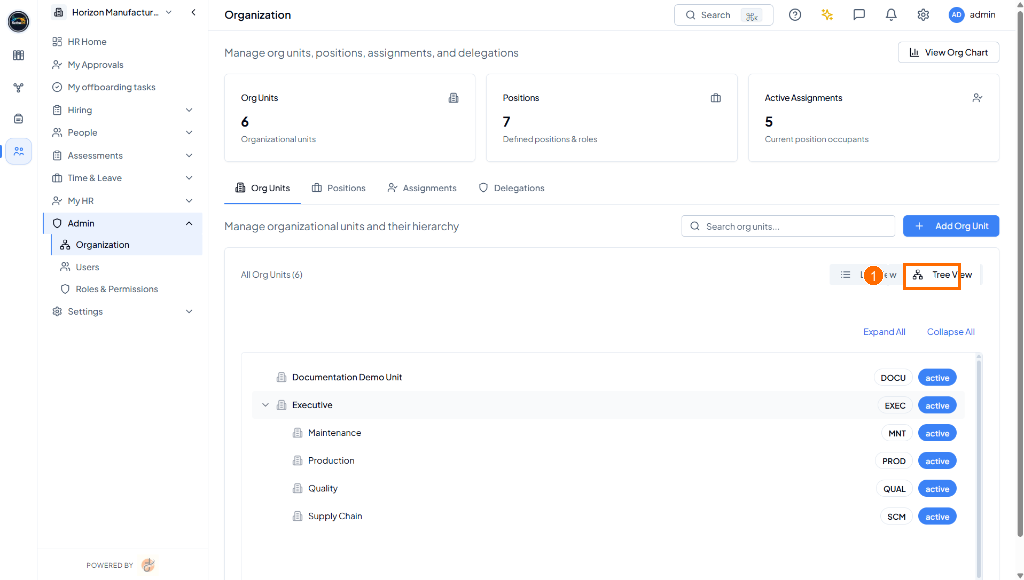 Org Units Tree View highlighting (1) Tree View toggle control and
visual multi-level hierarchy (Light Mode).
Org Units Tree View highlighting (1) Tree View toggle control and
visual multi-level hierarchy (Light Mode).
4. Adding Org Units
Clicking the + Add Org Unit button opens the dedicated ‘Create Org Unit’ modal window. This form registers new organizational units and nests them under existing parent units.1
Click + Add Org Unit
Click the blue + Add Org Unit button on the top right of the Org
Units section.
2
Specify Name & Code
Input Org Unit Name and Org Unit Code in the opened modal window.
3
Specify Description
Provide operational scope and guidelines.
4
Select Parent & Status
Select Parent Org Unit dropdown link and select Status
(Active/Inactive).
5
Save Org Unit
Click Create Org Unit button to add the new unit to the enterprise
structure.
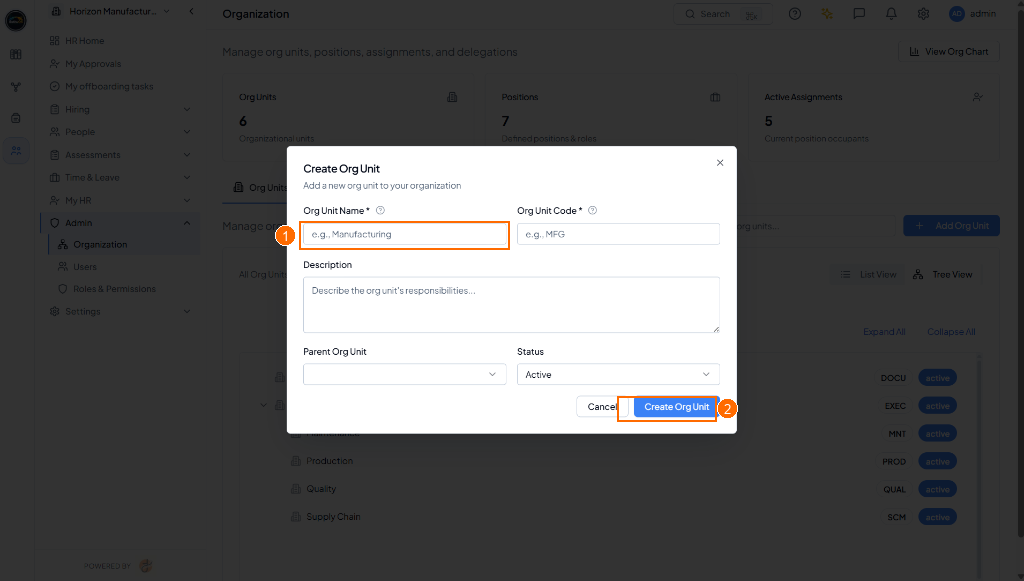 Opened ‘Create Org Unit’ modal window highlighting (1) Org Unit Name
input field and (2) Create Org Unit action button (Light Mode).
Opened ‘Create Org Unit’ modal window highlighting (1) Org Unit Name
input field and (2) Create Org Unit action button (Light Mode).