
1. Editing Positions & Role Definitions
To update an existing position definition (e.g. CEO, Coordinator, Enterprise Admin), navigate to the Positions tab and click the pencil Edit button in the Actions column. This opens the ‘Edit Position’ slide-over drawer.1
Open Positions Tab
Click Positions tab on the Organization page to view defined job
roles.
2
Click Edit Pencil Icon
Click the pencil icon (✏️) next to the position row (e.g. CEO).
3
Modify Position Parameters
Update Position Title, Position Code, Org Unit, Org Level,
Employment Type, Recruitment Priority, or Reports To in the opened
drawer.
4
Save Position Updates
Click the blue Update Position button at the bottom of the drawer.
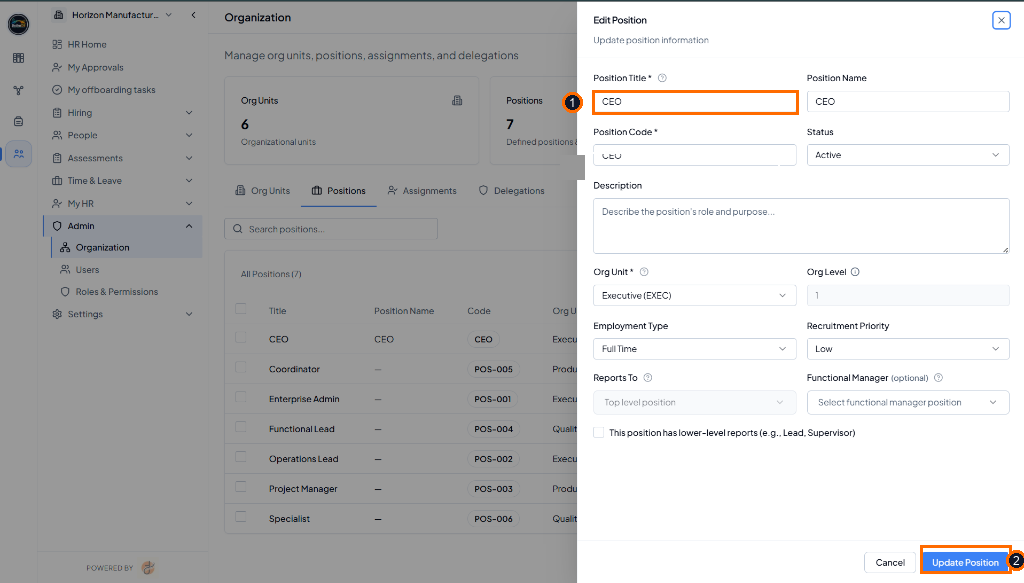 Opened ‘Edit Position’ slide-over drawer highlighting (1) Position
Title input and (2) Update Position action button (Light Mode).
Opened ‘Edit Position’ slide-over drawer highlighting (1) Position
Title input and (2) Update Position action button (Light Mode).
2. Adding New Enterprise Positions
Clicking the + Add Position button on the Positions tab opens the dedicated ‘Create Position’ slide-over drawer for registering new enterprise job roles.1
Click + Add Position
Click the blue + Add Position button on the top right of the
Positions section.
2
Specify Title & Code
Input Position Title and Position Code in the opened drawer.
3
Assign Org Unit & Level
Select target Org Unit and set Org Level classification.
4
Set Type & Reporting Line
Select Employment Type, Recruitment Priority, and Reports To
manager position.
5
Create Position
Click the blue Create Position button to publish the new role.
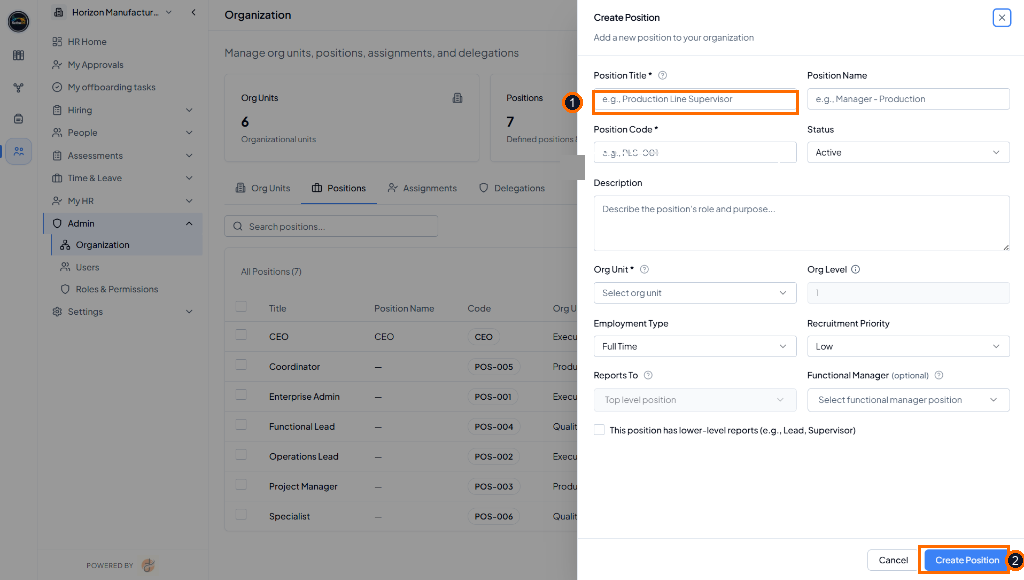 Opened ‘Create Position’ slide-over drawer highlighting (1) Position
Title input and (2) Create Position action button (Light Mode).
Opened ‘Create Position’ slide-over drawer highlighting (1) Position
Title input and (2) Create Position action button (Light Mode).
3. Position Custom Fields
Custom Fields allow administrators to capture specialized metadata on position records (e.g., Security Clearance, Cost Center GL, Shift Pattern). Clicking ‘Custom fields’ opens the custom fields panel, and clicking ’+ Add Custom Field’ opens the field creation modal.1
Click Custom Fields Button
Click the Custom fields button on the top right of the Positions
section.
2
Review Custom Field Panel
Inspect existing custom attributes defined for position records.
3
Click + Add Custom Field
Click the blue + Add Custom Field button to define a new custom
attribute.
4
Configure & Save Field
Specify field label, data type (Text, Number, Dropdown, Date),
required flag, and click Save.
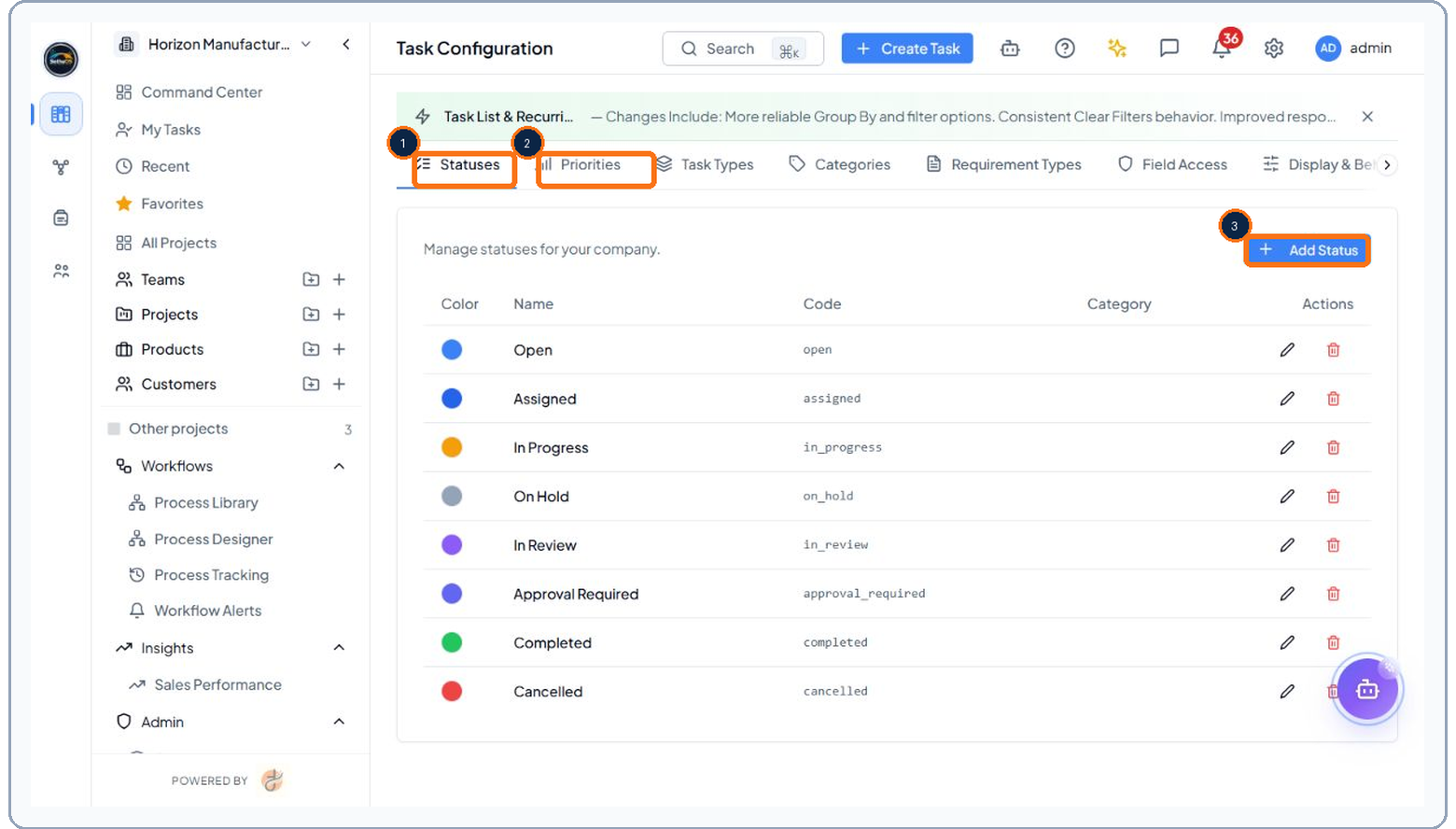 Position Custom Fields view highlighting (1) Custom fields management
button (Light Mode).
Position Custom Fields view highlighting (1) Custom fields management
button (Light Mode).
4. Assigning Employees to Positions
The Assignments tab manages employee occupants assigned to defined positions. Clicking the blue ’+ Assign’ or ‘Assign’ button opens the ‘Assign Person to Position’ modal window for linking active user accounts to vacant positions.1
Open Assignments Tab
Click Assignments tab on the Organization page.
2
Locate Target Position
Find an unassigned position or click the blue + Assign button.
3
Select Employee User
Choose the active employee account from the user selector dropdown
in the opened modal.
4
Set Assignment Type & Dates
Specify assignment classification (Permanent vs Temporary, Primary
flag) and effective start date.
5
Save Assignment
Click Assign Person button to finalize position occupancy.
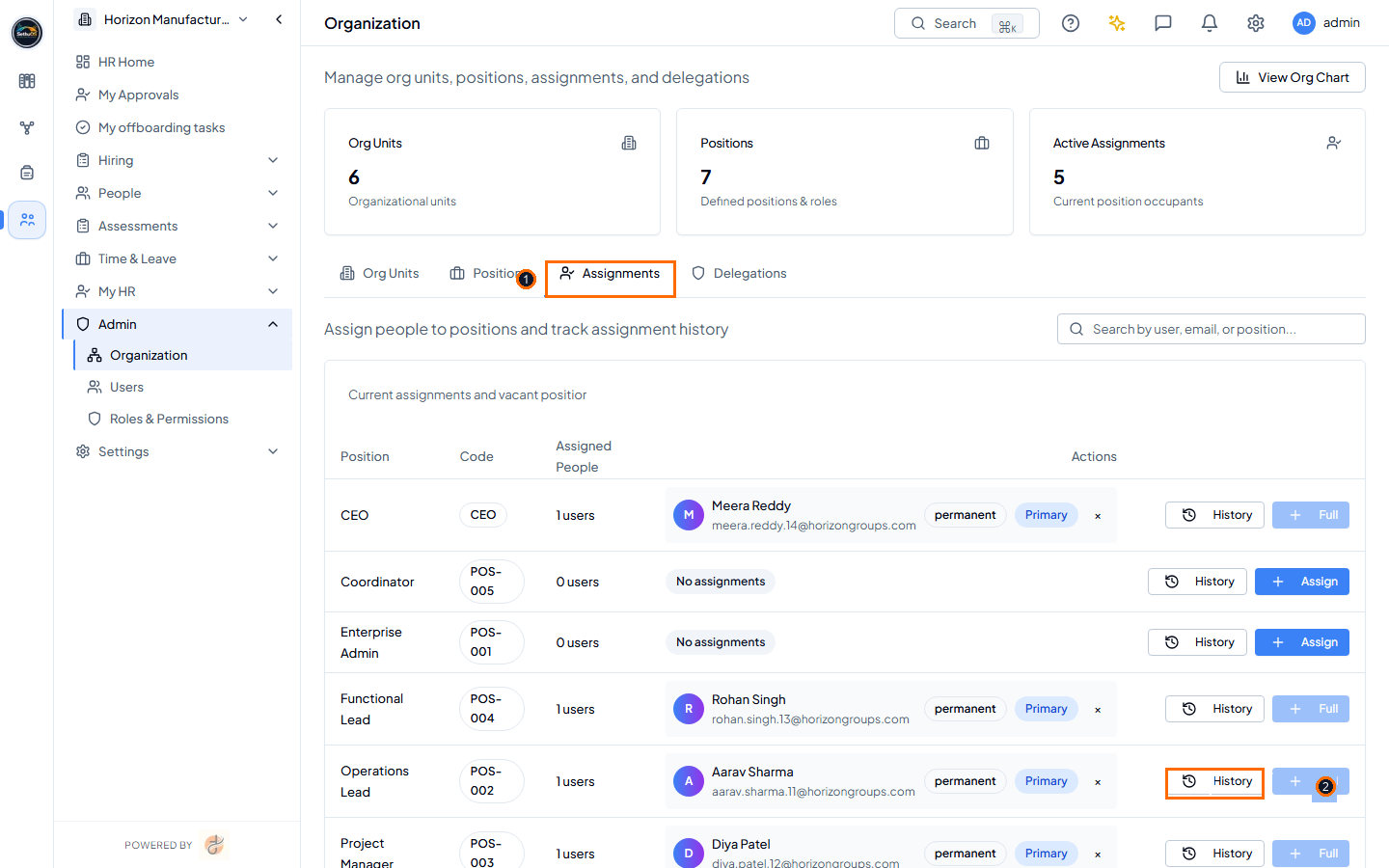 Opened ‘Assign Person to Position’ modal window highlighting (1)
Assignments tab selector and (2) History audit button (Light Mode).
Opened ‘Assign Person to Position’ modal window highlighting (1)
Assignments tab selector and (2) History audit button (Light Mode).