
1. Finding and Organising Your Tasks
The following controls are shared across many My Tasks views. Use them to reduce large task lists into a focused view for the work you are reviewing.1.1 Search
Use Search when you know the task name, task ID or a relevant word. Enter the text in the search box to narrow the current My Tasks view and open the required task directly.Example
Search for “Customer implementation” to quickly find tasks containing that text.
1.2 Filter
Use Filter when you want to see only tasks matching selected conditions. You can apply more than one filter at the same time, then review the active filter chips before continuing.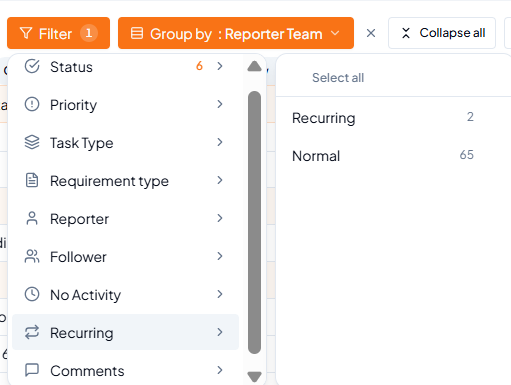 Filter menu with available task criteria.
Open the required tab
Click Filter
Review active filter chips
Clear filters when finished
Remember
More than one filter can be active at the same time. If a task is not visible, first review the active filter chips.
1.3 Group By
Use Group By to organise a long task list into meaningful sections such as Team, Reporter Team, Person, Level or Project.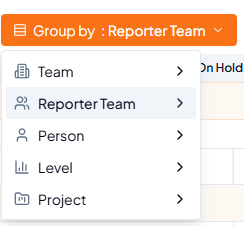 Group By options.
Example
Use Group By > Person when following up with individual team members, or Group By > Project when you want to review all your work project-wise.
1.4 Expand All / Collapse All
When tasks are grouped, each group can be expanded or collapsed. Expand shows the tasks inside the group; Collapse hides them and leaves only the group heading visible.- Expand All opens all grouped sections together.
- Collapse All closes all grouped sections together.
- Use these controls when you want to focus on one team, person or project at a time.
Example
If tasks are grouped by Team, keep Engineering expanded while collapsing other teams during an Engineering review.
1.5 Columns
Use Columns to control the information shown in the task list. Select the fields you need, hide fields that are not required, and reorder the visible columns to suit the current review.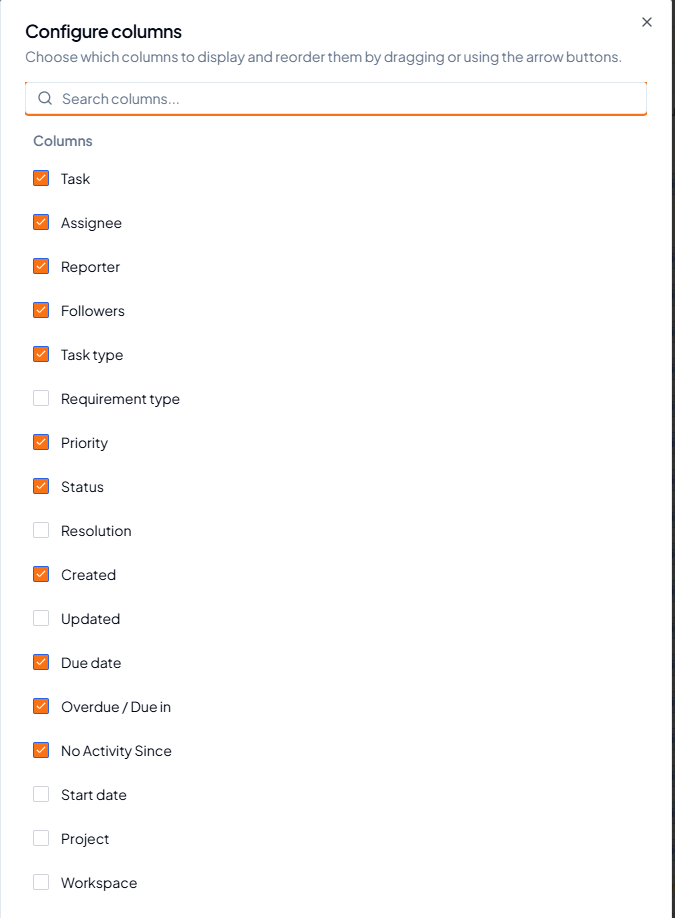 Configure columns by selecting, clearing and reordering fields.
Example
For a deadline review, keep Task, Assignee, Status, Due Date and Overdue / Due In visible. For a project review, add Project and Reporter.
1.6 Counters and Quick Links
- The number beside a My Tasks tab indicates how many relevant items are available in that view.
- Where a Task ID or Task Name appears as a link, select it to open the task directly.
- Summary counters displayed above a view provide a quick indication of current workload or attention items; the counters shown can vary by view.
1.7 Overdue / Due In
Overdue / Due In gives a quick view of deadline status. It may show that a task is due today, due in a number of days, overdue by a number of days, or already done.Example
Use this column together with Priority to decide which task should be addressed first.
1.8 No Activity Since
No Activity Since shows how long a task has remained without recent activity. It helps identify work that may have stopped progressing or requires follow-up.Example
If a delegated task shows no activity for 14 days, open the task and review whether a follow-up is required.
1.9 Use the Controls Together
Search, Filter, Group By, Expand/Collapse and Columns can be used together to create a focused review view.Example
Assigned by Me > Filter Status = In Progress > Group By Person > Collapse groups not being reviewed > show only Task, Assignee, Due Date and No Activity Since.