
Prefer to watch?
1. Overview - Workspace Health & Risk
Why this tab matters
Overview is the management and health-check view of a workspace. Instead of reading individual task rows first, it answers: Are we progressing? What is overdue? Which project is at risk? Who is carrying the open load? What needs intervention next?
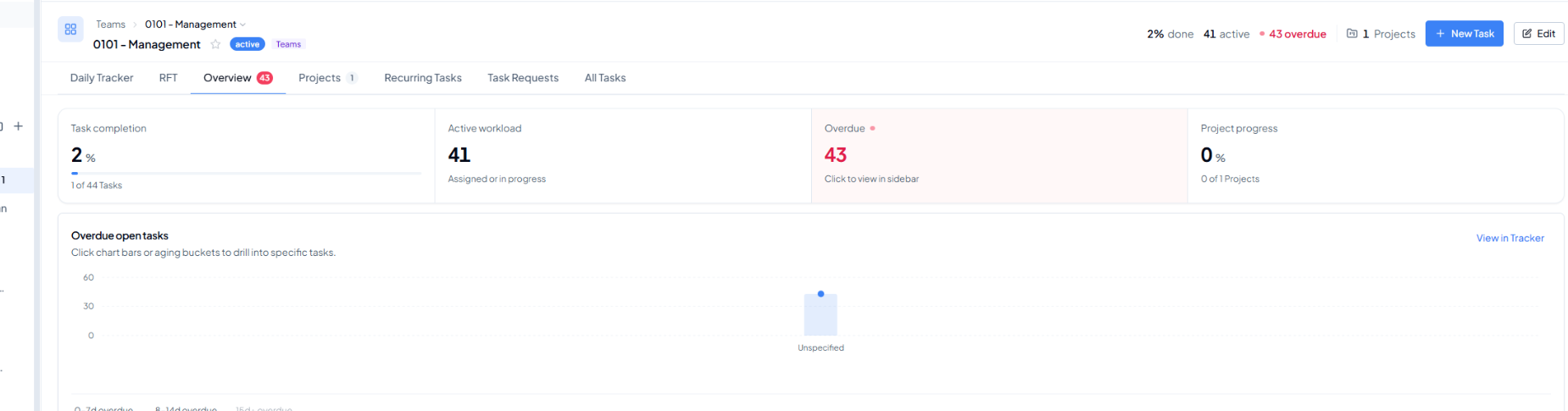 Overview - top KPIs and overdue ageing.
2. Top Summary Cards
3. Overdue Open Tasks
This chart breaks overdue work into ageing buckets so you can see whether the problem is recent or has been sitting unresolved for longer. In the example, the buckets show 2 tasks overdue by 0-7 days, 41 tasks overdue by 8-14 days, and 0 tasks over 15 days.- 0-7 days overdue: recent slippage - often recoverable through immediate follow-up.
- 8-14 days overdue: older backlog - usually needs owner-by-owner review and recovery dates.
- 15+ days overdue: long-aged work - typically needs escalation, re-planning, or closure if no longer valid.
- Drill-down: click the chart bar or ageing bucket to reach the specific tasks behind the number.
4. Project Risk, People Load & Deadlines
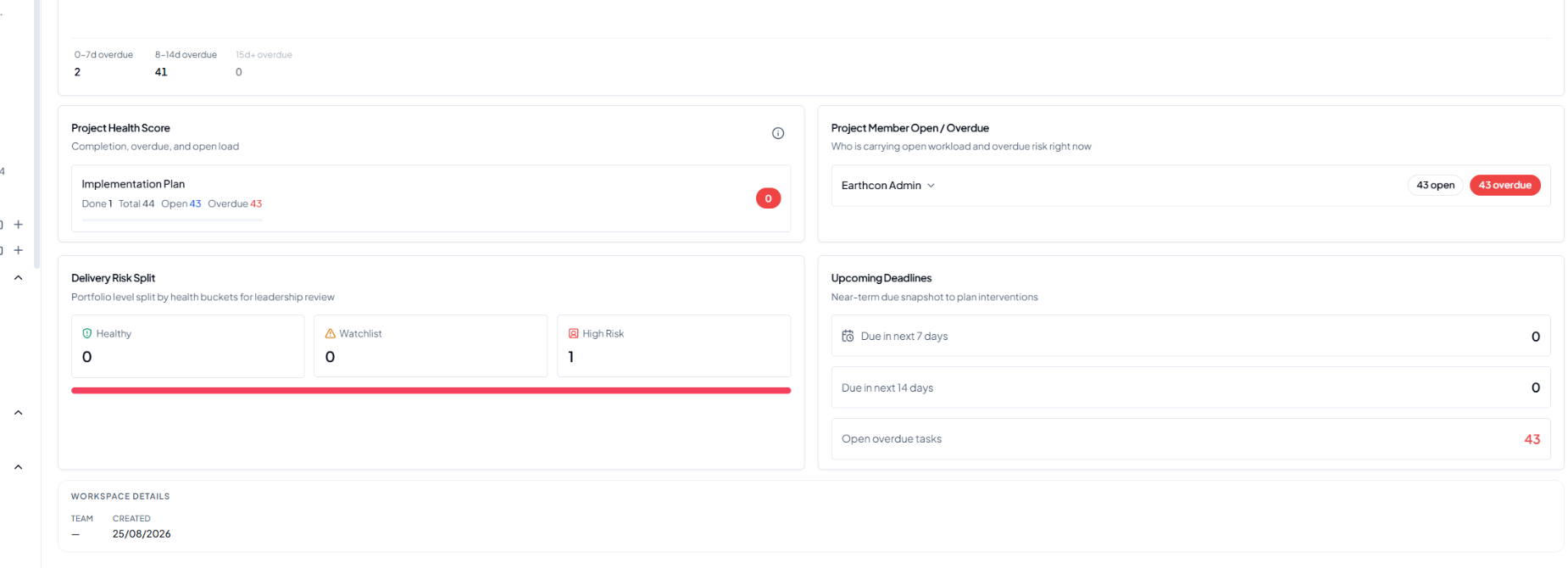 Overview - project health, member load, delivery risk, and upcoming
deadlines.
Overview - project health, member load, delivery risk, and upcoming
deadlines.
5. How to Read the Example in One Minute
Example interpretation
The workspace has 44 total tasks, only 1 completed, 43 overdue, and one project marked High Risk. There are no near-term deadlines because most open work is already past due. The immediate priority is therefore not to create more work; it is to review the 43 overdue tasks, confirm owners and blockers, reset only valid dates, close obsolete work, and bring the high-risk project back to a controlled plan.
6. Recommended Manager Routine for Overview
Start with the red numbers
Check ageing
Check people load
Open the affected project
End with a recovery action