
1. Calendar
What is this?
Calendar displays your relevant tasks according to their dates. It provides a date-based view of work instead of a standard task list.Why is this helpful?
- See upcoming workload by date.
- Identify busy days or weeks.
- Review tasks approaching their deadlines.
- Switch between Month and Week views depending on the level of detail you need.
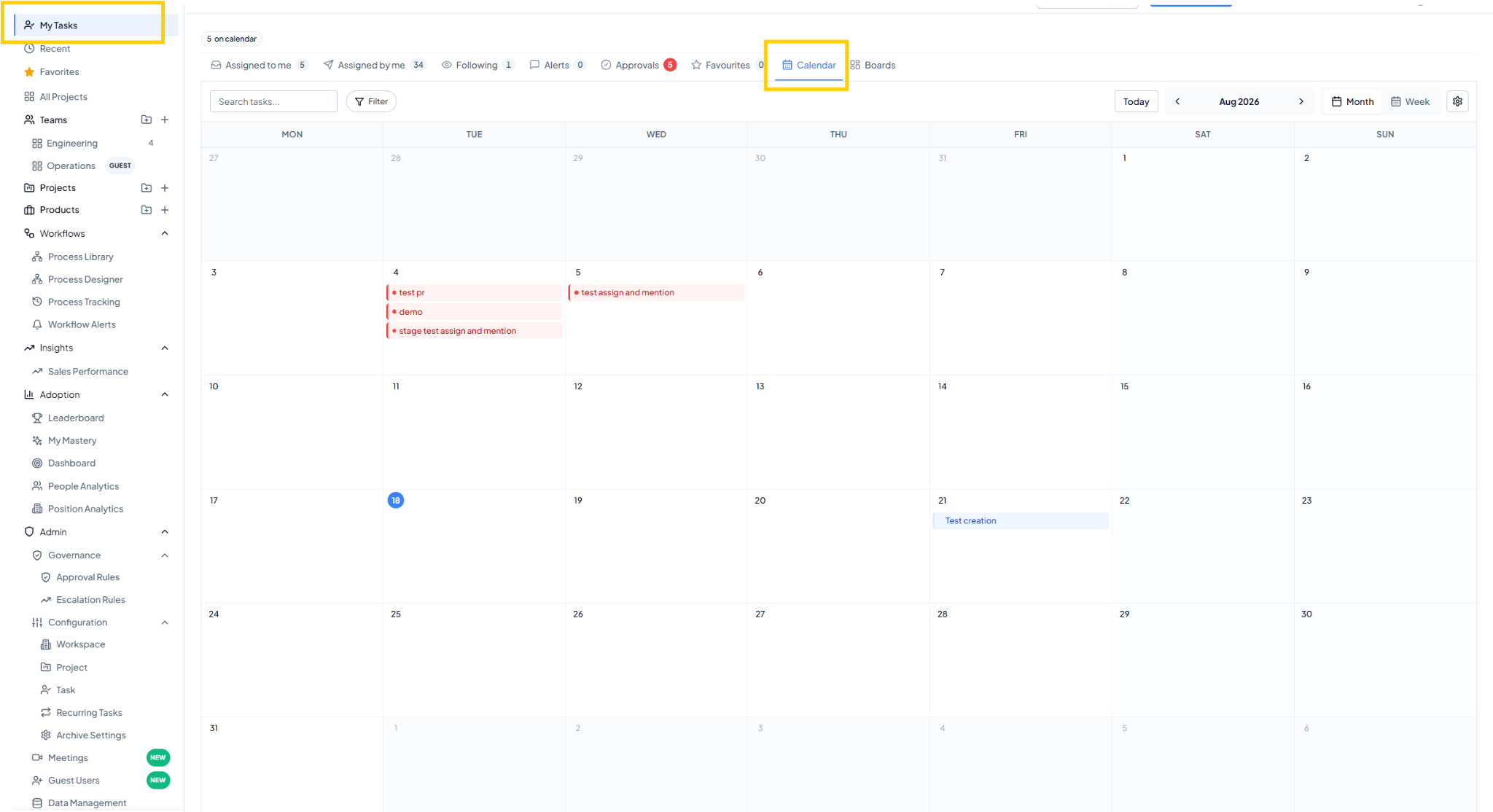 My Tasks Calendar view.
Controls and fields on this page
How to use it
1
Open Calendar
Select Calendar from My Tasks.
2
Choose Month or Week
Use Month for a broader overview or Week for detailed planning.
3
Review scheduled tasks
Check which tasks appear on each date.
4
Search or filter when required
Narrow the calendar when you only want to review selected work.
Example
You have several tasks due in the same week. Switch to Week view to see which days have the highest workload and plan your work accordingly.