
1. Non-Working Days Logic
When an occurrence lands on a weekly-off day or public holiday, the system applies the following logic:
Example: scheduled date is a Sunday weekly off.
Screenshot example — Daily: Config Start Date and Trigger Date are
20-08-2026 and Trigger Time is 09:00. Because the screenshot was taken
after 09:00, the preview begins on 21 Aug 2026 at 09:00, followed by
22 Aug and 23 Aug. Sunday 23 Aug still appears because Don’t adjust is
selected even though Sunday is configured as a weekly off.
2. Company Holiday Calendar
The Non-Working Days section controls what should happen when an occurrence lands on a weekly-off day or public holiday. The recurring schedule depends on the Company Holiday Calendar being configured accurately. Choose the Non-Working Day rule: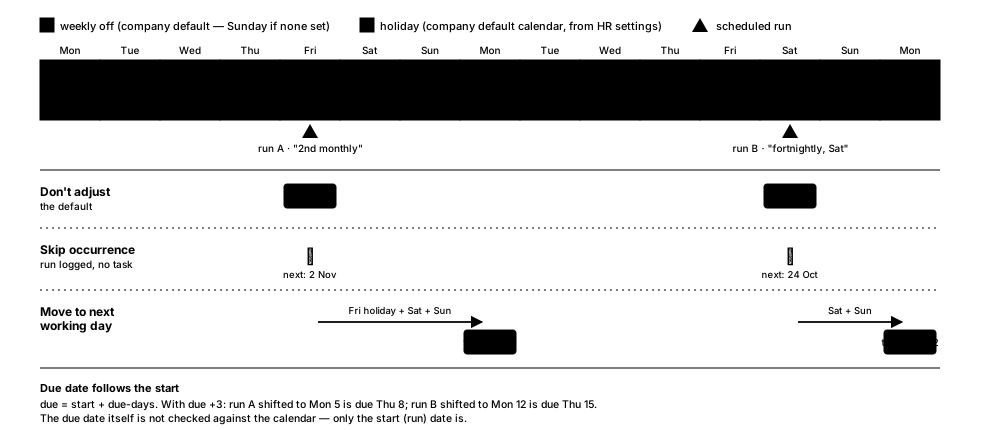 How a recurring task’s date shifts around a company holiday, depending on the configured rule.
What if a Holiday Is Not Yet Decided?
How a recurring task’s date shifts around a company holiday, depending on the configured rule.
What if a Holiday Is Not Yet Decided?
1
Keep the calendar updated as soon as the holiday is approved
The system can only act on holidays that exist in the Company
Holiday Calendar.
2
Before the trigger occurs
If the holiday is announced before generation, add it to the
holiday calendar and verify the recurring definition’s next-run
behavior.
3
If the task already generated
Do not assume a late calendar update will retroactively move or
delete the task. Manually reschedule the generated task, adjust
its due date, or close/recreate it according to your internal
process.
4
For critical work
Use Don’t adjust when the work must happen regardless of holidays,
or define an operational owner who reviews newly declared holidays
against upcoming recurring tasks.
5
Document exceptions
Add a comment/note on any manually adjusted task so the change is
traceable.
Scope note
The screenshots show holiday-calendar lookup and the three non-working-day choices, but they do not show retroactive behavior after a task has already been generated. The handling above is therefore an operational recommendation rather than a claim of automatic retroactive system behavior.