
1. Yearly Schedule — Step by Step
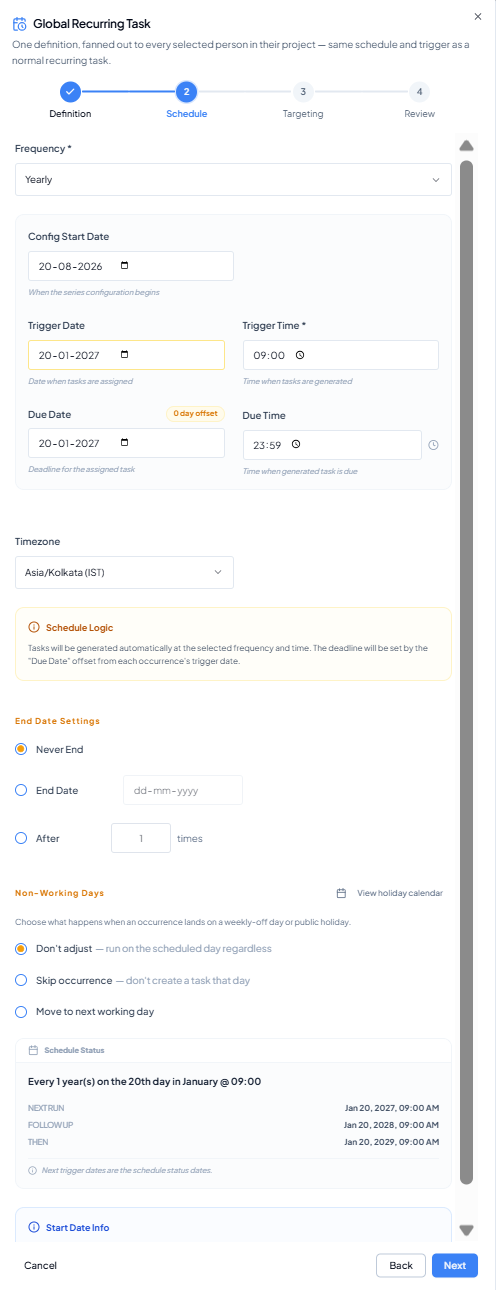 Yearly schedule where the Trigger Date provides the annual month/day
anchor.
Yearly schedule where the Trigger Date provides the annual month/day
anchor.
1
Select Yearly
Choose Yearly from Frequency.
2
Set the annual Trigger Date
Choose the intended month and day. The screenshot example uses
20 January.
3
Set Trigger Time and Due Date/Time
Choose the generation time and deadline offset.
4
Confirm Timezone
Verify the timezone used for the annual run.
5
Apply the common settings
Use the End Date Settings, Non-Working Days and Company Holiday
Calendar settings described above.
6
Verify Schedule Status
Confirm the preview advances by one year and retains the intended
month/day.
Validated screenshot example: an annual Trigger Date of 20 January at
09:00 previews 20 Jan 2027 → 20 Jan 2028 → 20 Jan 2029. This proves
the annual month/day anchor is repeating correctly.
Example use case
Annual contract or licence renewal review: schedule the task on 20 January at 09:00 each year. Verify that the three Schedule Status slots retain 20 January while the year advances by one.