
1. Daily Schedule — Step by Step
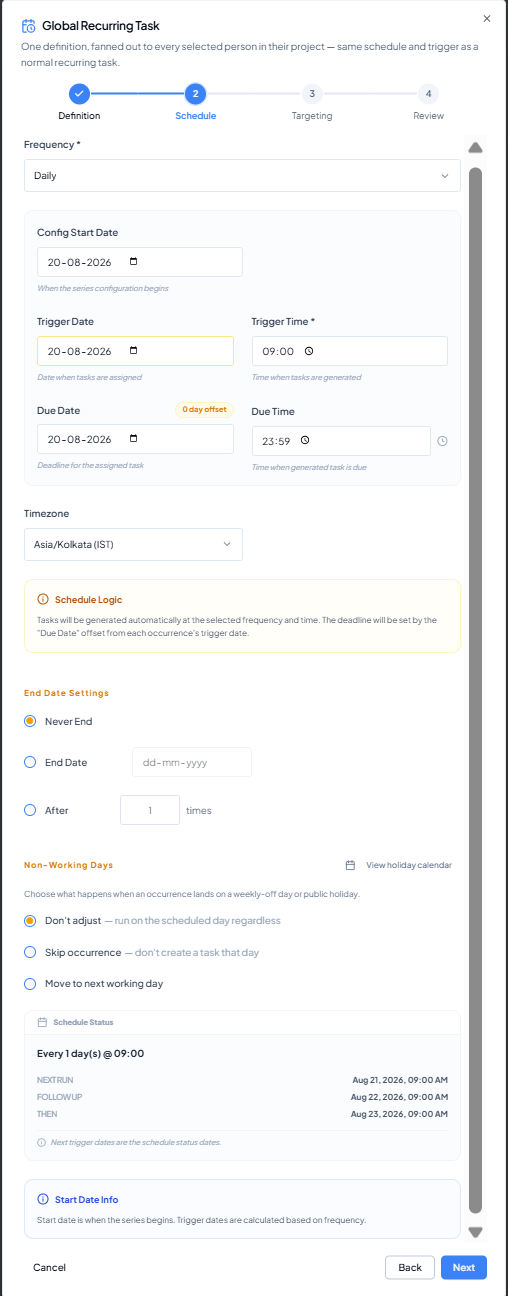 Daily schedule showing trigger/due dates, end-date settings,
non-working-day rules and schedule preview.
Daily schedule showing trigger/due dates, end-date settings,
non-working-day rules and schedule preview.
1
Select Daily
Choose Daily from Frequency.
2
Set Config Start Date
Set the date from which this recurring configuration is valid.
3
Set Trigger Date and Trigger Time
Choose the first intended daily occurrence and generation time.
4
Set Due Date and Due Time
Set the deadline. The displayed offset is reused for future
generated tasks.
5
Confirm Timezone
Verify the business timezone.
6
Apply the common settings
Use the End Date Settings, Non-Working Days and Company Holiday
Calendar settings described above.
7
Verify Schedule Status
Check Next Run, Follow-up and Then before selecting Next.
Validated screenshot example: with Trigger Date 20 Aug 2026 at 09:00
and the setup viewed after 09:00, Schedule Status shows 21 Aug, 22 Aug
and 23 Aug at 09:00. This confirms both the past-time rule and a
one-day cadence.
Example use case
Daily payment follow-up: Trigger at 09:00, Due at 17:00 on the same day. Use Skip occurrence if the task should not exist on holidays/week-offs, or Don’t adjust if it must run every calendar day.