
1. Weekly Schedule — Step by Step
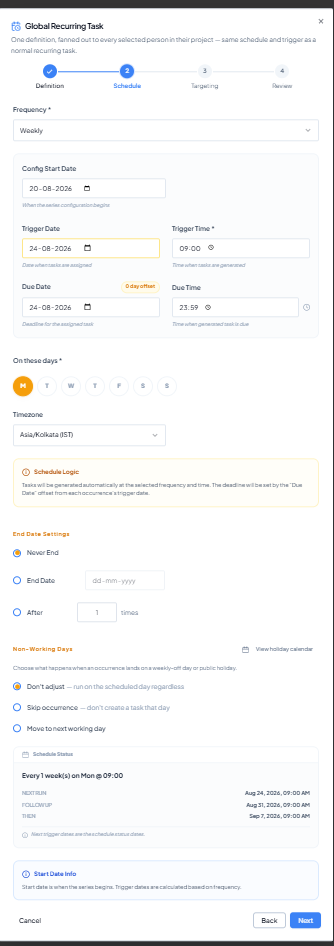 Weekly schedule with weekday selection and next-run preview.
1
Select Weekly
Choose Weekly from Frequency.
2
Set the date/time fields
Configure Config Start Date, Trigger Date, Trigger Time, Due Date
and Due Time.
3
Select "On these days"
Choose one or more weekday buttons, for example Monday and
Thursday.
4
Align the first occurrence
Use a Trigger Date that is consistent with the intended first
selected weekday. If it is not aligned, rely on Schedule Status to
confirm the actual next run.
5
Apply the common settings
Use the End Date Settings, Non-Working Days and Company Holiday
Calendar settings described above.
6
Verify the schedule preview
Confirm the next three dates are on the intended weekdays and at
the intended time.
Validated screenshot example: Monday is selected and Schedule Status
shows 24 Aug 2026, 31 Aug 2026 and 7 Sep 2026, all at 09:00. All three
dates are Mondays and exactly seven days apart.
Example use case
Weekly team status review: run every Monday at 09:00 and make it due at 17:00 the same day. Select Monday under “On these days” and verify that Next Run, Follow-up and Then are consecutive Mondays.