
Prefer to watch?
Watch the video for this guide (2:16)
1. What Is a Global Recurring Task?
A Global Recurring Task lets you create one recurring-task definition and fan it out to the selected people in their selected project(s). The same definition, schedule and trigger logic is reused for each generated task.- Use it for work that repeats in the same pattern for multiple people or project contexts.
- Each generated item is still a task assigned to the selected person in the selected project.
- The setup is completed in four stages: Definition → Schedule → Targeting → Review.
- The recurring definition can later be viewed, edited, paused, archived or deleted from the Global Recurring Tasks page.
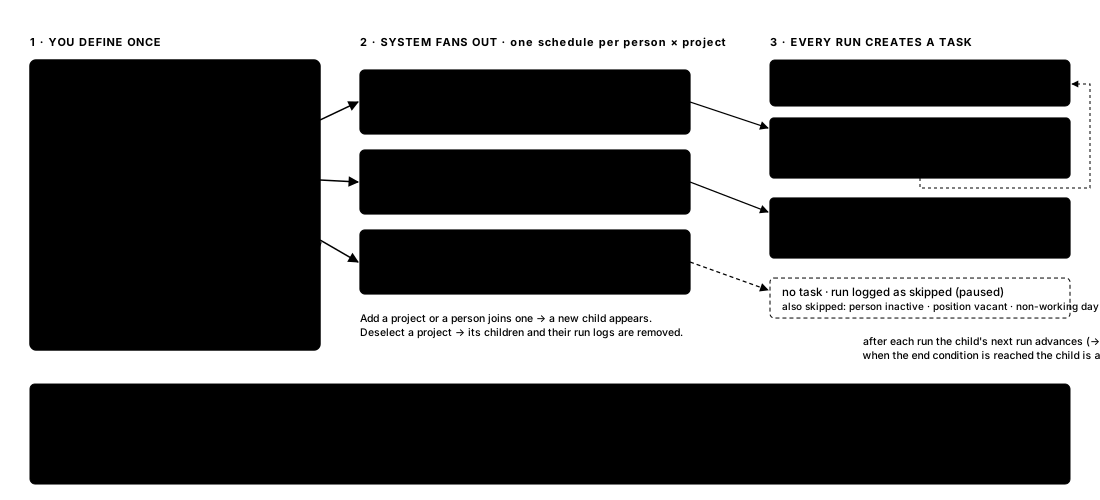 How one recurring task definition fans out into individual task instances.
2. Where to Find Global Recurring Tasks
Navigate to Admin → Configuration → Recurring Tasks. The Global Recurring Tasks page shows the saved definition, status, next run, target summary and schedule summary. Use Create Global Recurring to start a new setup.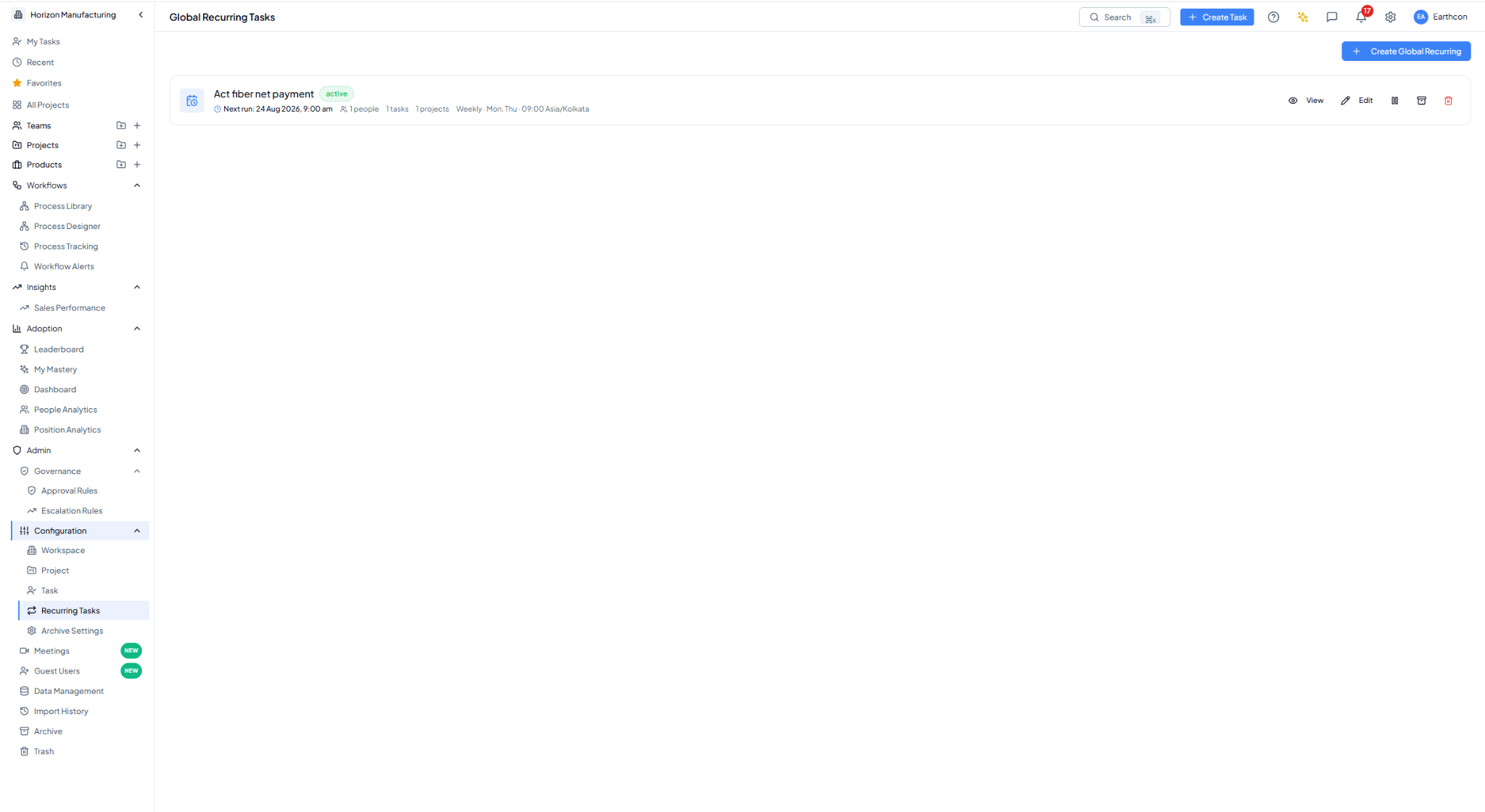 Global Recurring Tasks page showing an active recurring definition,
next run, target summary and schedule.
Global Recurring Tasks page showing an active recurring definition,
next run, target summary and schedule.
3. Before You Start — Check the Company Calendar
Recurring-task handling for weekly offs and holidays uses the Company Calendar. If your company calendar has not been set up yet, go to Global Settings → Company Calendar and configure the Weekly off and Holidays before you start creating recurring tasks. Then return to Admin → Configuration → Recurring Tasks and continue the setup.
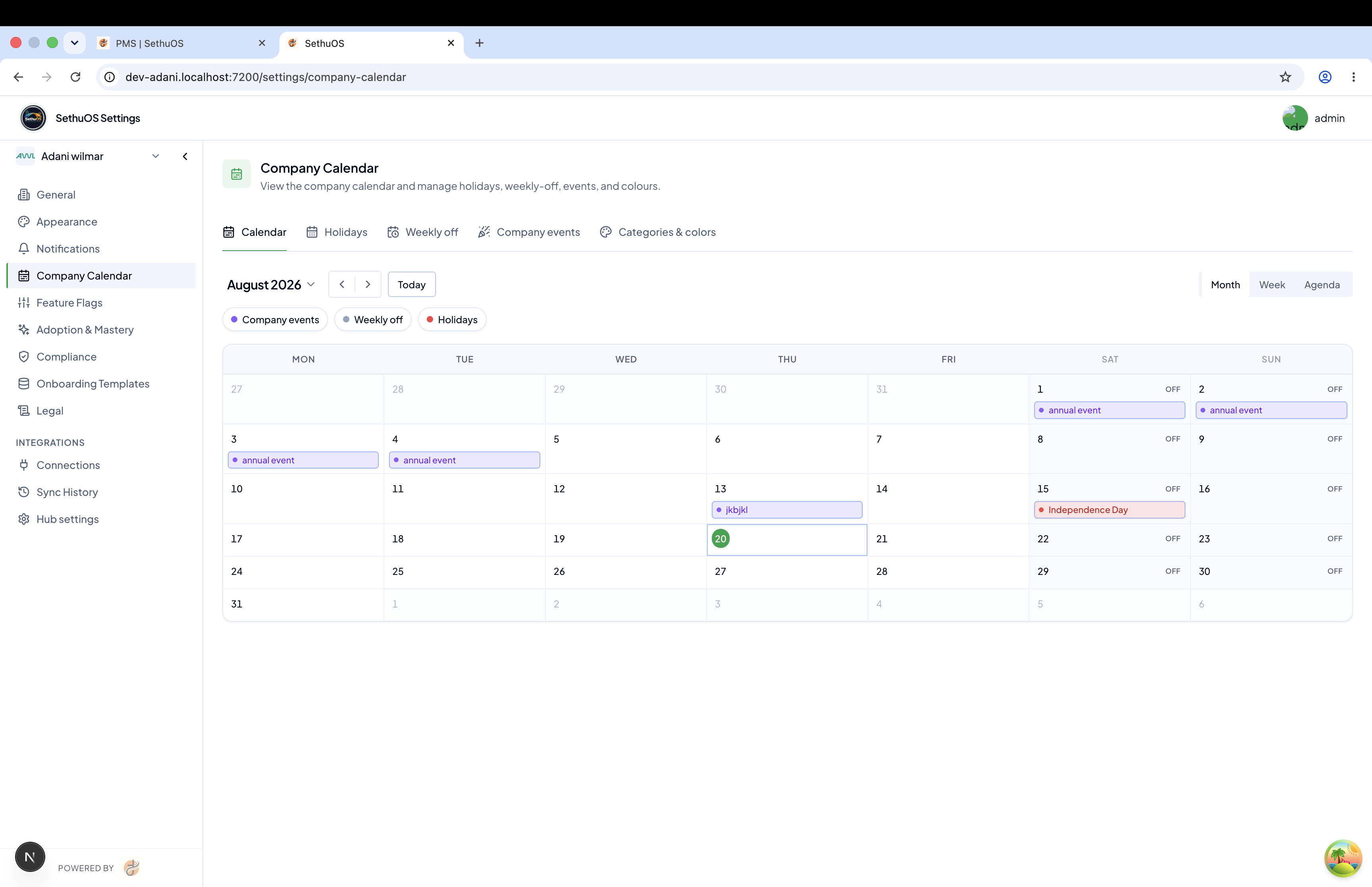 Company Calendar in Global Settings — configure weekly offs and
holidays before setting up recurring tasks.
Company Calendar in Global Settings — configure weekly offs and
holidays before setting up recurring tasks.
4. Four-Step Setup Flow
Watch: Creating a Global Recurring Task
in the Video Gallery — the full walkthrough of creating one
recurring-task definition and fanning it out to selected people and
projects on a repeating schedule.