1. Step 2 — Schedule: Understand the Date Logic First

Before choosing Daily, Weekly or another frequency, understand the date fields. Most scheduling mistakes happen when Config Start Date, Trigger Date and Due Date are treated as the same thing.

Very important — a time that has already passed

The Daily screenshot shows Config Start Date and Trigger Date as 20-08-2026 with Trigger Time 09:00, while the Schedule Status shows the next run as 21 Aug 2026 at 09:00. If you configure the recurrence after today’s trigger time has already passed, do not assume the system will create a retroactive task. Use a future trigger time for the same day, or create today’s task manually and allow the recurrence to continue from the next valid run.

2. Frequency Options

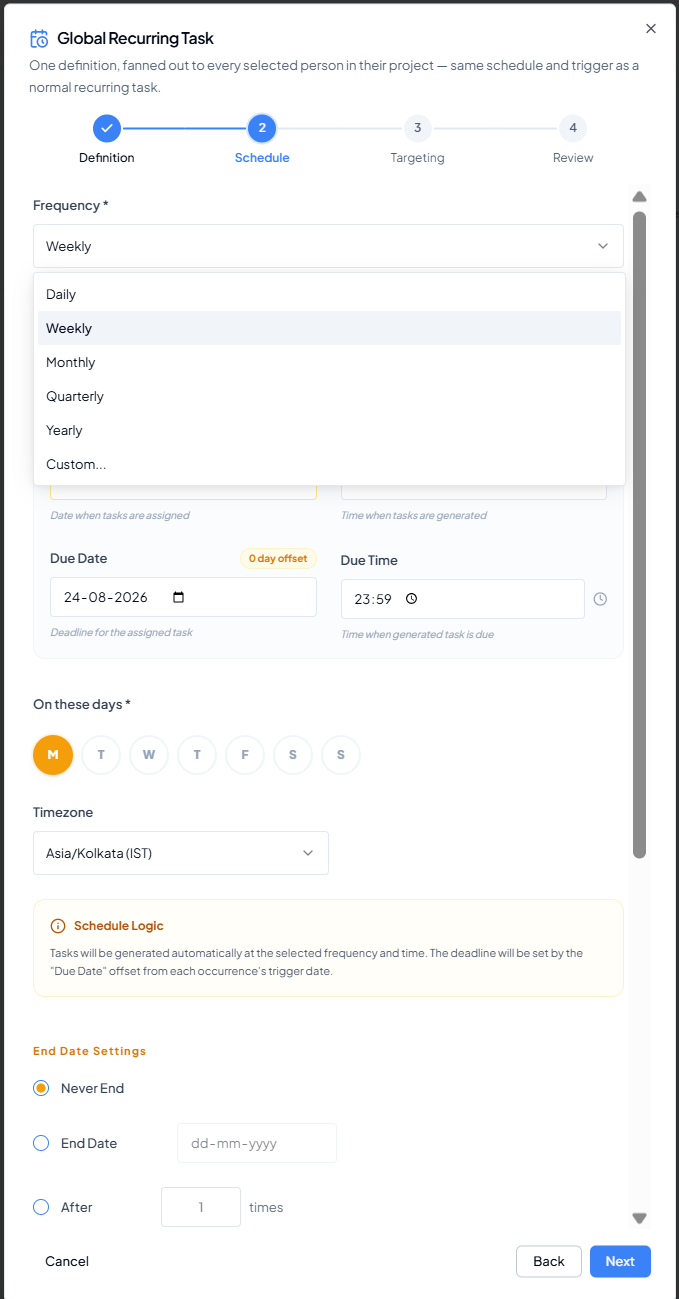
Frequency menu listing Daily, Weekly, Monthly, Quarterly, Yearly and Custom Frequency menu: Daily, Weekly, Monthly, Quarterly, Yearly and Custom.

3. Validate Every Schedule with the 3-Slot Check

Before moving to Targeting, use Schedule Status as the final proof that the recurrence dates are correct.

4. Common Settings Used by Every Frequency

These settings are common to Daily, Weekly, Monthly, Quarterly, Yearly and Custom schedules. Configure them once for the selected recurrence. The frequency sections that follow explain only the settings that change by frequency.

5. End Date Settings

Check the final occurrence

When using End Date or After N times, verify that the Schedule Status preview and the chosen end condition produce the intended final task. If the end date is earlier than the next valid run, no future occurrence may be available.