
1. Custom Schedule — Step by Step
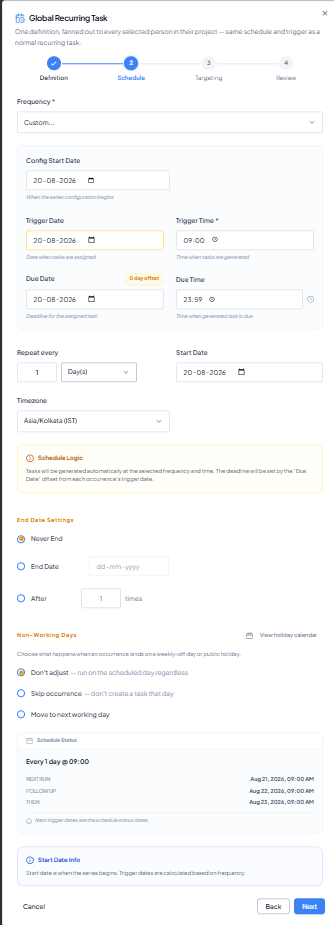 Custom schedule with “Repeat every” interval and Start Date.
1
Select Custom
Choose Custom from Frequency.
2
Set the standard date/time fields
Configure Config Start Date, Trigger Date, Trigger Time, Due Date
and Due Time.
3
Set Repeat every
Enter the repeat interval, for example 1, 2 or 3, and choose the
available time unit from the dropdown.
4
Set Start Date
Use the Custom Start Date as the interval anchor.
5
Apply the common settings
Use the End Date Settings, Non-Working Days and Company Holiday
Calendar settings described above.
6
Validate the preview
Use Schedule Status to confirm the custom interval is behaving as
intended before proceeding.
Validated screenshot example: Custom is set to Repeat every 1 Day(s)
with Start Date 20 Aug 2026 and 09:00. Because 20 Aug 09:00 has
already passed in the screenshot, the preview shows 21 Aug, 22 Aug and
23 Aug at 09:00.
Example use case
Interval-based follow-up: use Custom when a task must repeat every 2 days. Set Repeat every to 2 Day(s), choose the Start Date, and confirm that each Schedule Status slot advances by two days.
When to use Custom
Use Custom when the requirement is interval-based, such as every 2 days or every 3 weeks, rather than a fixed day-of-week/month pattern. The exact time-unit choices should be confirmed from the dropdown in your current build.